Setting Up Other Business Costs
Last updated: January 30, 2026
Beyond product costs, marketing, and staff, your business has many other operational expenses that impact profitability. The Other Business Costs feature lets you track these expenses to see your true net profit accurately.
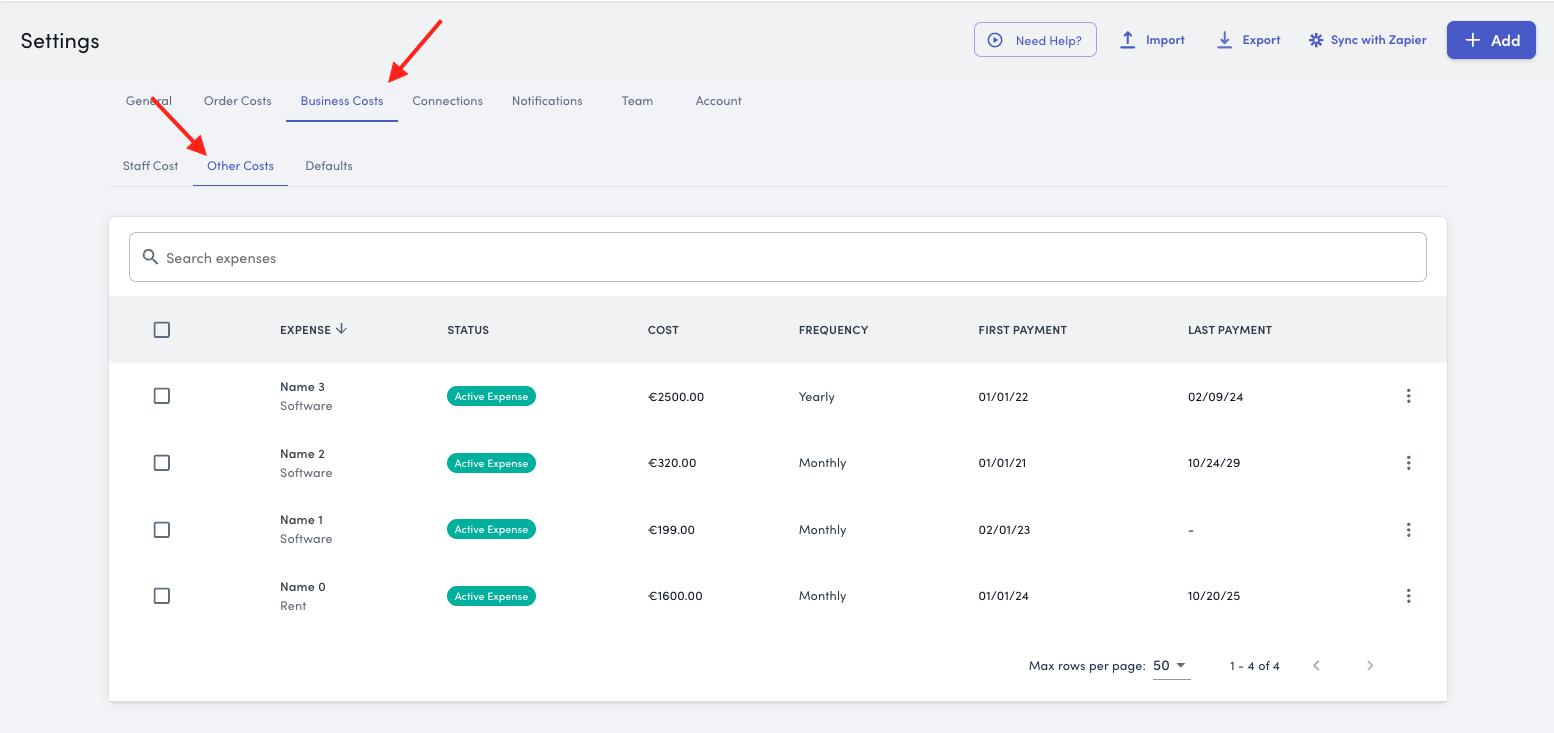
Navigate to Settings > Business Costs > Other Costs to begin tracking your operational expenses.
What Are Other Business Costs?
These are operational expenses that don't fit into other cost categories but are essential for running your business.
Common Categories
Office & Facilities - Rent, utilities, office equipment
Software & Technology - Business software and tools beyond marketing platforms
Professional Services - Legal, accounting, consulting fees
Insurance - Business liability, product liability, property insurance
Banking & Financial - Bank fees, loan interest, merchant account charges
Subscriptions & Memberships - Industry associations, professional development
Licenses & Permits - Business licenses and regulatory costs
Other Operating Expenses - Miscellaneous operational costs
Keep It Simple
StoreHero is not accounting software—we're here to help you understand profitability, not replace your bookkeeper. Don't let perfect be the enemy of good.
Multi-Faceted Business? Use a Blended Approach
If you run multiple revenue streams (e.g., retail store + ecommerce + wholesale) and you're not sure how to allocate shared costs:
Simple Solution: Add a portion of your total operational expenses (OPEX) based on how much revenue your web business represents.
Example:
Total business OPEX: €10,000/month
Web store revenue: 60% of total revenue
Add to StoreHero: €6,000/month (60% of €10,000)
This gives you a reasonable approximation of web business profitability without needing to perfectly allocate every expense.
How to Add a Business Cost
Step 1: Navigate to Other Costs
You'll see a list of previously added costs, including their status and recurrence
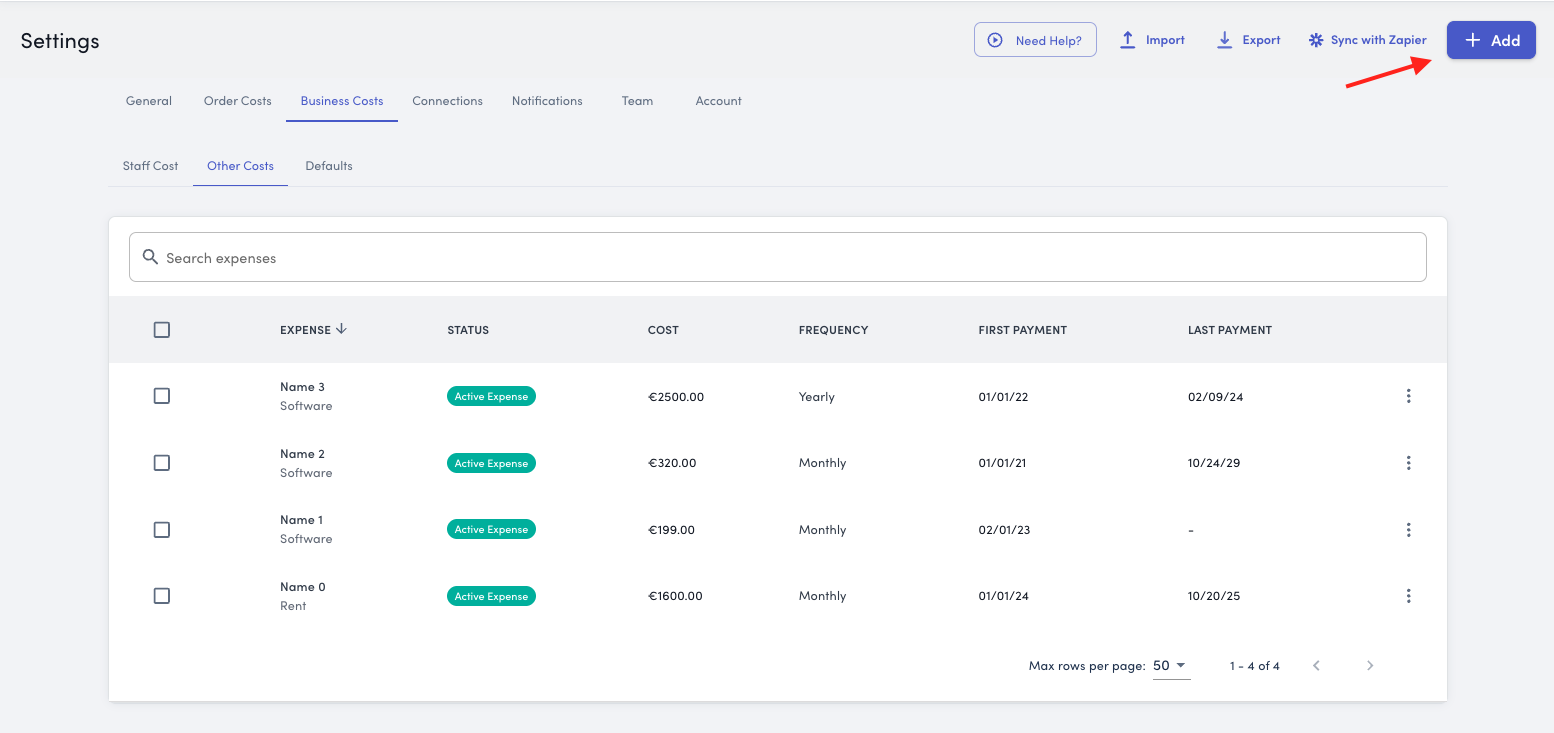
Step 2: Add a New Cost
Click the Add Costs button in the top right corner
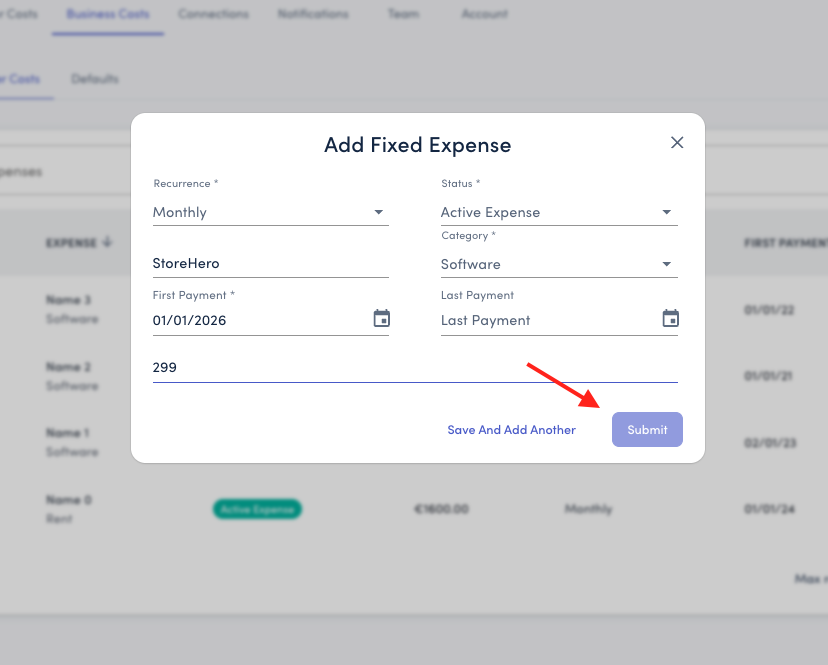
A modal will appear with the following fields
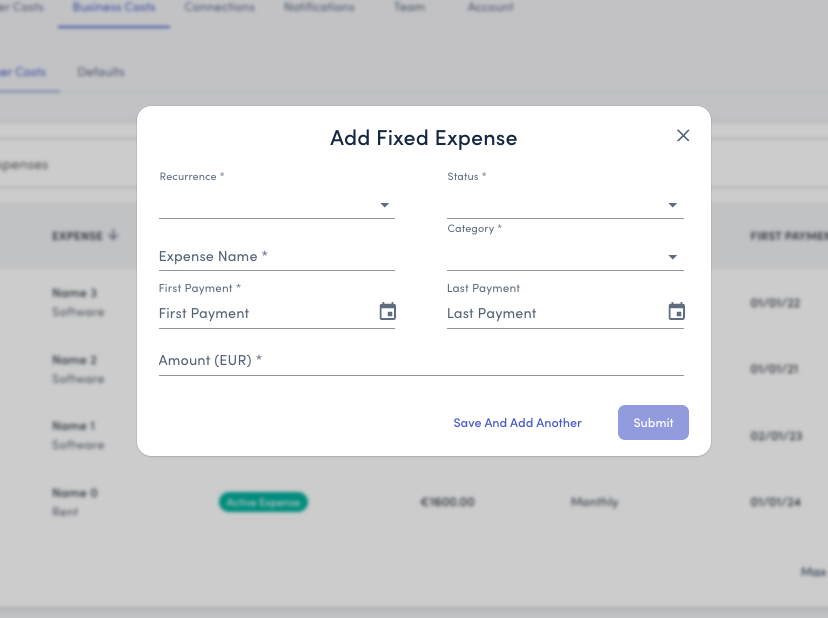
Step 3: Fill Out the Cost Details
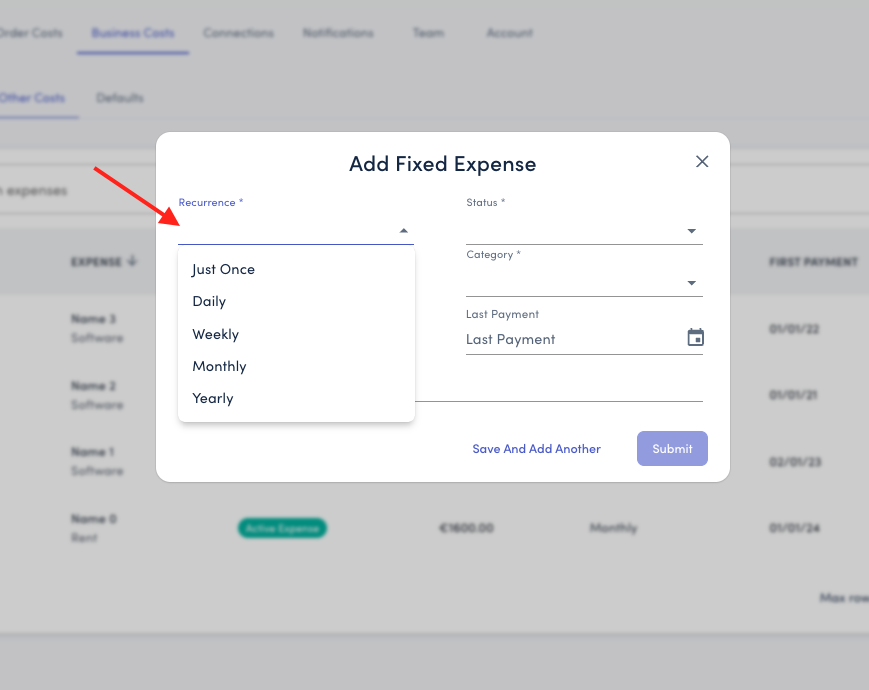
Recurrence: Choose how often this expense occurs:
One-time - Single expense (e.g., legal consultation, equipment purchase)
Daily - Rare, but useful for specific tracking
Weekly - Some service contracts or subscriptions
Monthly - Most common for rent, subscriptions, utilities
Yearly - Annual insurance premiums, licenses, memberships
Status:
Active Expense- Currently incurring this cost
Past Expense - Past expense or temporarily suspended
Active Expense with End Date - A currently running expense with a fixed end date
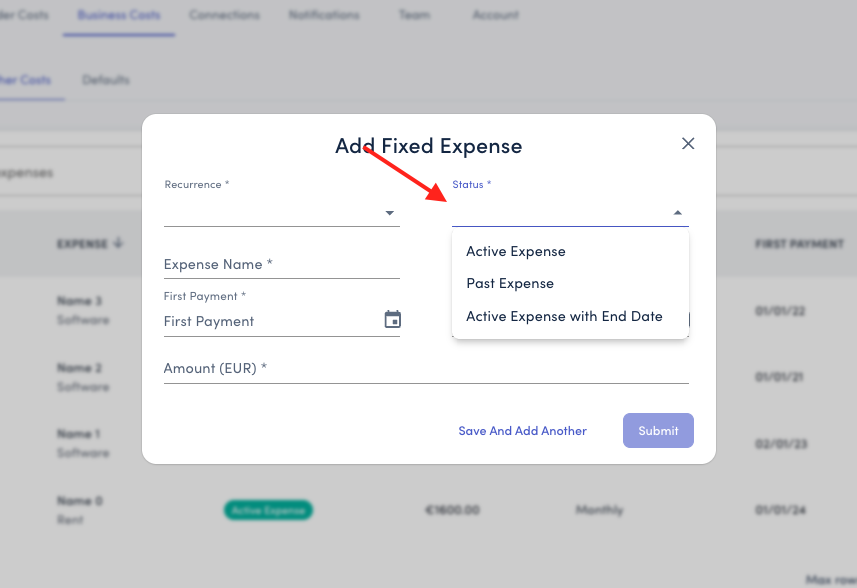
Use inactive status for seasonal expenses or costs that have ended while preserving historical data.
Expense Name: Add a clear, descriptive title that anyone on your team will understand.
Examples:
"Office Rent - Main Street Location"
"QuickBooks Subscription"
"Business Liability Insurance"
"Legal Retainer - Corporate Counsel"
“Shopify & Apps”
“StoreHero”
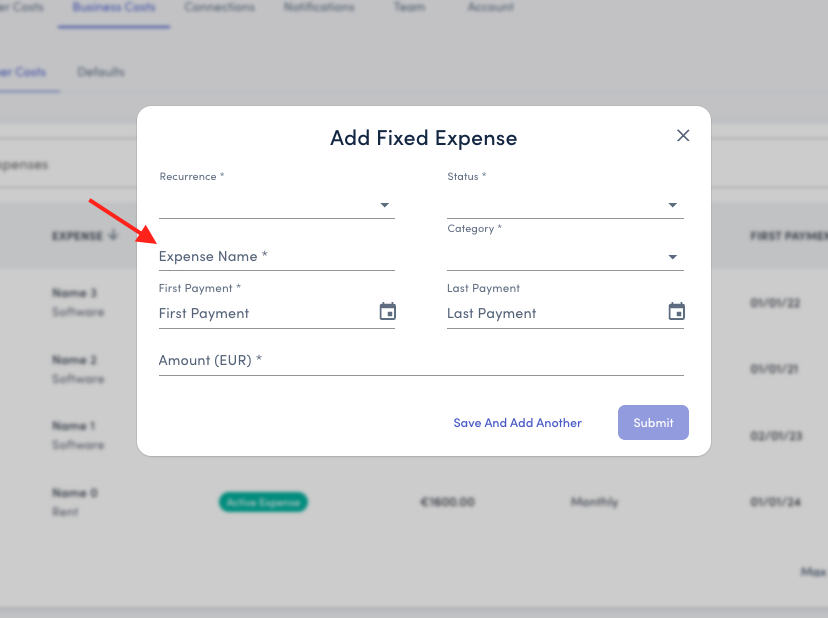
Category: Select the most appropriate category for this expense:
Office & Facilities
Software & Technology
Professional Services
Insurance
Banking & Financial
Subscriptions & Memberships
Licenses & Permits
Other
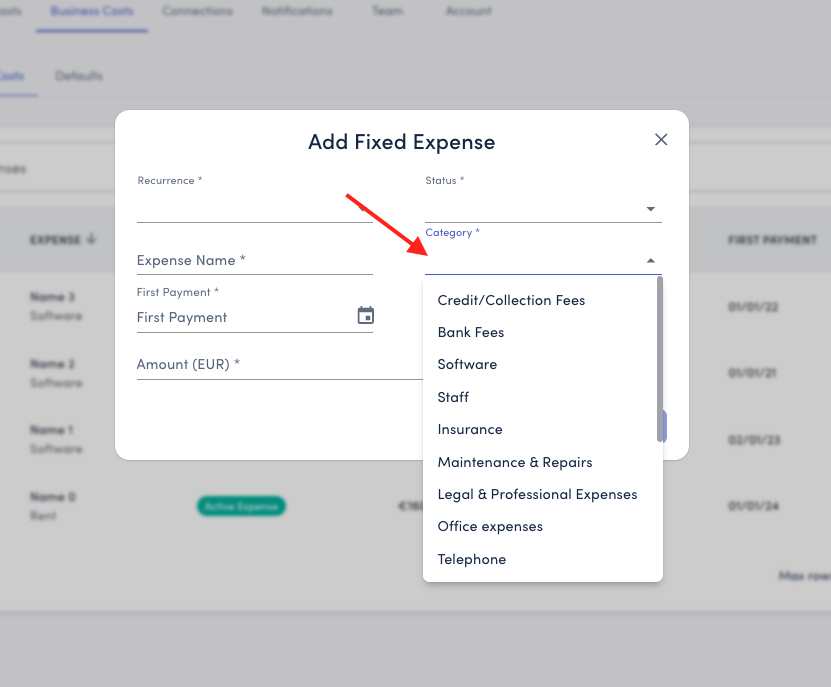
Consistent categorization makes reporting and analysis much easier.
Amount: Enter the cost value in your store's currency. This amount should match your selected recurrence.
Examples:
Monthly office rent: €2,500 (select "Monthly")
Annual insurance premium: €3,600 (select "Yearly")
One-time legal consultation: €800 (select "One-time")
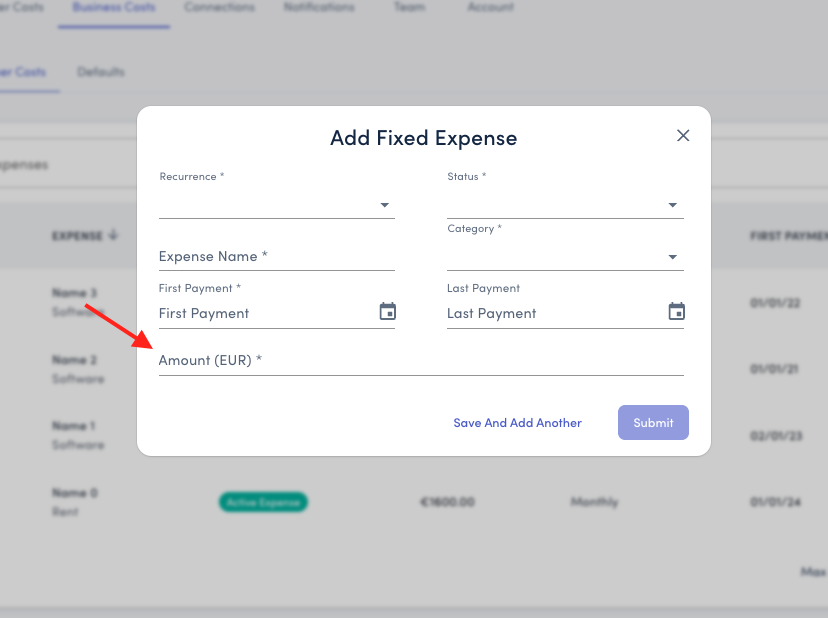
First Payment: Select the date when this expense started or will start. This ensures costs are allocated to the correct time period for accurate profitability tracking.
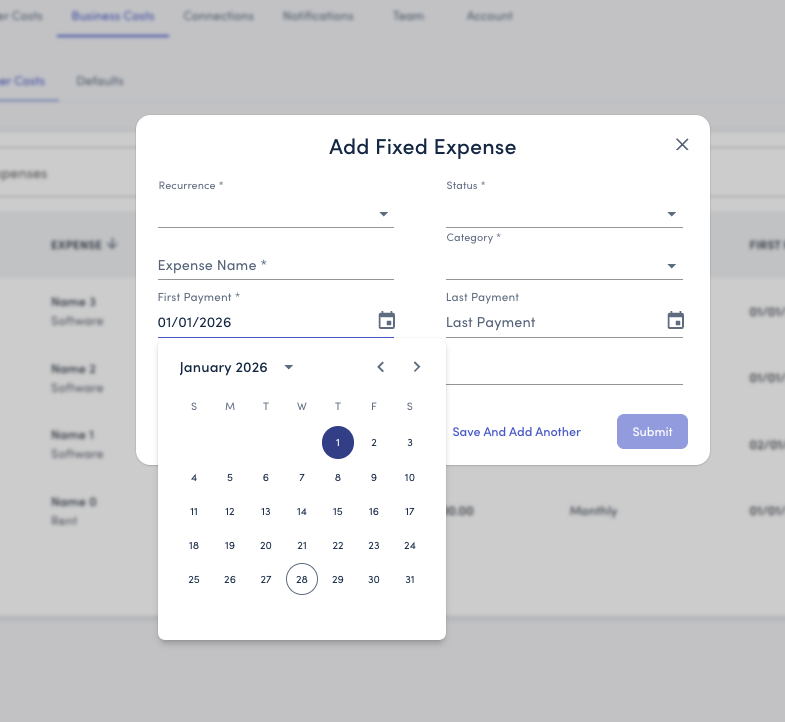
Last Payment (Optional): Keep Last Payment blank if it’s a recurring cost. Only add this if the expense has a set end date.
When to use:
Fixed-term contracts (e.g., 12-month software trial)
Time-limited expenses (e.g., seasonal storage)
Known end dates (e.g., moving offices in 3 months)
When to leave blank:
Ongoing subscriptions with no end date
Open-ended contracts
Indefinite expenses like rent or utilities
Step 4: Save Your Entry
Click Submit to save and close
Or click Save and Add Another to quickly add multiple expenses
How To Add Business Costs In Bulk
If you have a number of costs to add, or are adding historical spend, we recommend using the CSV import.
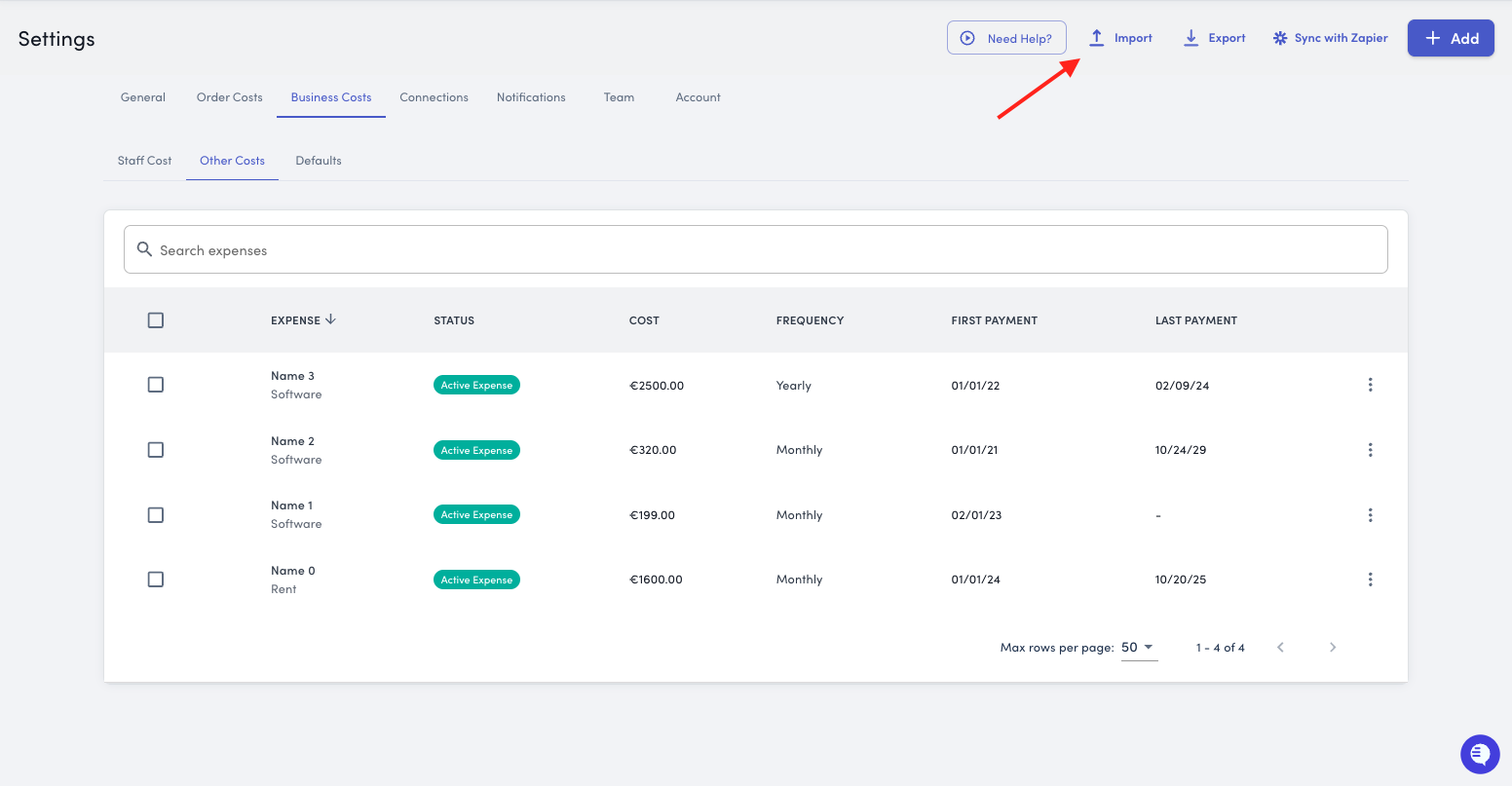
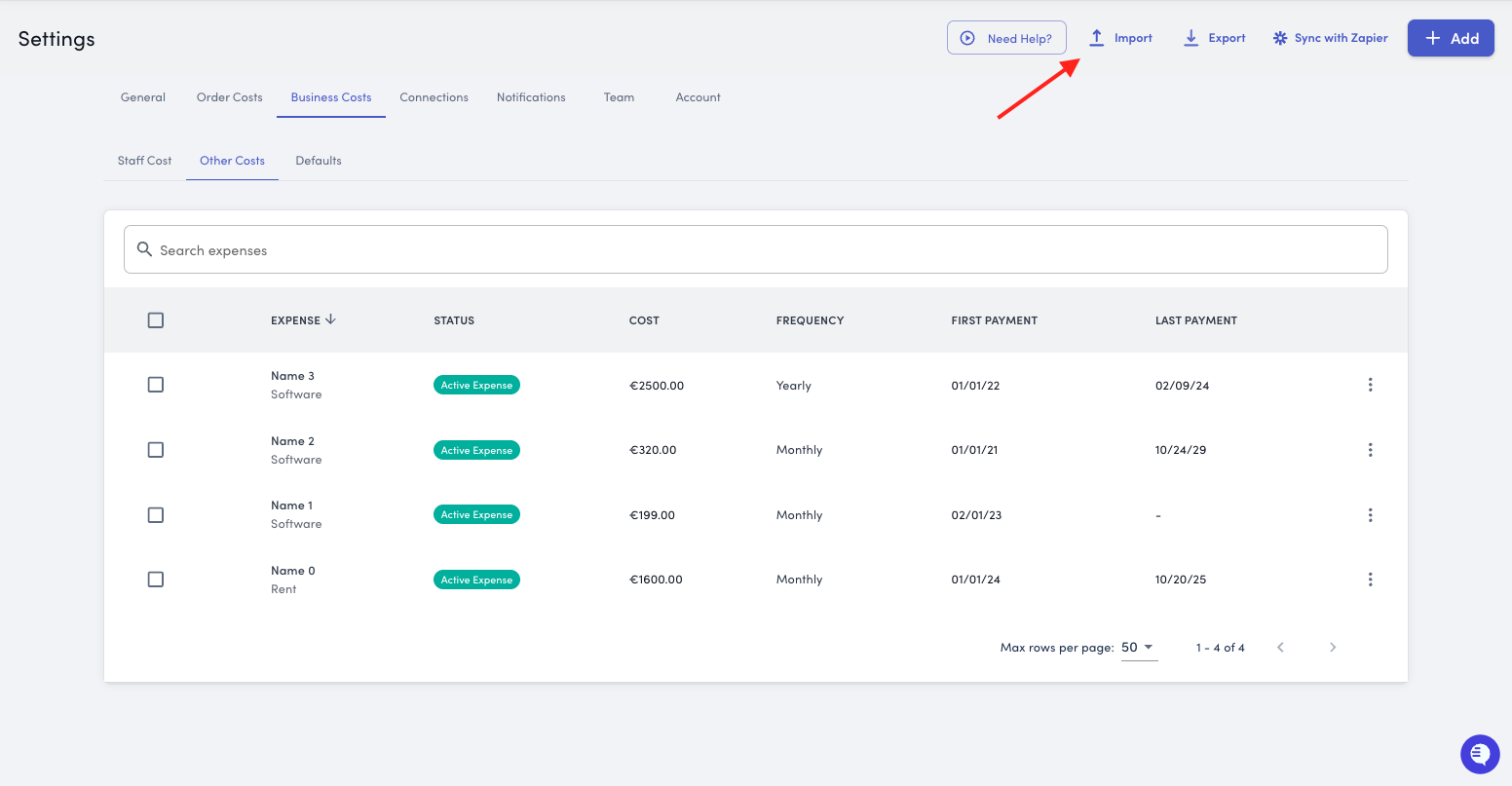
Select Import from the top right corner and export a copy of the CSV template
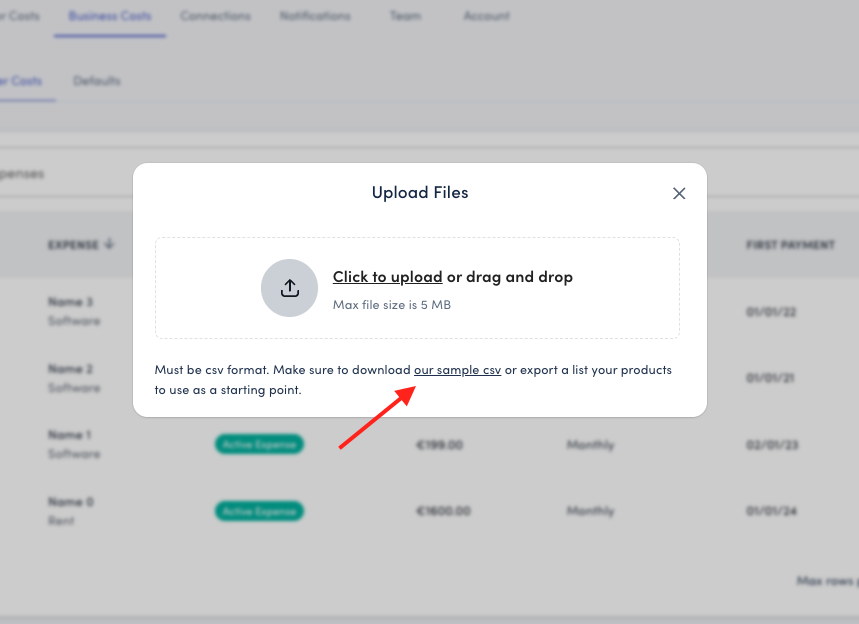
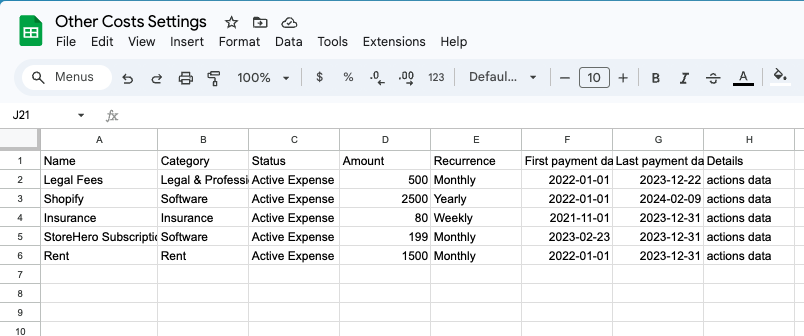
Open the CSV in either Excel or Google Sheets
Add your expenses ensuring the Category, Status, Amount, Recurrence, and Dates are accurate
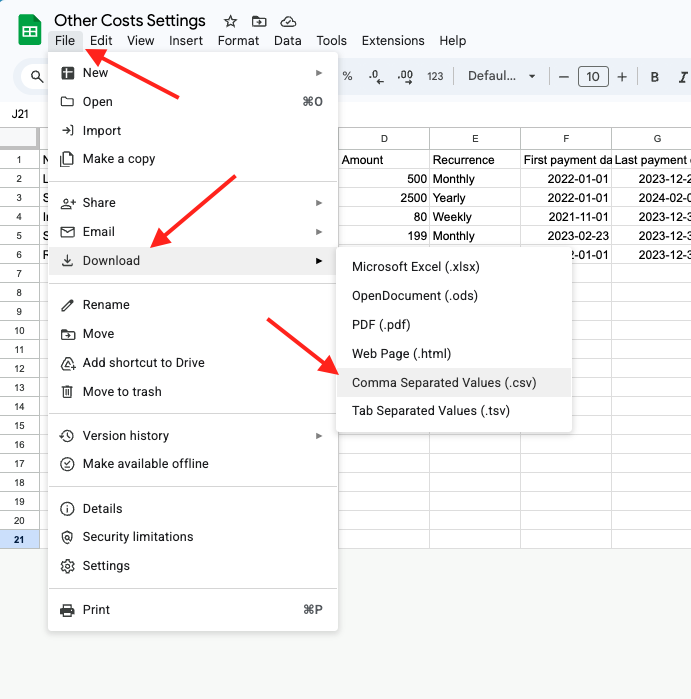
Export the file as a CSV
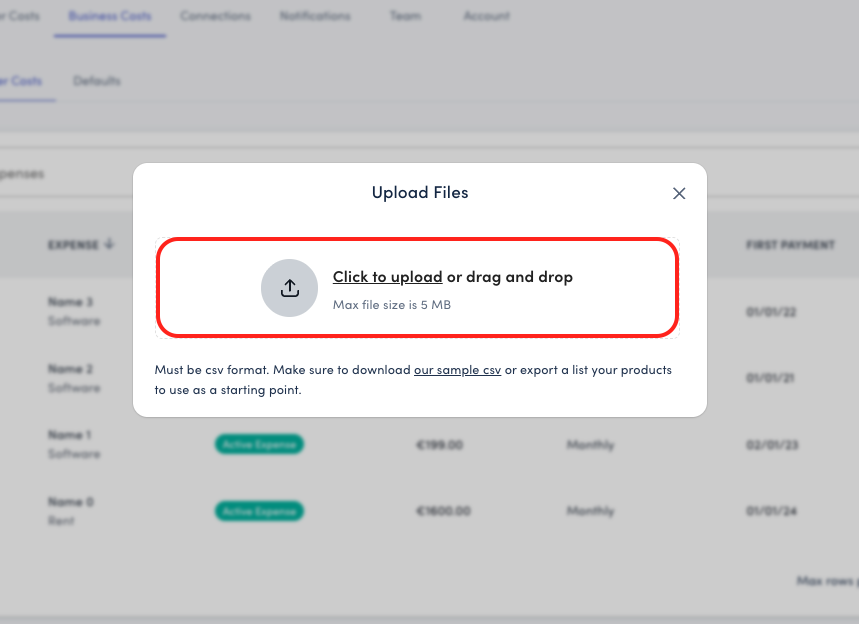
Return to the Settings > Order Costs > Marketing Costs and import your CSV
How To Import Marketing Costs With Zapier
See our How to Connect Zapier guide here!
Note: the example shows how to add shipping costs using Zapier, however, you can use a copy of the other costs sample CSV template and follow the same instructions for mapping the expenses. Zapier will detect when new line items are added and will import them automatically into StoreHero
Great for pulling variable costs from the source like variable business expenses, connecting to QuickBooks or Xero, and more! See all Zapier integrations here
Why This Matters
Including all your business costs—not just cost of goods sold and marketing—gives you an accurate picture of net profit.
True Net Profit Calculation
Without tracking operational expenses, you're only seeing contribution margin, not actual net profit.
Example:
Revenue: €100,000
COGS: €40,000
Marketing: €20,000
Contribution Margin: €40,000 ← This is NOT your net profit
Adding Other Costs:
Staff: €15,000
Rent & utilities: €3,000
Software subscriptions: €1,000
Insurance: €500
Professional services: €1,500
Net Profit: €19,000 ← This is your TRUE profit
That's a €21,000 difference—these "other" costs represent over 50% of what looked like profit!
Better Financial Planning
With complete cost tracking, you can:
Set realistic revenue targets
Understand true break-even points
Plan for growth accurately
Identify cost-cutting opportunities
Make informed pricing decisions
Accurate Cash Flow Forecasting
Knowing when recurring costs hit helps you plan cash flow and avoid surprises.
Best Practices
Keep Categories Consistent
Use the same categories for similar expenses to enable clean reporting. This makes it easy to see total spending by category and identify trends.
Use Descriptive Names
Include enough detail that anyone reviewing expenses understands what they're for. Include vendor names, locations, or purpose when relevant.
Review Monthly
Set a calendar reminder to:
Add new business expenses as they're committed
Mark canceled subscriptions or ended contracts as inactive
Update amounts if pricing changed
Verify all active costs are still accurate and necessary
Don't Delete—Deactivate
Instead of deleting expired costs, mark them as "Inactive." This preserves historical data for:
Year-over-year comparisons
Understanding total cost of operations over time
Complete financial records
Tax and accounting purposes
Add Costs Promptly
Don't wait until month-end. Add new expenses as soon as you commit to them so your real-time profitability view stays accurate.
Allocate Properly
If a cost could fit multiple categories:
Marketing contractors → Additional Marketing Costs
Fulfillment staff → Staff Costs (Shipping/Fulfillment)
General business insurance → Other Costs
This keeps your reporting clean and prevents double-counting.
Impact on Your Metrics
Adding other business costs affects your bottom-line profitability:
Contribution Margin: Revenue - COGS - Marketing = Contribution Margin
Net Profit: Contribution Margin - Staff Costs - Other Costs = Net Profit
Net Profit Margin: Net Profit ÷ Revenue = Your true profitability percentage
With complete cost tracking, you'll see realistic margins that guide better decisions about pricing, spending, and growth.
Don't Forget to Save
After making any changes to your other business cost settings, always click the Submit or Save and Add Another button to ensure your updates are applied.
Need Help?
If you have questions about which expenses to track or how to categorize your business costs, our support team is here to help. Contact us at support@storehero.ai.