Adding Transaction Fees
Last updated: January 30, 2026
Transaction fees from payment gateways impact your profitability on every order. StoreHero makes it easy to track these costs accurately, whether you use Shopify Payments or other payment providers.
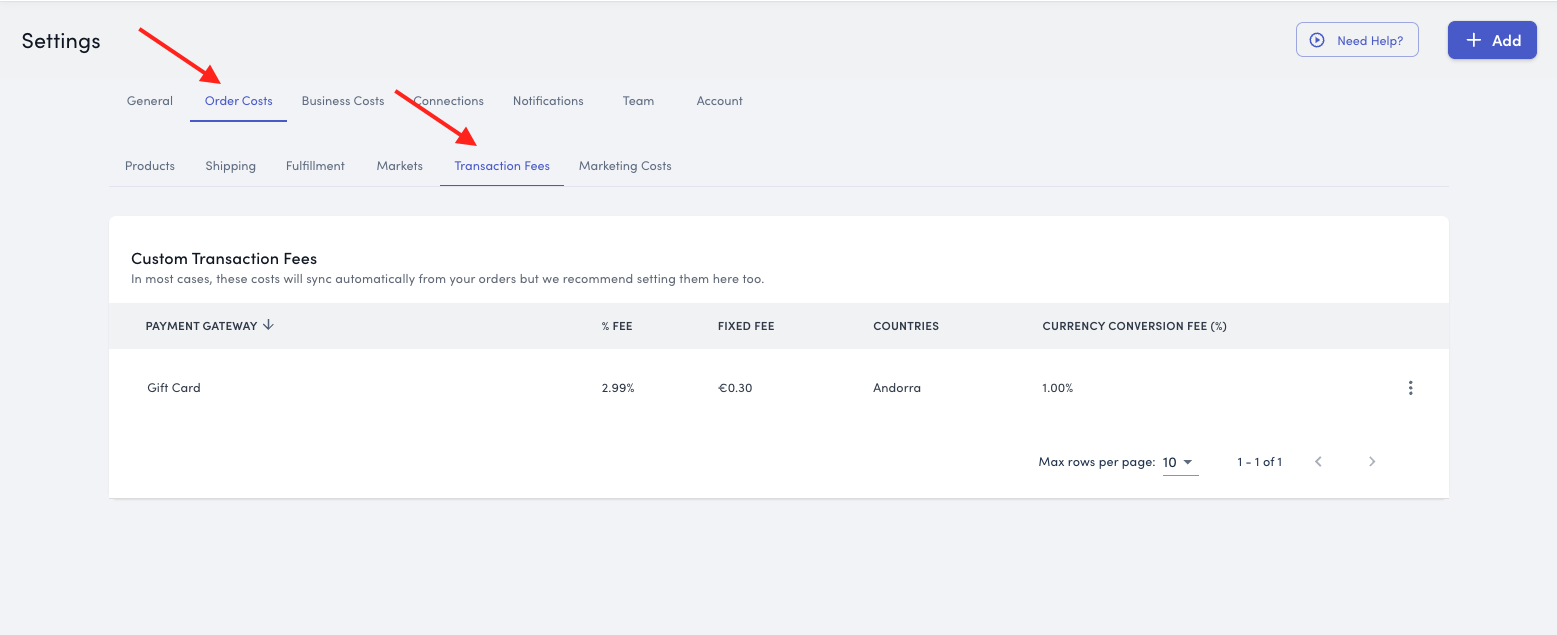
Navigate to Settings > Order Costs > Transaction Fees to begin configuring your payment gateway fees.
If you're unsure of your rates, please check this guide for averages.
Shopify Payments (Automatic)
If you use Shopify with Shopify Payments, transaction fees are automatically captured and calculated—no extra work required.
Adding Other Payment Gateways
If you use payment gateways beyond Shopify Payments—such as PayPal, Klarna, Afterpay, or Global-e—you'll need to set these rates separately.
How to Add a Payment Gateway
Navigate to Settings > Order Costs > Transaction Fees
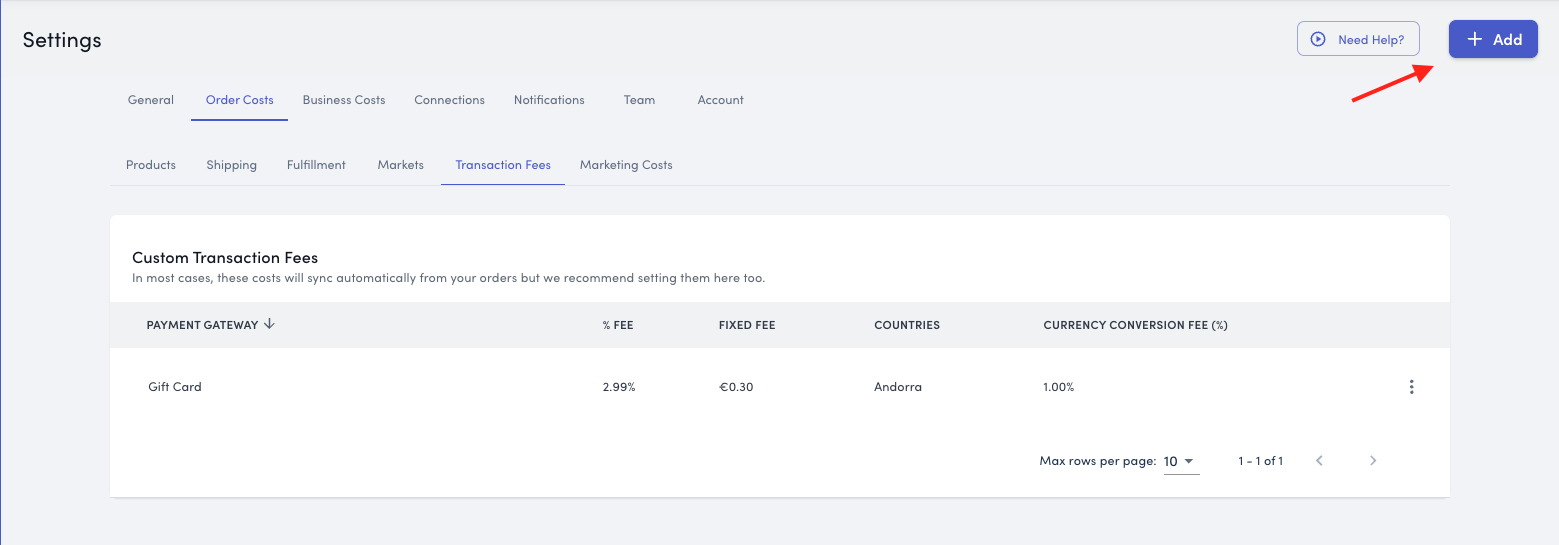
Click the Add Costs button in the top right corner
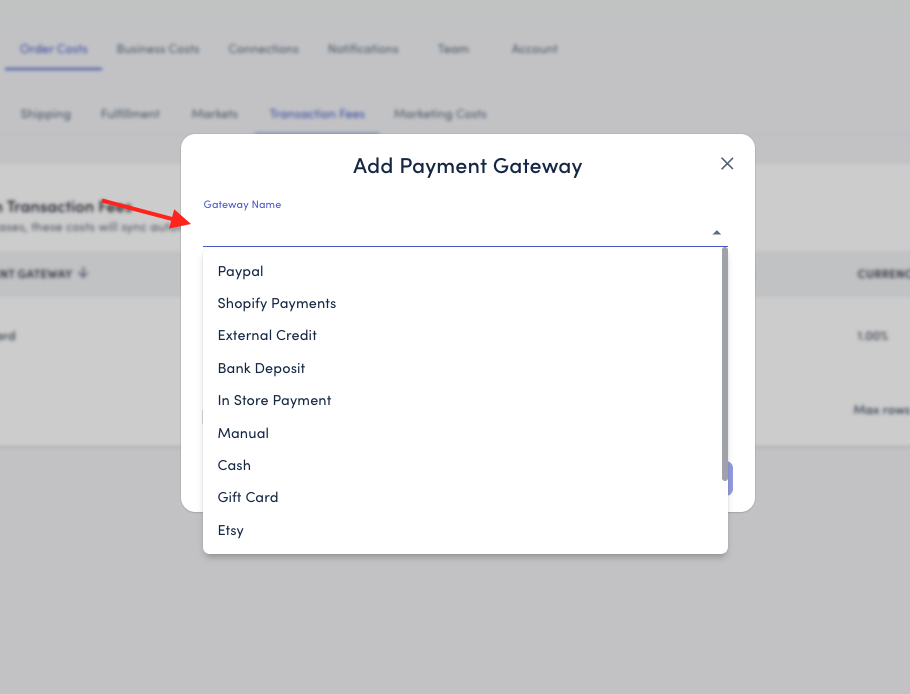
Select the payment gateway from the dropdown list (note: only gateways used to previously process an orderwill appear in the list)
Configure the fee structure:
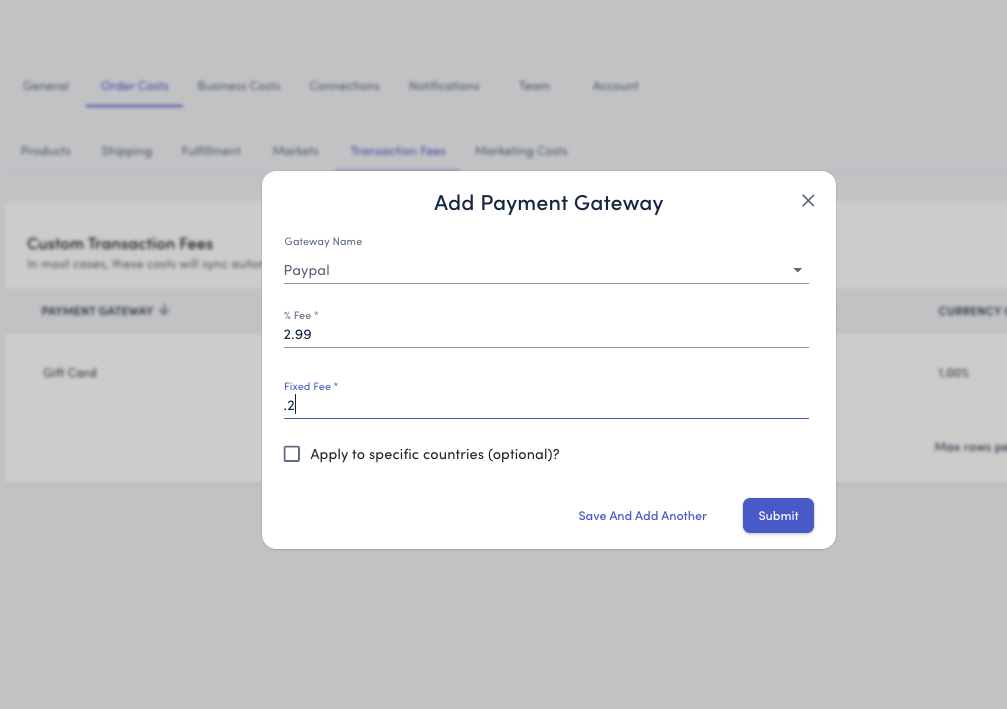
Fee Structure:
Percentage Fee (%) - The percentage charged per transaction (e.g., 2.9%)
Fixed Fee - The flat fee charged per transaction in your store currency (e.g., €0.30)
Example: PayPal charges 2.9% + €0.30 per transaction
Enter 2.9 in the percentage field
Enter 0.30 in the fixed fee field
Click Save or Submit
How Transaction Fees Calculate
For each order processed through this gateway, the total transaction fee will be:
Transaction Fee = (Order Total × Percentage) + Fixed Fee
Example:
Order total: €100
Gateway: PayPal (2.9% + €0.30)
Transaction fee: (€100 × 2.9%) + €0.30 = €2.90 + €0.30 = €3.20
Currency Conversion Fees
Some payment gateways charge additional fees when processing payments in a currency different from your store's base currency.
When This Applies
Currency conversion fees typically occur when:
Your store is in EUR but accepts payments in USD, GBP, etc.
Customers pay in their local currency
The payment gateway converts the currency
Setting Up Country-Specific Fees
To account for currency conversion fees:
When adding or editing a payment gateway, look for the "Apply to Specific Countries" option
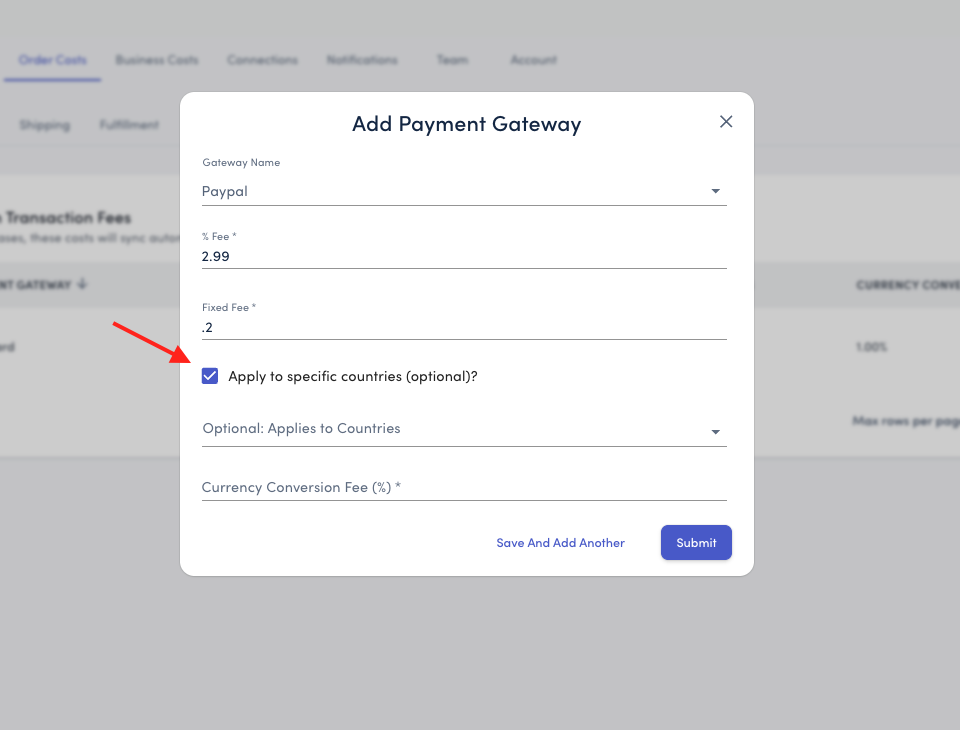
Enable this option
Select the countries where currency conversion fees apply
Enter the additional percentage or fixed fee for those countries
Example: Shopify Payments charges an additional 1.5% for currency conversion
Base fee: 2.9% + €0.30
Currency conversion fee: +1.5%
Total for international payments: 4.4% + €0.30
Note: Historical transaction fee data will be preserved, but future orders won't apply fees for this gateway.
Impact on Profitability
Transaction fees directly reduce your profit margin on every order. Accurate tracking ensures your profitability metrics (like contribution margin and net profit) reflect true business performance.
Example Impact:
Order revenue: €100
Product cost: €40
Shipping cost: €5
Transaction fee: €3.20
True profit: €51.80 (not €55 if you ignore transaction fees)
That €3.20 difference compounds across hundreds or thousands of orders, making accurate transaction fee tracking essential.
Don't Forget to Save
After making any changes to your transaction fee settings, always click the Save Changes button to ensure your updates are applied.
Need Help?
If you have questions about setting up transaction fees or determining the correct rates for your payment gateways, our support team is here to help. Contact us at support@storehero.ai