Setting Up Staff Costs
Last updated: January 30, 2026
Staff costs are a significant expense that impacts your overall profitability. StoreHero allows you to track these costs in two flexible ways, depending on your team size and how you prefer to manage payroll data.
Navigate to Settings > Business Costs > Staff Cost to begin configuring your team expenses.
Available Methods
StoreHero offers two methods to track staff costs:
By Month - Set total monthly costs by category
By Staff Member - Track individual employee costs with recurring payments
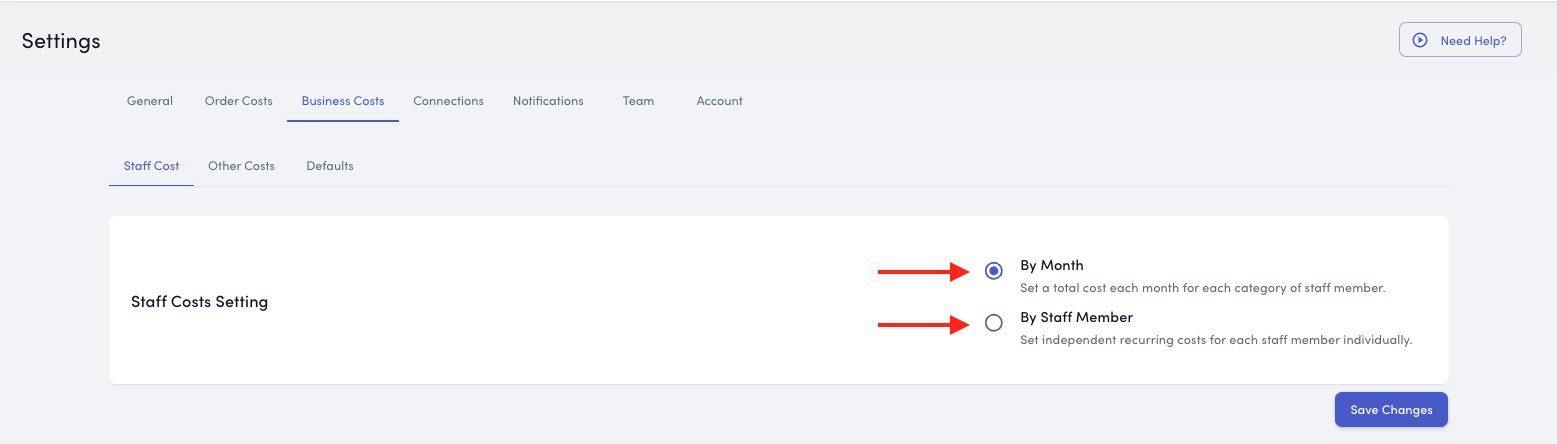
You can use either method or combine both depending on your needs.
Method 1: By Month
Set a total monthly cost for each category of staff members. This approach is ideal for businesses with larger teams or variable staffing costs.
When to Use This Method
This method works well if:
You have a large number of staff members
Staff costs vary month to month
You want a simple, high-level view without individual tracking
You're entering historical data quickly
Staff Categories
You can set monthly costs for two categories:
Shipping/Fulfillment Staff: Team members involved in order processing, picking, packing, and shipping operations.
Other Staff: All other employees including marketing, customer service, admin, management, etc.
How to Set Monthly Costs
Navigate to Settings > Business Costs > Staff Cost
Select the By Month tab
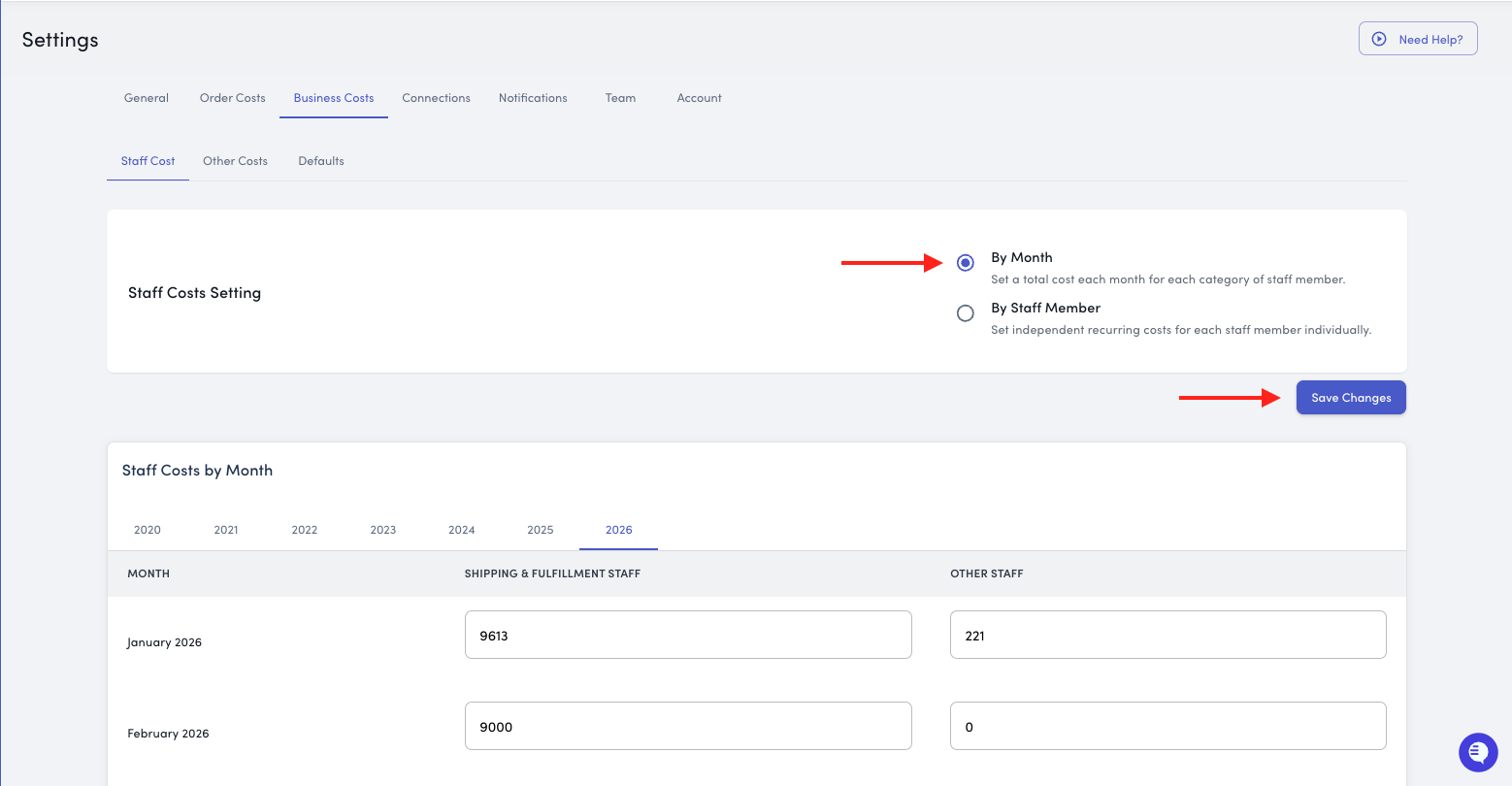
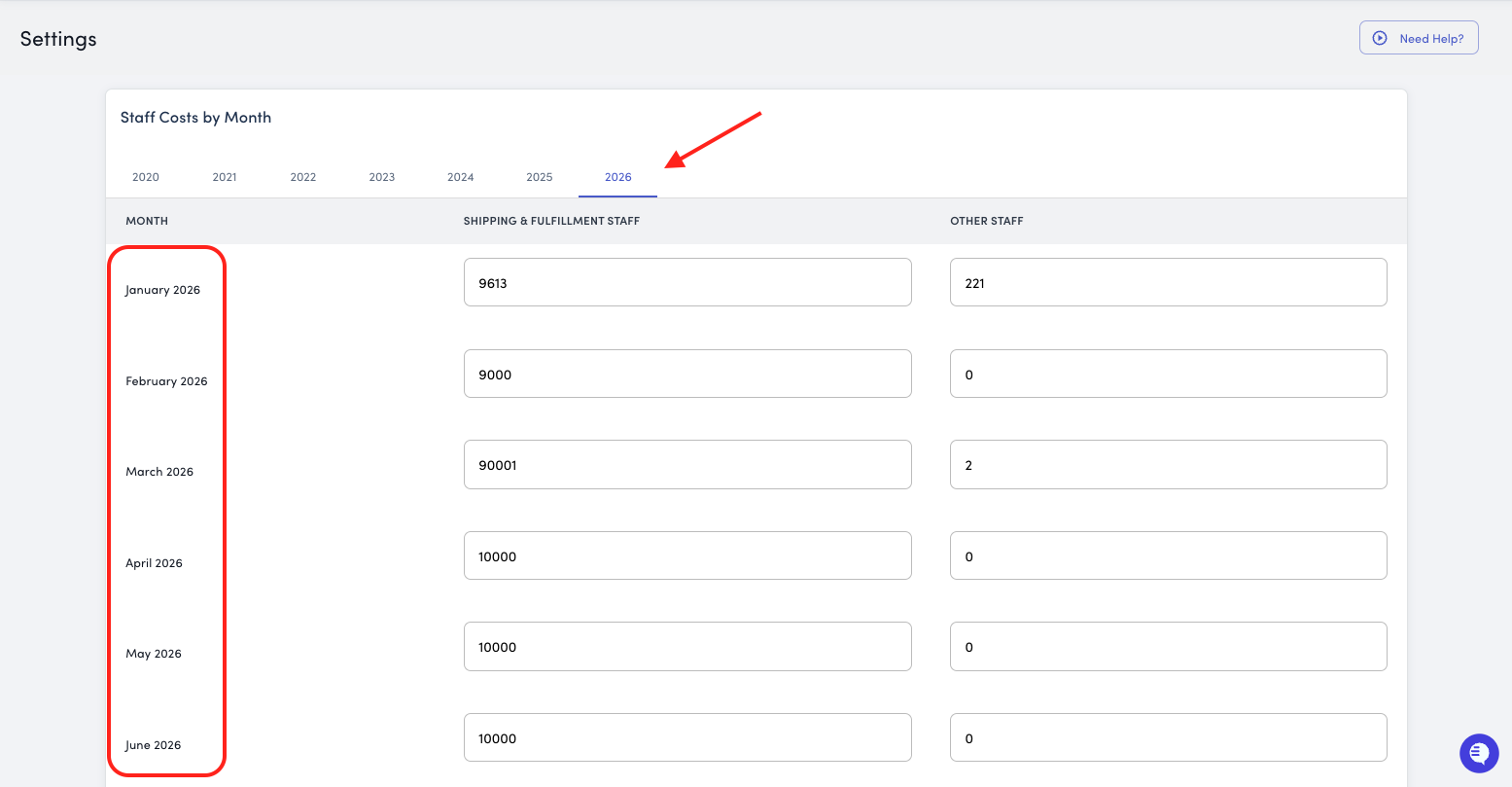
Choose the month and year you want to set costs for
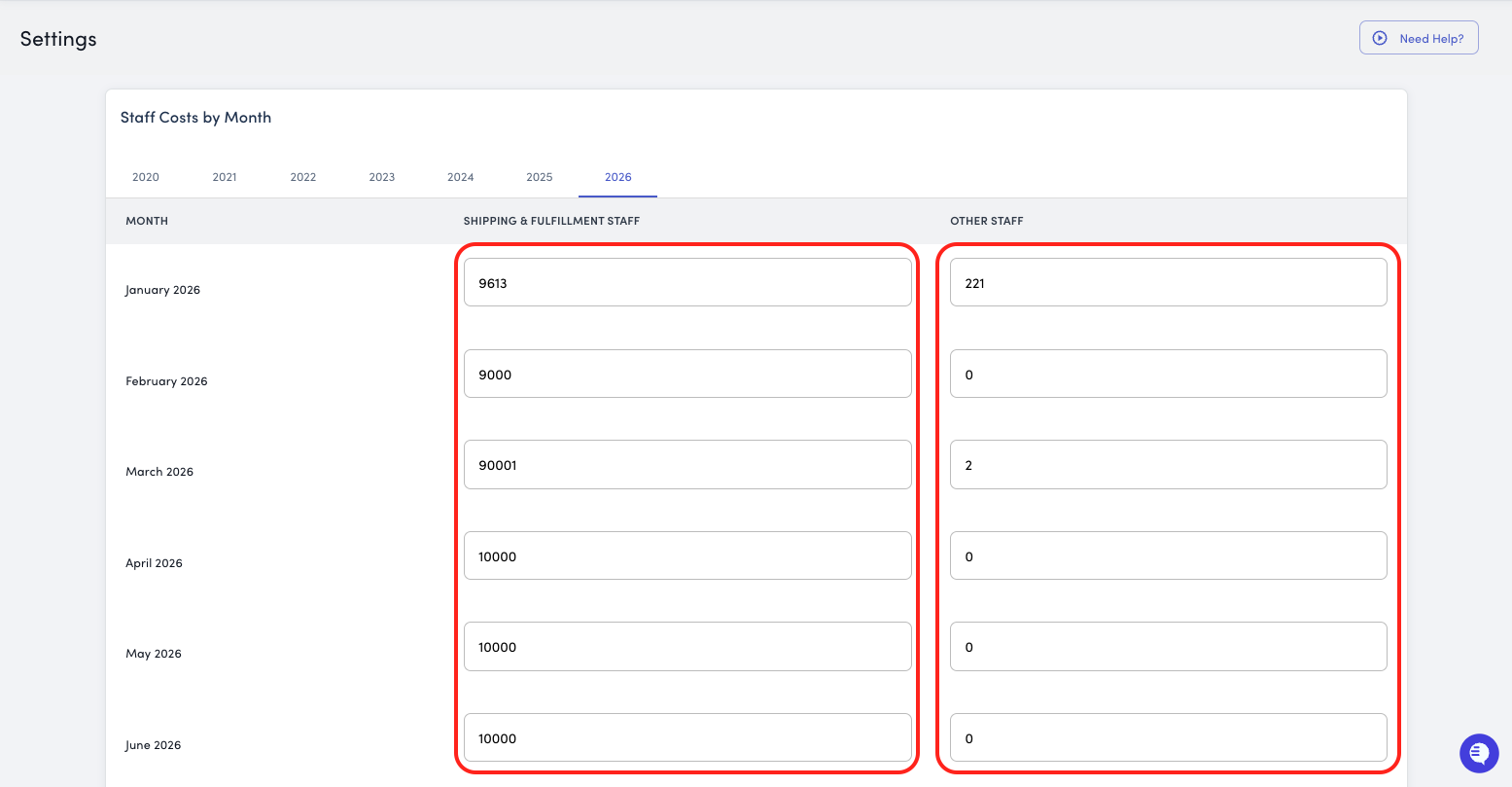
Enter the total cost for each category:
Shipping/Fulfillment - Total monthly cost for warehouse/fulfillment team
Other Staff - Total monthly cost for all other employees
Scroll to the bottom and click Save
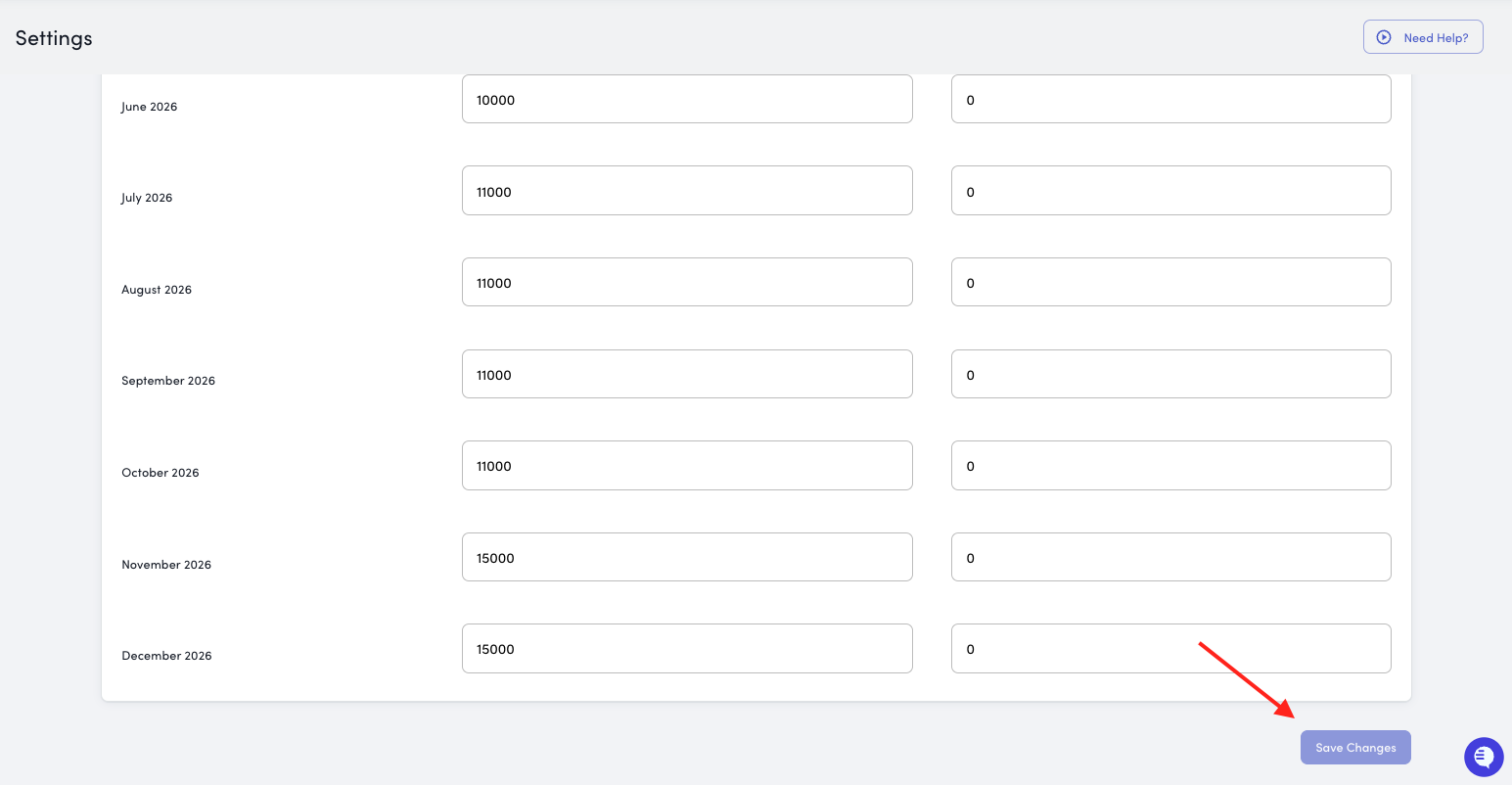
Repeat for additional months as needed
Historical Data Entry
You can set up to 4 years of retroactive staff costs, making it easy to:
Import historical payroll data
Update past months when bringing on StoreHero
Correct previous entries
Analyze year-over-year trends
Method 2: By Staff Member
Track individual employee costs with recurring payment schedules. This approach provides detailed visibility into your team composition and costs.
When to Use This Method
This method works well if:
You have a smaller team where individual tracking is manageable
You want detailed cost breakdowns by employee
You need to track different pay schedules (hourly, salary, contractor)
You want to see the impact of individual hires on profitability
How to Add a Staff Member
Navigate to Settings > Business Costs > Staff Cost
Select the By Staff Member tab
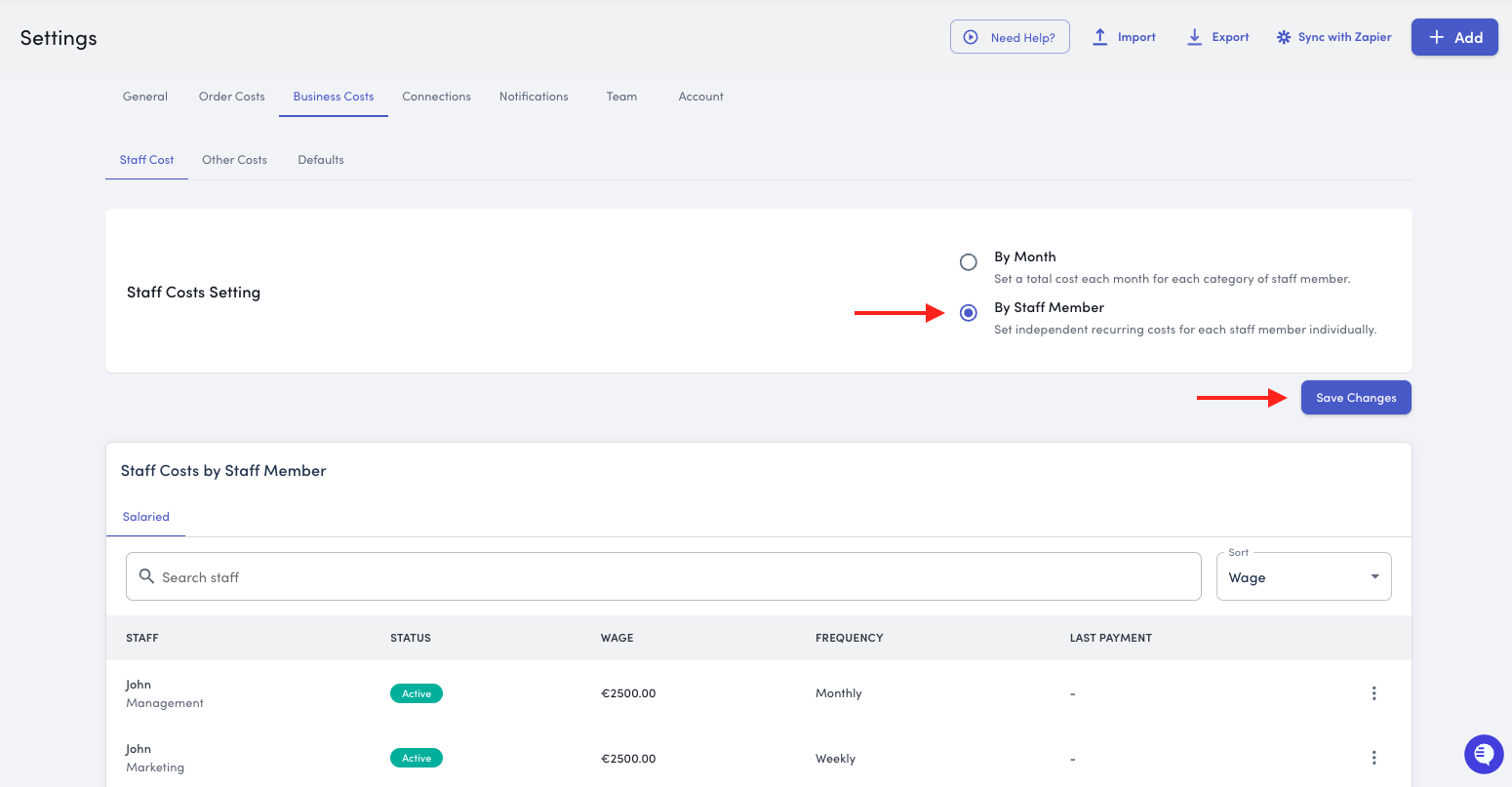
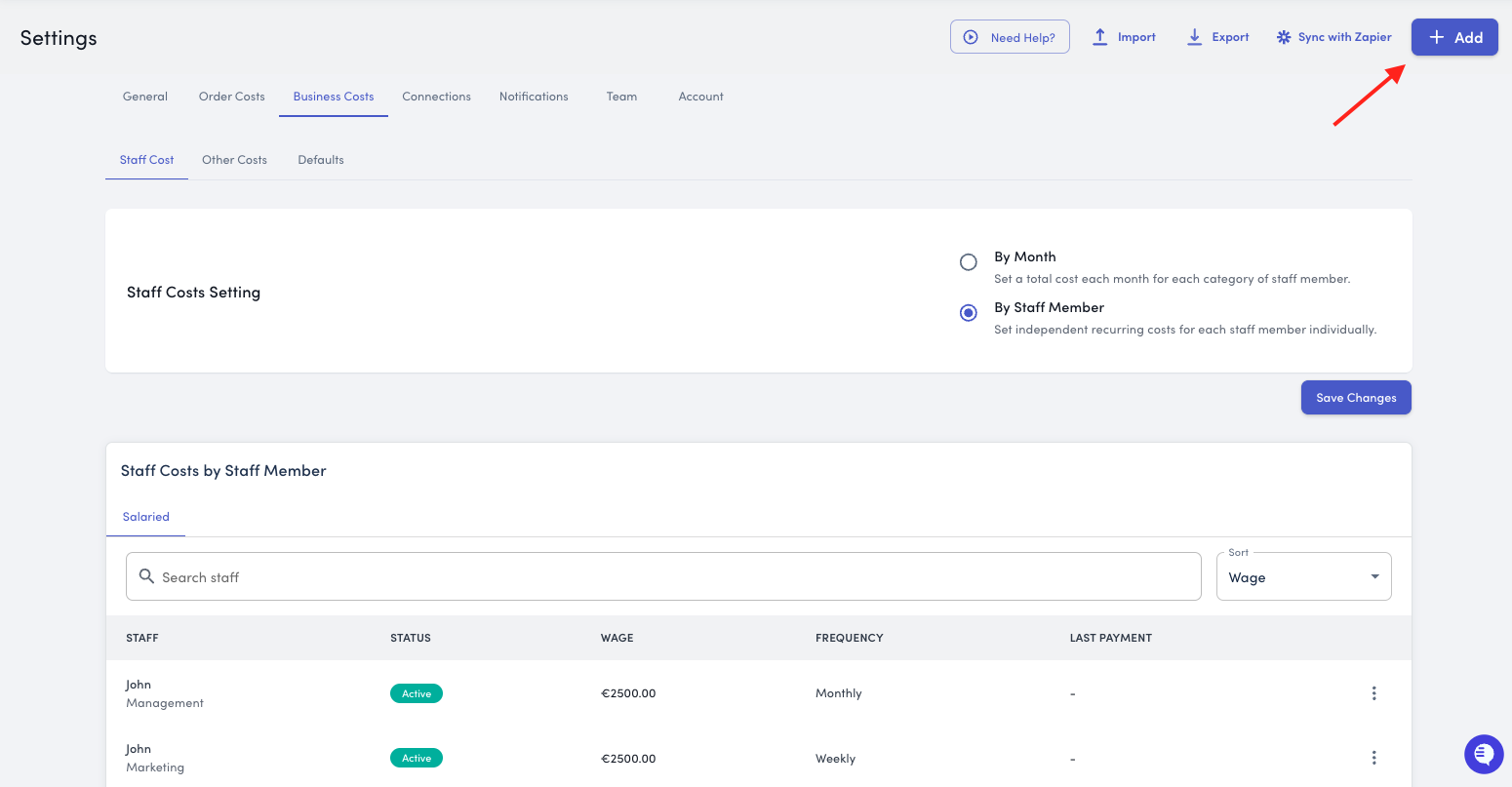
Click the Add Costs button in the top right corner
A modal will appear with the following fields
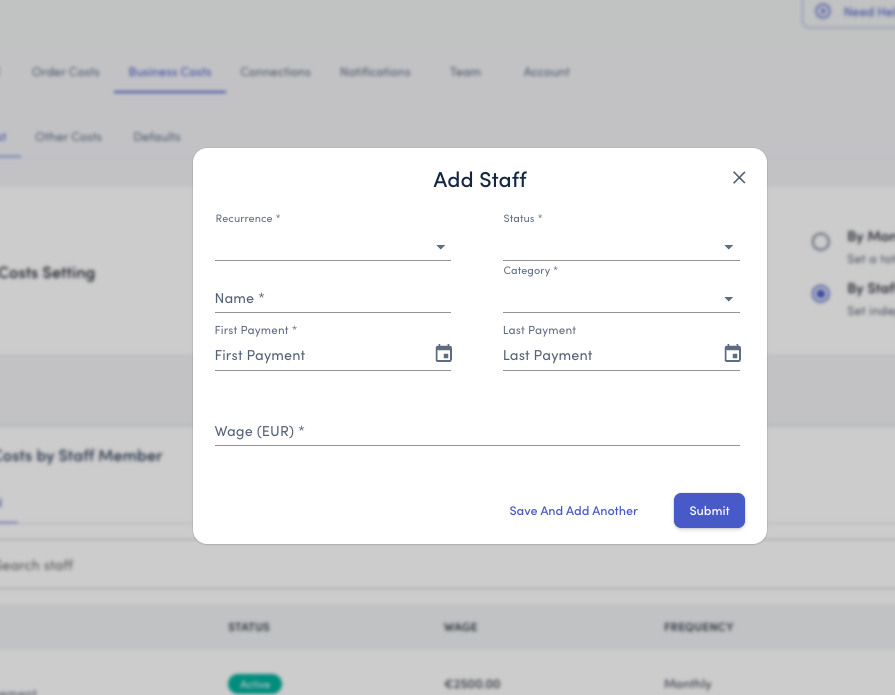
Staff Member Details
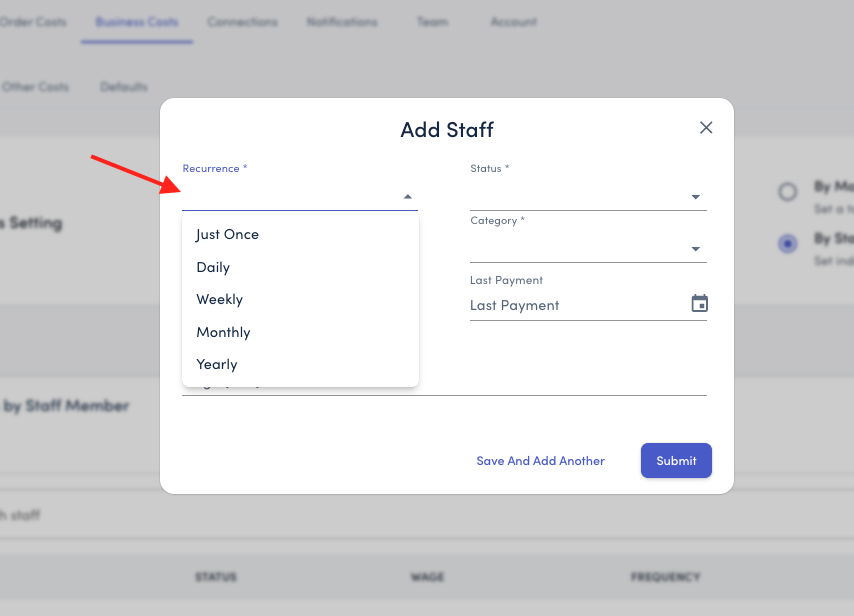
Recurrence: Choose how often this staff cost occurs:
One-time - Single payment (e.g., bonus, severance)
Daily - Day rate contractors
Weekly - Weekly wages
Monthly - Most common for salaried employees
Yearly - Annual contractors or retainers
Status:
Active - Currently employed
Inactive - Past employee or temporarily on leave
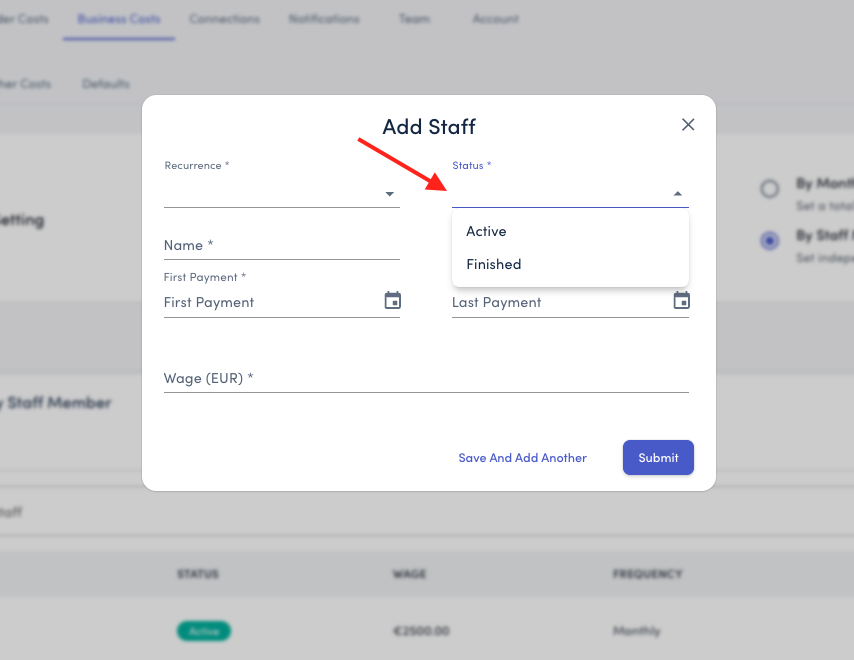
Use inactive status for former employees while preserving their historical cost data.
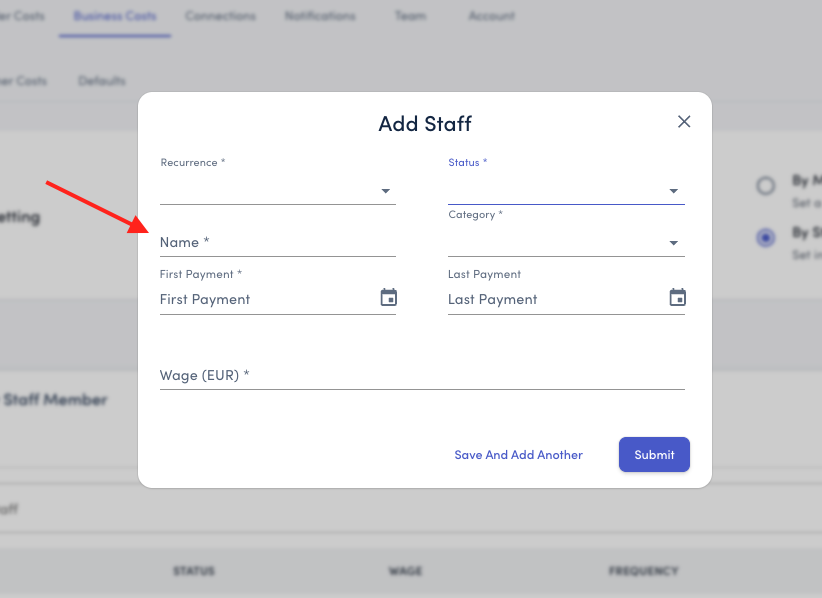
Name: Enter the staff member's name or identifier.
Examples:
Full name: "Sarah Johnson"
Role identifier: "Marketing Manager"
Anonymous: "Warehouse Staff 1"
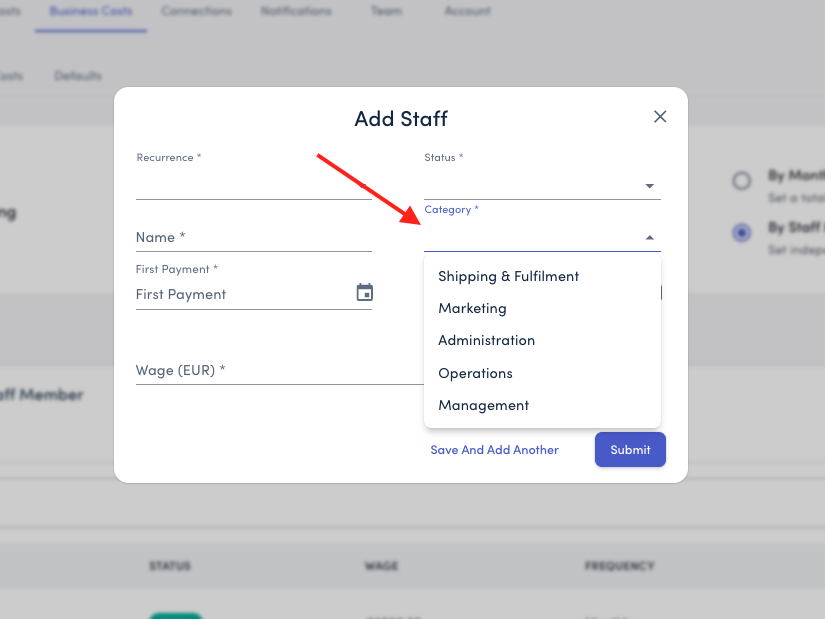
Category: Select the job function:
Shipping/Fulfillment - Warehouse, logistics, fulfillment operations
Marketing - Marketing team members
Customer Service - Support and CS team
Management - Leadership and executives
Admin - Administrative and back-office staff
Other - Any role not fitting the above categories
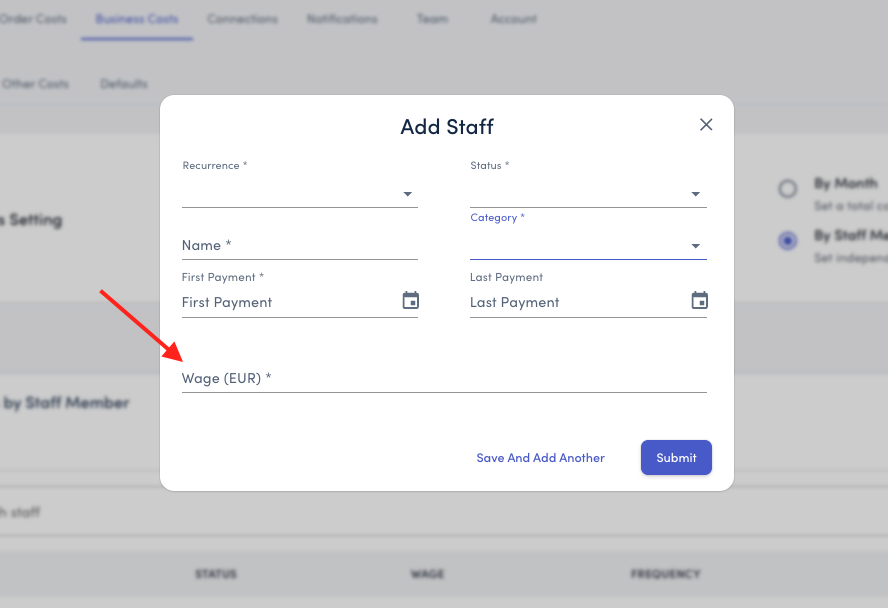
Wage: Enter the cost amount in your store's currency. This amount should match your selected recurrence.
Examples:
Monthly salary: €3,500 (select "Monthly")
Weekly wage: €800 (select "Weekly")
Annual contractor: €45,000 (select "Yearly")
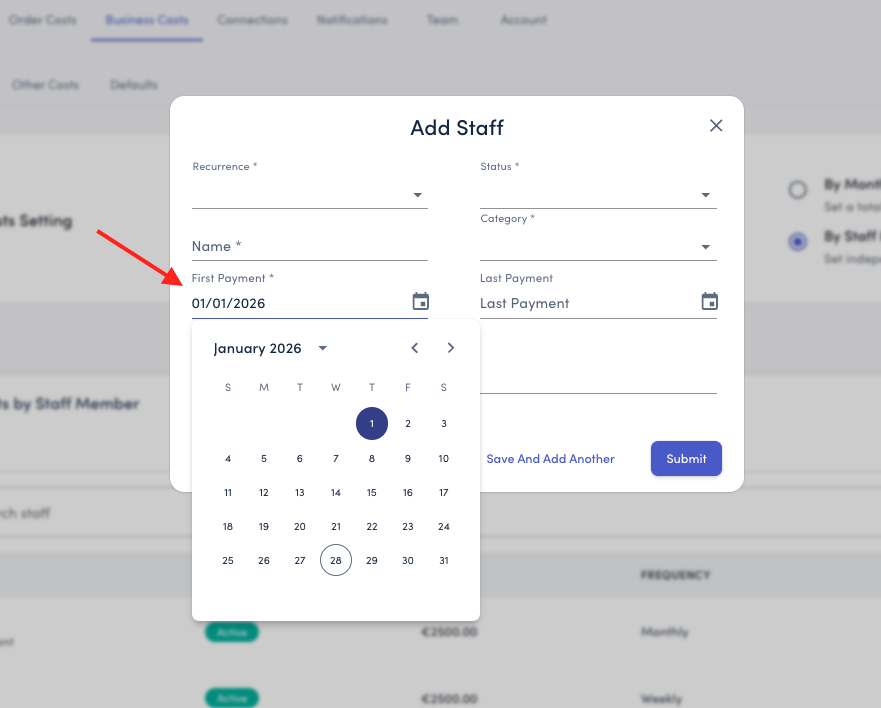
First Payment: Select the date when this staff member started or when this cost began. This ensures costs are allocated to the correct time period.
Last Payment (Optional): Leave the Last Payment blank if this is a recurring cost. Only add this if the staff member has a known end date.
When to use:
Seasonal employees with set contract end dates
Staff members who have resigned with a last day
Fixed-term contractors
Temporary project-based hires
When to leave blank:
Permanent employees
Ongoing contractors
Open-ended positions
Saving Your Entry
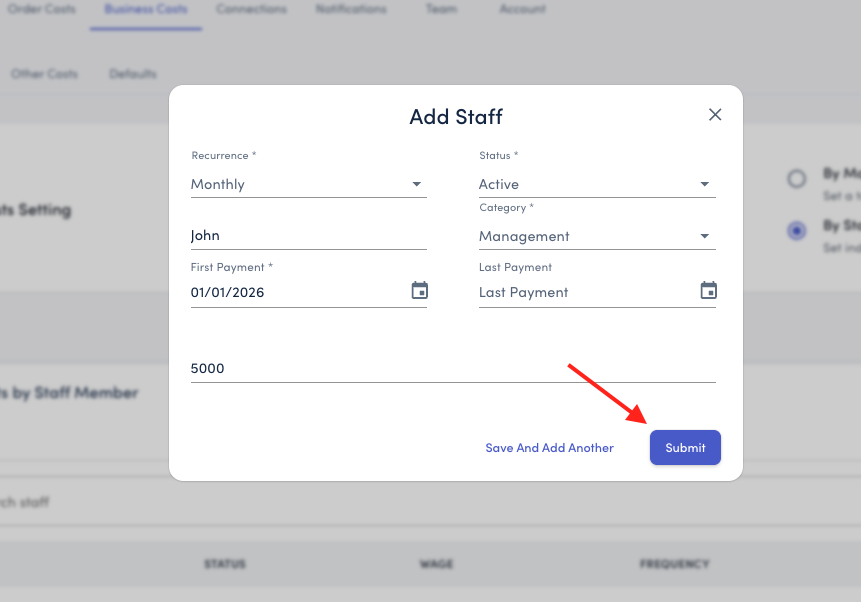
Click Submit to save and close
Or click Save and Add Another to quickly add multiple staff members
Why Staff Costs Matter
Including accurate staff costs in StoreHero ensures:
True Profitability Calculations
Staff costs are typically one of your largest expenses. Without tracking them, your profit metrics don't reflect business reality.
Better Decision-Making
Understand the relationship between:
Revenue growth and team costs
Staff expenses and profit margins
Hiring decisions and profitability targets
Accurate Unit Economics
When you know total operating costs (including staff), you can calculate true profit per order and understand what revenue levels you need to sustain.
Example Impact:
Monthly revenue: €100,000
Product + shipping costs: €45,000
Marketing costs: €20,000
Staff costs: €25,000
True profit: €10,000 (not €35,000 if you ignore staff costs)
Impact on Your Metrics
Adding staff costs affects your profitability calculations:
Operating Profit: Revenue - COGS - Marketing - Staff Costs = Operating Profit
Profit per Order: Operating Profit ÷ Number of Orders = True profit per order
Break-Even Analysis: With accurate staff costs, you can calculate exactly how much revenue you need to cover all expenses.
This complete picture helps you make better decisions about pricing, hiring, and scaling.
Don't Forget to Save
After making any changes to your staff cost settings, always click the Save or Submit button to ensure your updates are applied.
Need Help?
If you have questions about tracking staff costs or determining which method to use, our support team is here to help. Contact us at support@storehero.ai