Adding Your Shipping Costs
Last updated: January 30, 2026
Accurate shipping costs are essential for understanding your true profit margins. StoreHero offers multiple methods to track shipping costs, which can be combined to give you the most accurate data with minimal effort.
Navigate to Settings > Order Costs > Shipping to begin configuring your shipping costs.
Available Methods
You can use one or more of these methods to track your shipping costs:
Match Shipping Paid - Assume your shipping cost matches what the customer pays
Default Shipping Cost - Set a fixed rate for all orders
By Country/Region - Set specific costs for different shipping destinations
By Order ID - Set unique costs for individual orders
Shipping Integrations - Connect to ShipStation, ShipBob, or Zapier for automatic cost tracking
Method 1: Match Shipping Paid
The simplest approach—assume that the shipping cost you incur matches the amount your customer pays for shipping.
When to Use This
This method works well if:
You charge customers the exact shipping rate you pay
You have weight-based or complex shipping structures that generally match customer charges
You want a quick setup without manual data entry
How to Set Up
Simply leave the shipping cost fields blank. When these values are empty, we'll automatically match your shipping costs to what customers pay.
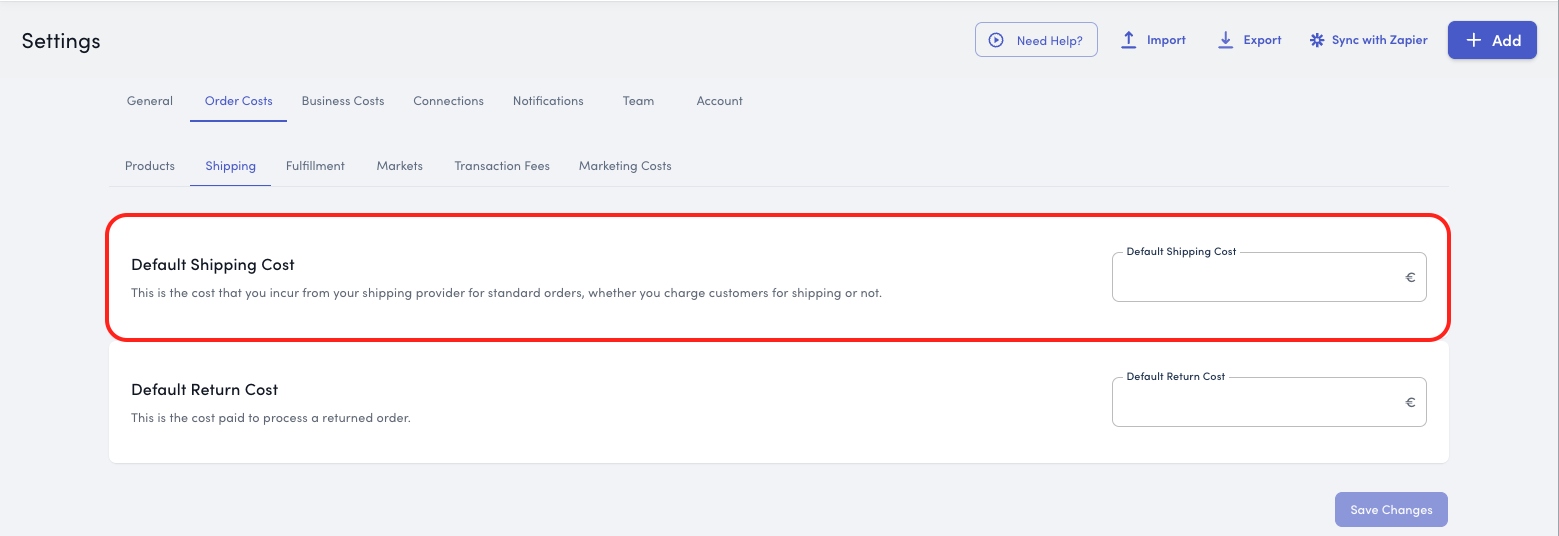
Recommendation: If your shipping costs roughly match customer charges most of the time, we recommend leaving this as your default.
Method 2: Set a Default Shipping Cost
Set a fixed shipping cost that applies to all orders, regardless of destination or order size.
When to Use This
This method works well if:
You have a standard shipping rate across most orders
You want a simple baseline cost for all shipments
You'll use other methods for exceptions (specific countries or orders)
How to Set Up
Navigate to Settings > Order Costs > Shipping
Enter your Default Shipping Cost per order
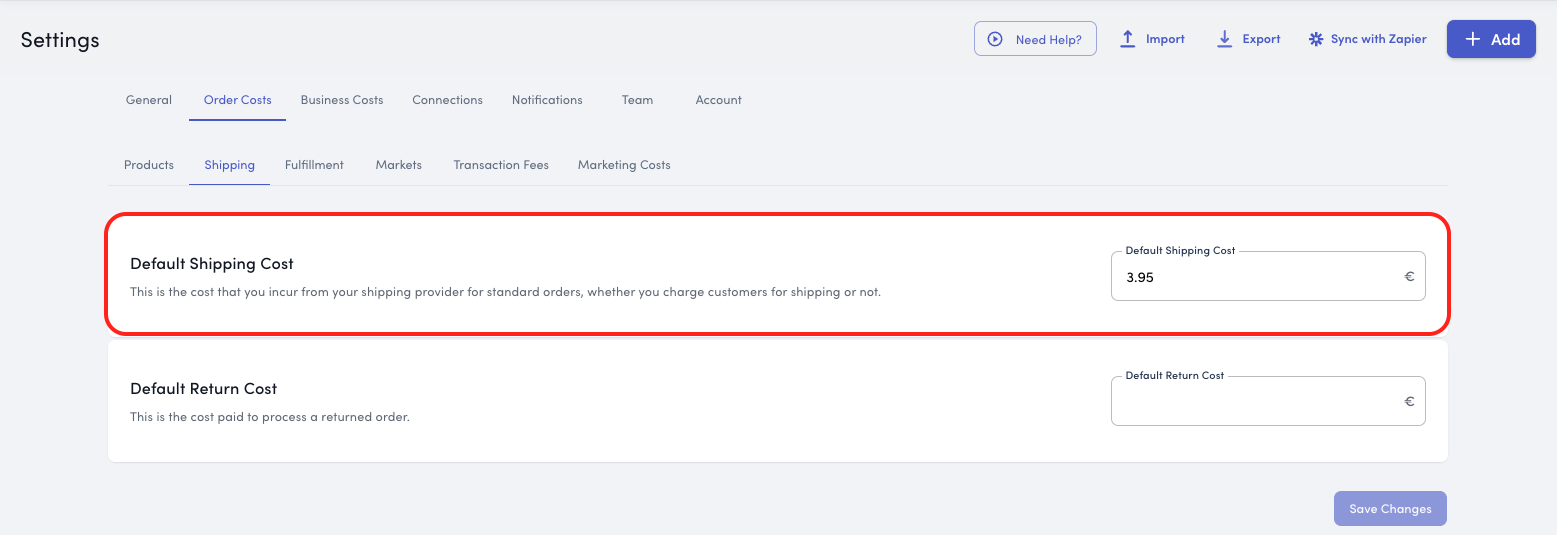
Optionally, enter a Default Return Cost per returned order
Click Save Changes
Example: If most orders cost you €5 to ship, set €5 as your default shipping cost. Orders to specific countries or with unique requirements can be overridden using other methods.
If you aren’t sure of your average, sum the past 90 days of your carrier charges and divide by the number of orders fulfilled.
Method 3: Set Costs by Country/Region
Set specific shipping costs for different countries or regions you ship to.
When to Use This
This method works well if:
Shipping costs vary significantly by destination
You ship internationally with different rate structures
You want more precision than a single default rate
How to Set Up
Navigate to Settings > Order Costs > Shipping
Select the Country/Region tab
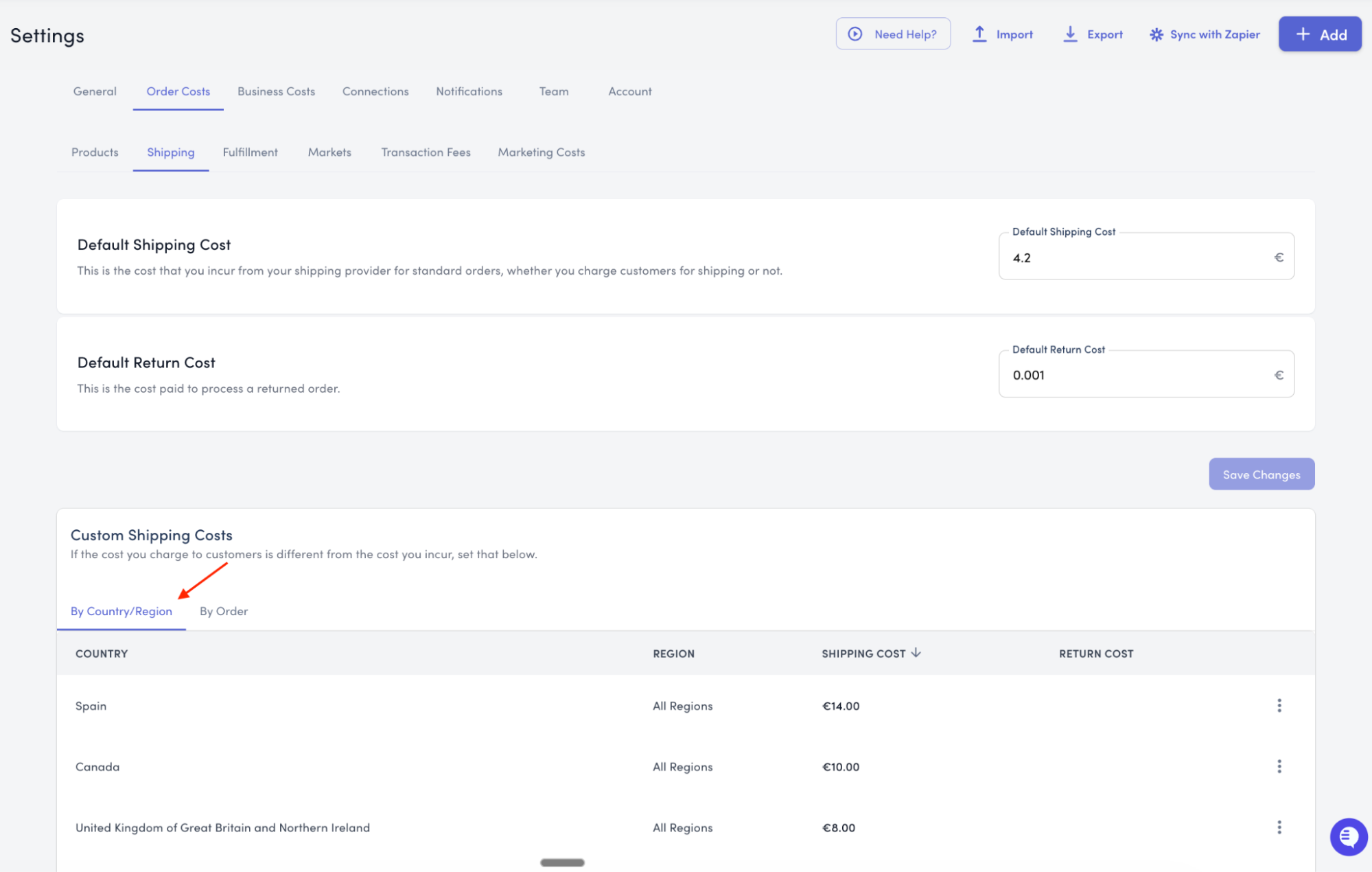
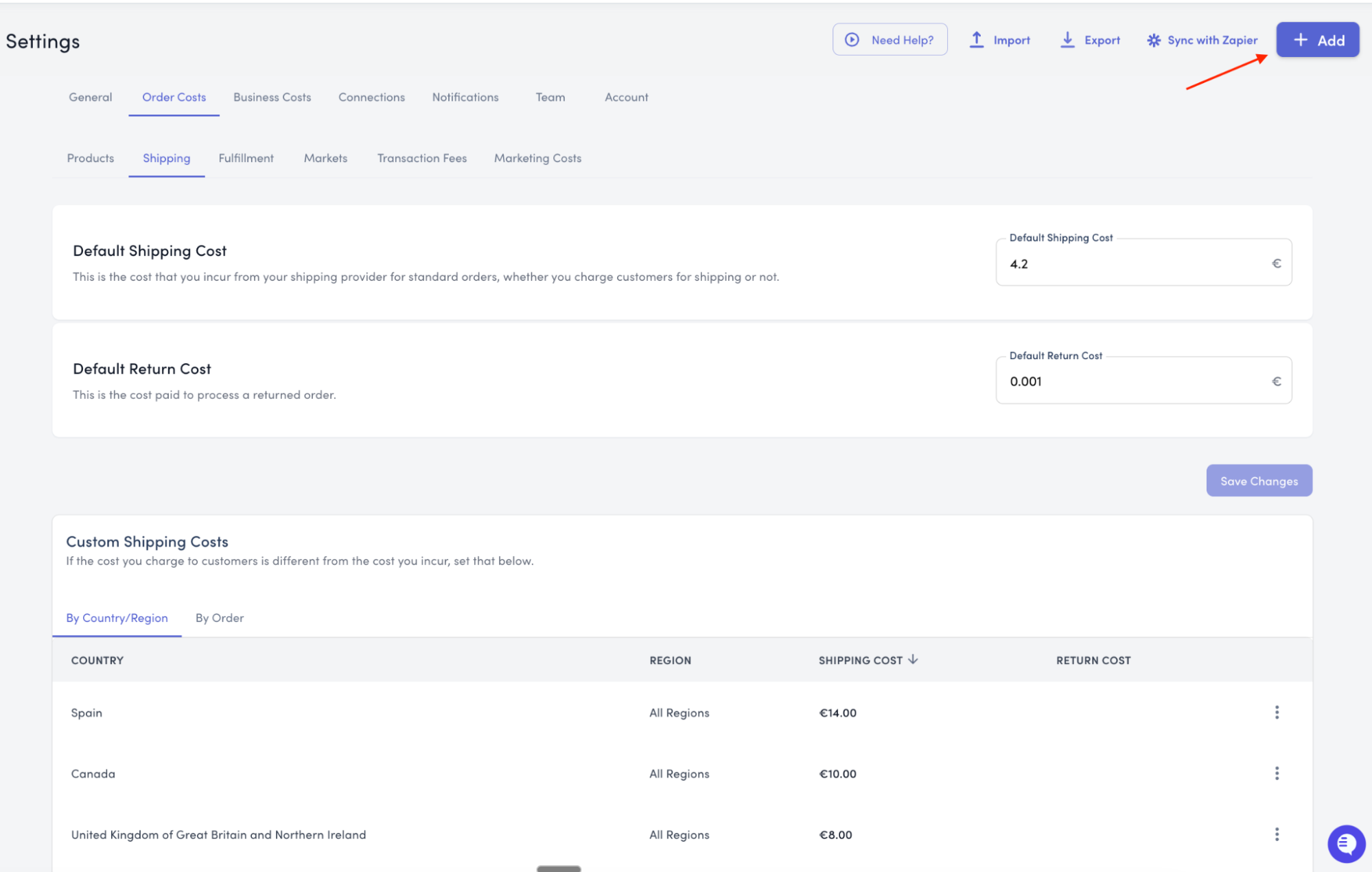
Click Add in the top right corner
In the popup, enter:
Country and/or Region - Select the destination
Shipping Cost - Cost you incur for orders to this location
Return Cost (optional) - Cost you incur for returns from this location
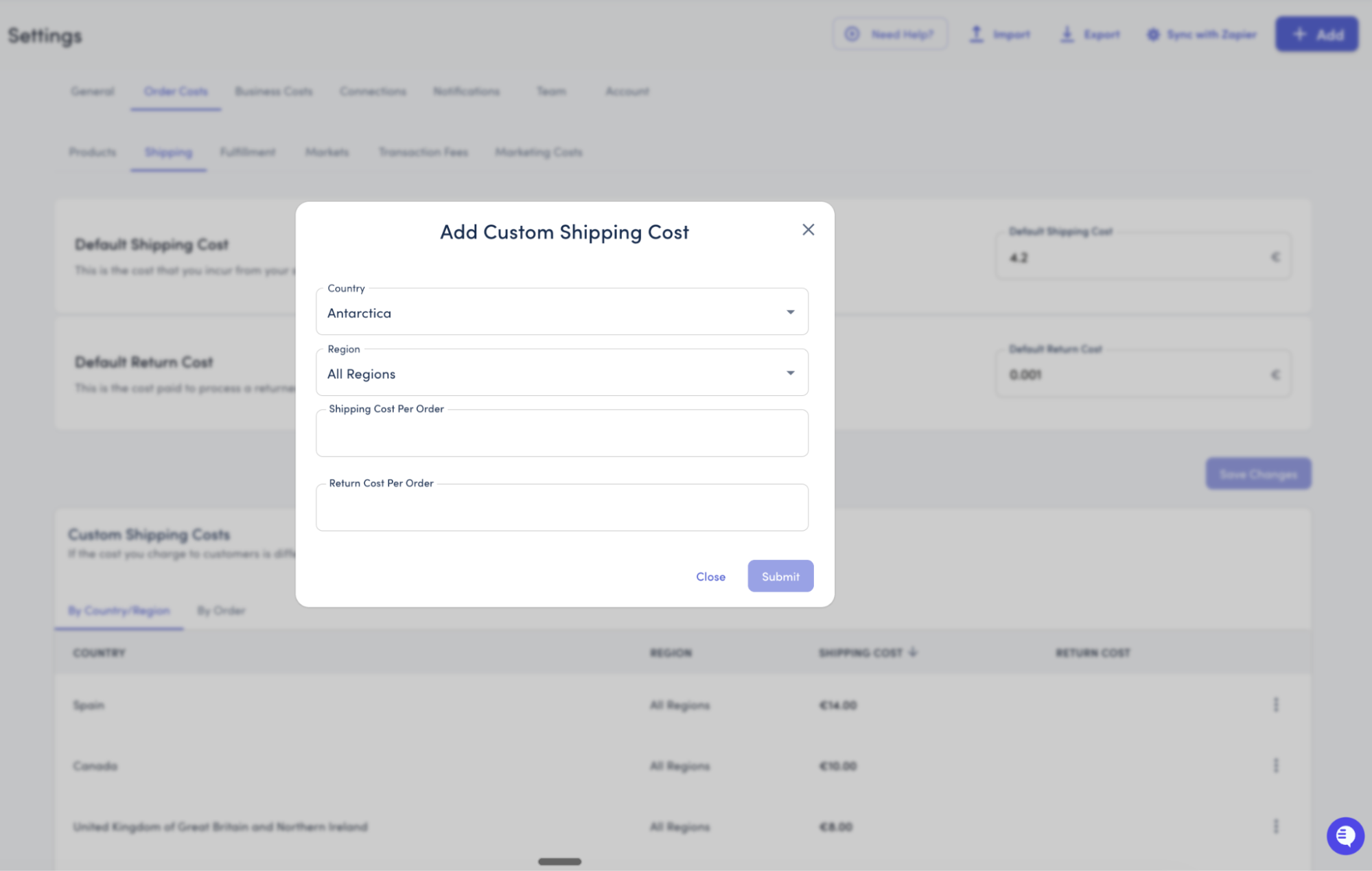
Click Submit
Repeat for additional countries or regions
Example: Set €5 for domestic orders, €12 for EU countries, and €20 for international shipments.
To determine an average, sum together your last 90 days of your carrier charges for a region, then divide by the number of orders placed from that area.
Method 4: Set Costs by Order ID
Set unique shipping costs for individual orders when needed. You can also leverage the Zapier integration for real-time, order level accurate shipping costs.
When to Use This
This method works well if:
You have occasional orders with exceptional shipping costs
You need to override default or country-based rates for specific orders
You're importing historical data with known shipping costs
You’re leveraging the Zapier integration to import costs from your shipping software
How to Set Up Manually
Navigate to Settings > Order Costs > Shipping
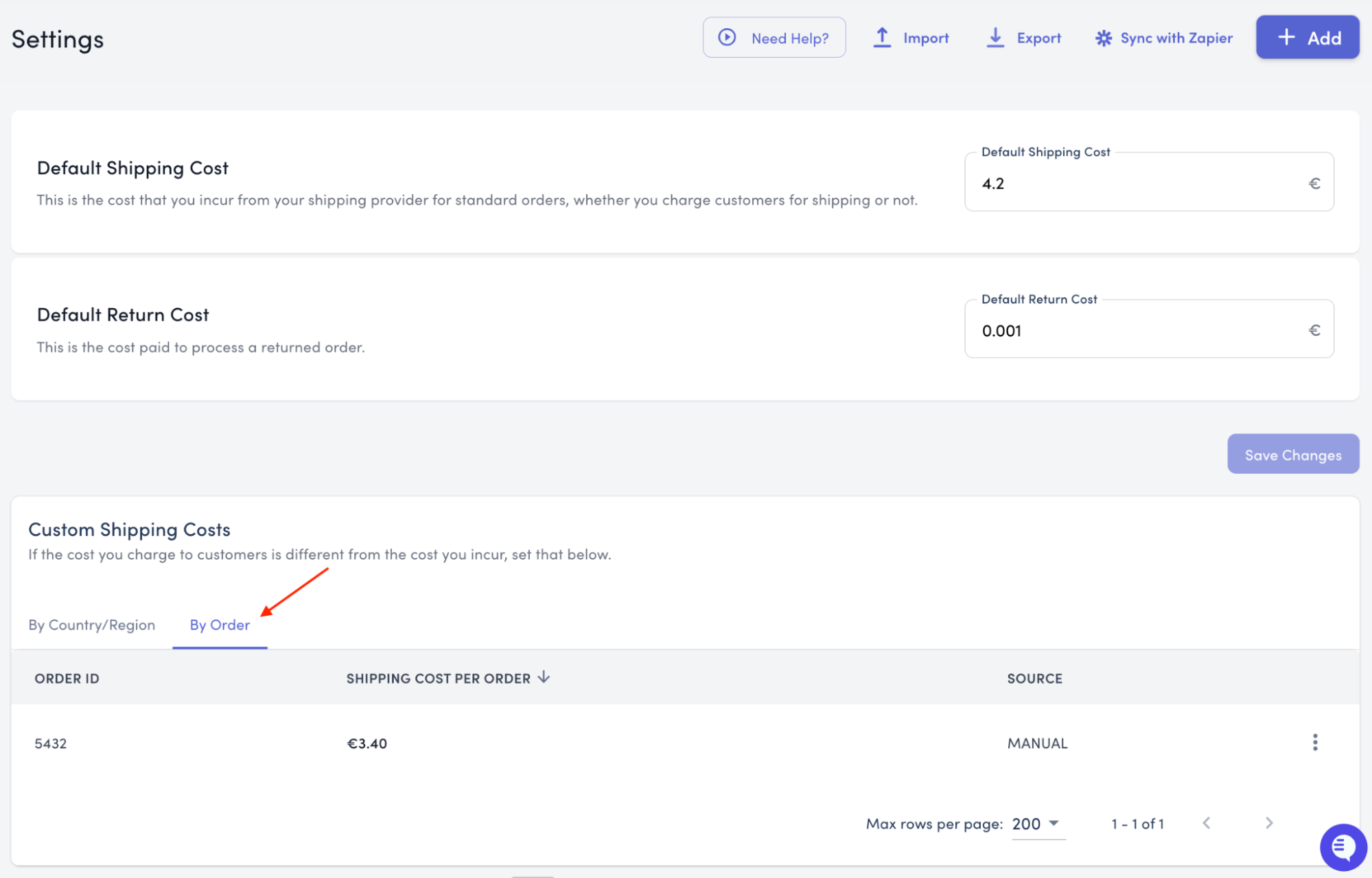
Select the By Order ID tab under Custom Shipping Costs
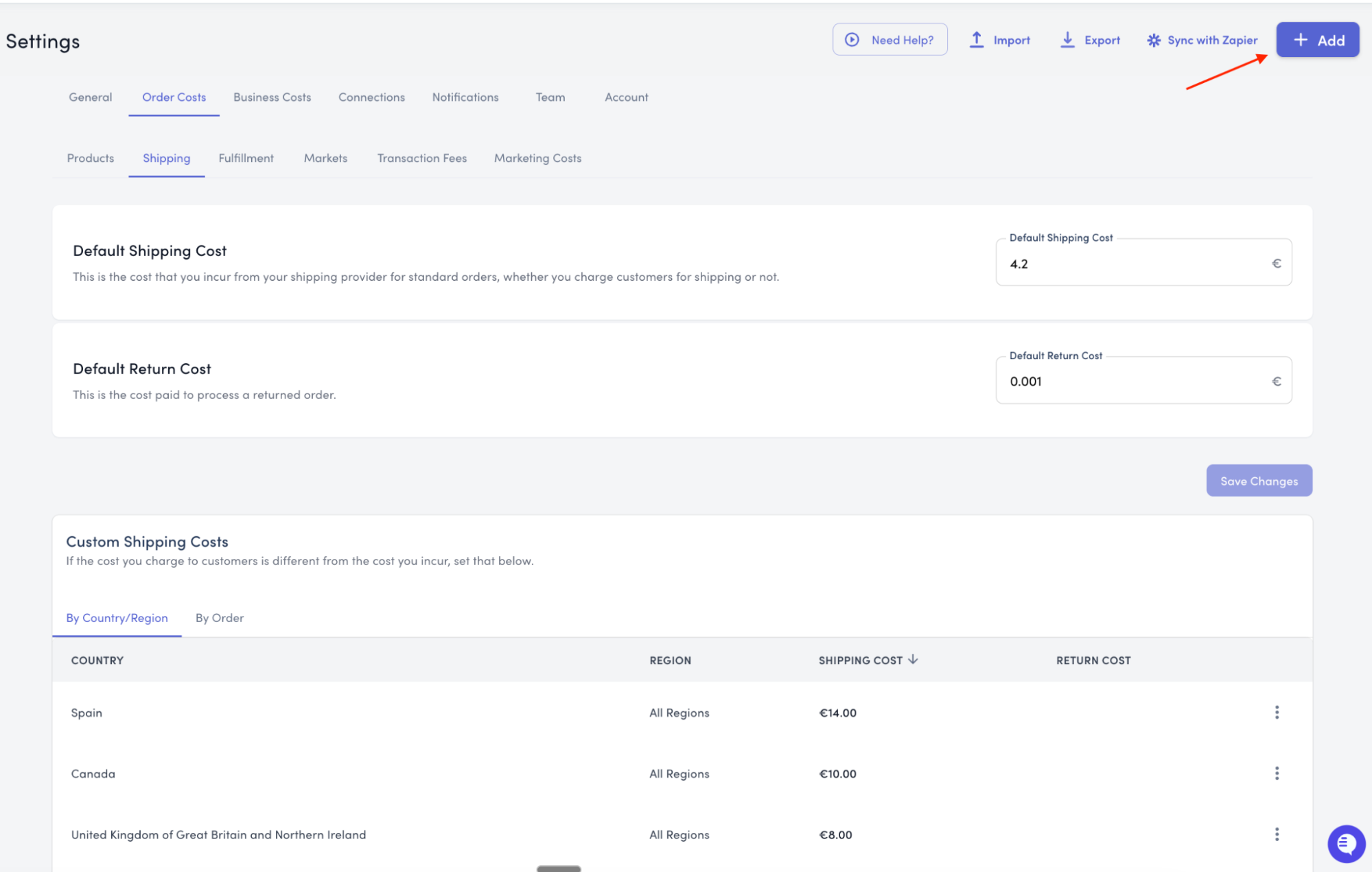
Click Add in the top right corner
In the popup, enter:
Order ID - The specific order identifier
Shipping Cost - The actual cost for that order
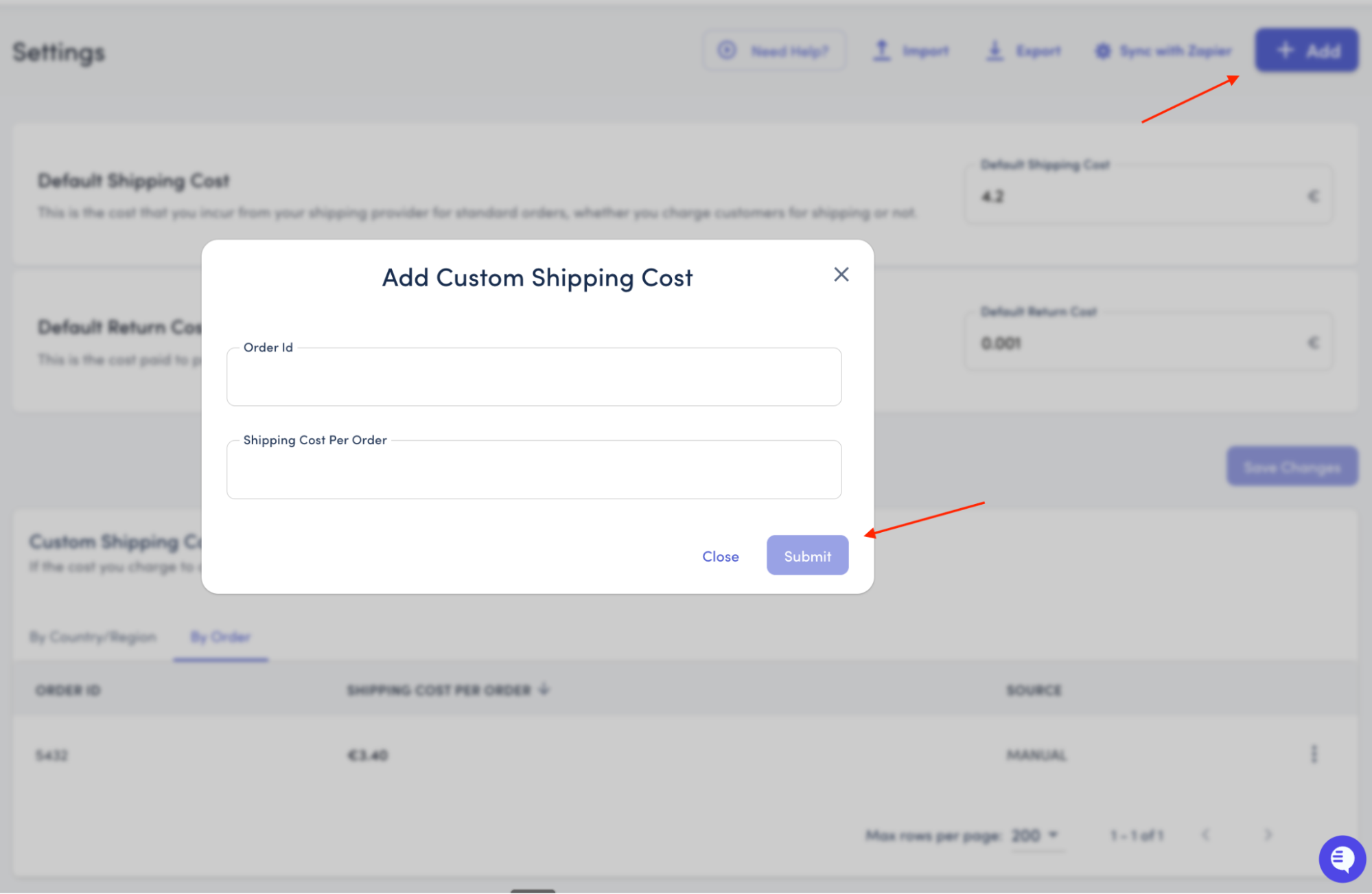
Click Save
Bulk Import via CSV
For multiple orders, use our CSV import feature to avoid manual entry.
CSV Format Requirements: Your spreadsheet must include these two columns with case-sensitive titles:
Order Id
Shipping Cost Per Order
To Import:
Navigate to Settings > Order Costs > Shipping
Prepare your CSV file with the required columns
To pull an export, select Import from the top right corner and select download our sample csv from the pop-up
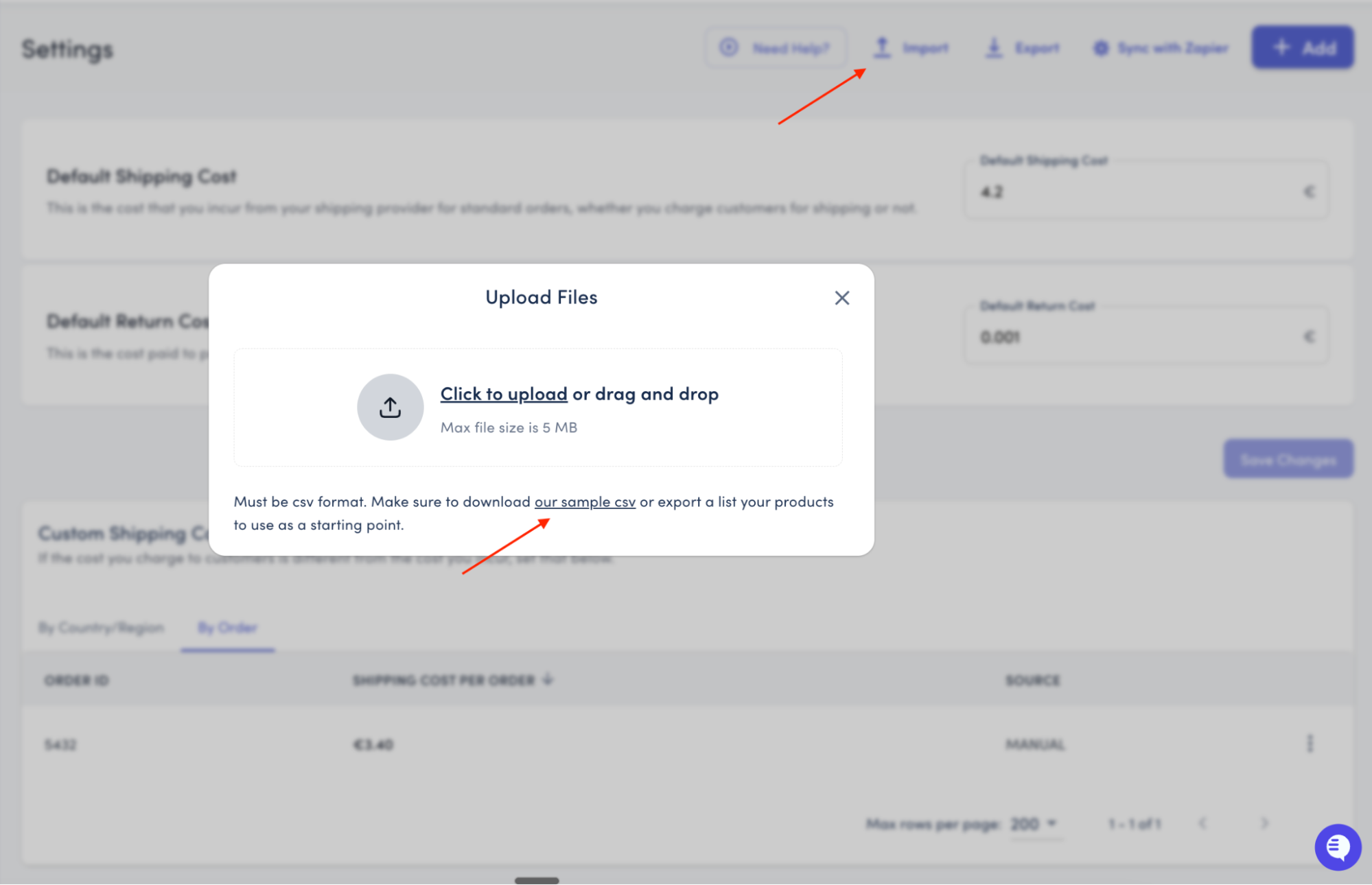
Add the corresponding order numbers and their shipping costs in the correct columns
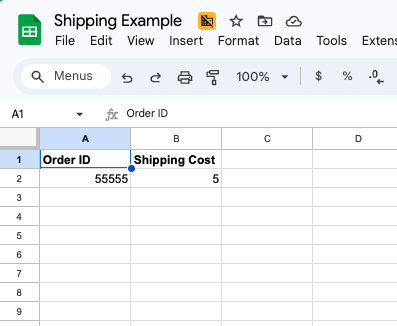
Export a CSV of your sheet
Go back into StoreHero and select the By Order ID tab
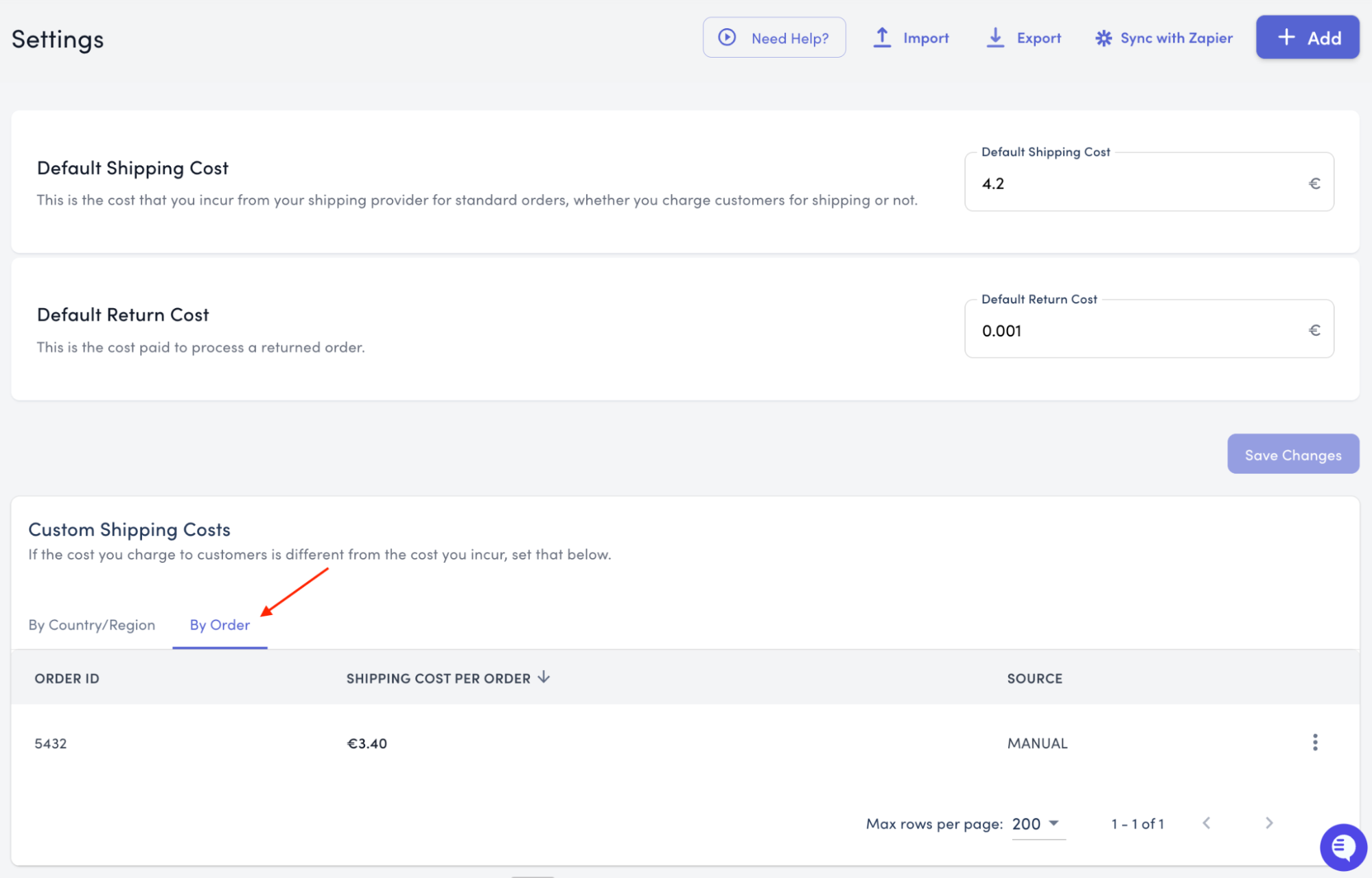
Click Import follow bulk upload instructions
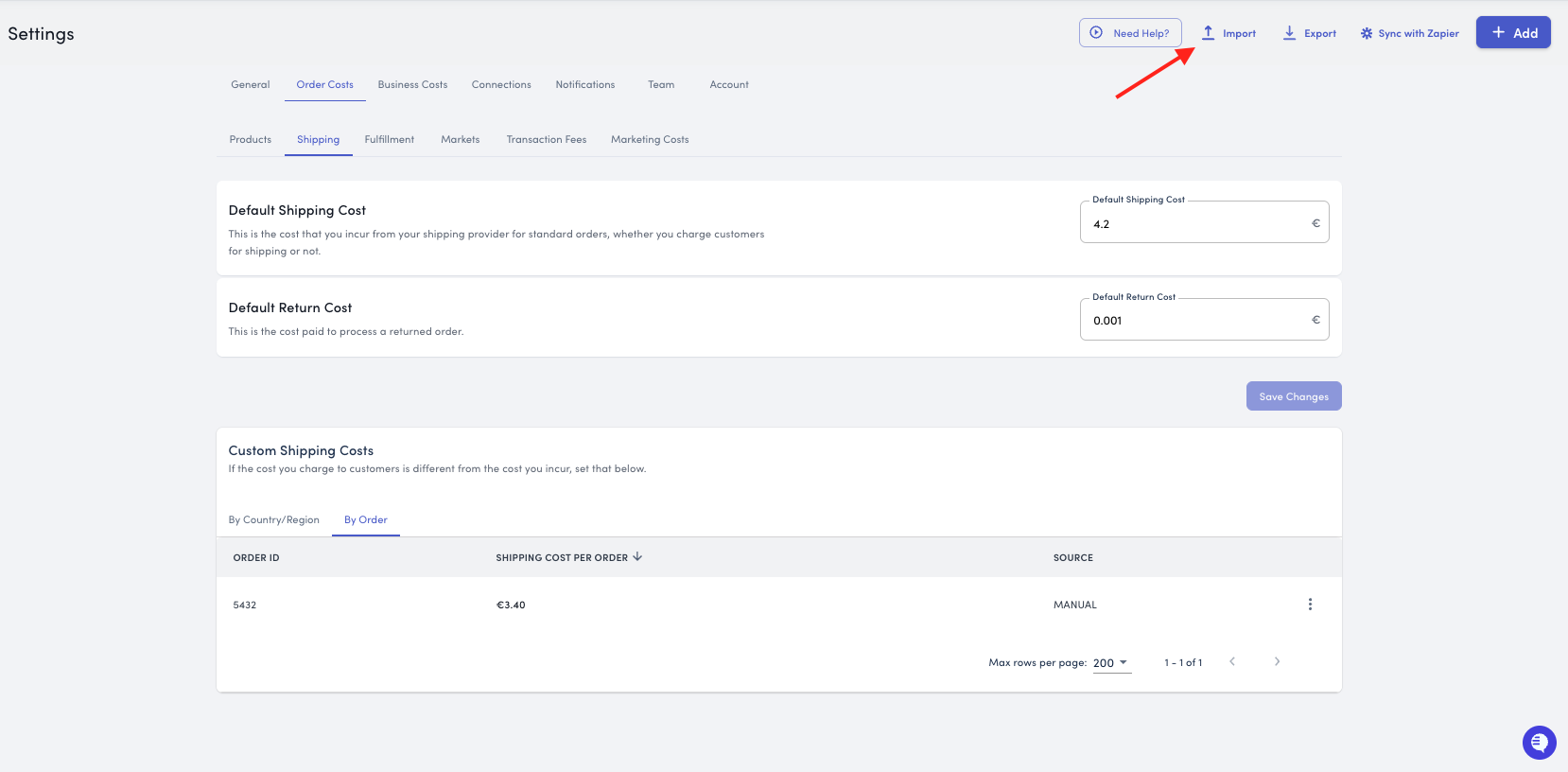
Review and confirm the import
Method 5: Shipping Integrations
Connect shipping platforms like ShipStation or ShipBob to automatically import the exact cost incurred for each order.
Why Use Integrations
Shipping integrations provide complete accuracy by calculating actual costs based on:
Product mix and weight
Package size and dimensions
Shipping destination
Shipping priority (standard, express, etc.)
Carrier rates and fees
This eliminates manual data entry and ensures your profitability metrics reflect true shipping costs.
Supported Platforms
ShipStation
ShipBob
Zapier
How to Connect
Navigate to Settings in the left-hand menu
Click Connections
Scroll to the Shipping Connections section
You'll see all supported platforms plus any currently connected integrations
To Connect a New Platform:
Click the Connect button next to your shipping platform
Follow the authentication process:
Credentials: Enter your login details, OR
API Key: Retrieve your API key from your shipping platform account and paste it in
Follow the channel-specific instructions in the dialog box
Grant the necessary permissions
Confirm the connection
To Disconnect:
Click the Disconnect button next to the active connection
Confirm disconnection
You can reconnect the same platform or switch to another at any time
Zapier Integration Guide
To automate the import of your shipping costs, and more, see the Zapier resource here