Adding Your Product Costs
Last updated: January 30, 2026
Managing accurate product costs is essential for understanding your true profit margins. This guide will walk you through setting up and maintaining your product costs.
Getting Started
Navigate to Settings > Order Costs > Products to begin configuring your product costs.
Automatic Cost Syncing (Shopify Users)
If you're using Shopify, we've got you covered! Product costs automatically sync from your Shopify store daily—no manual work required.
Note: If you just connected your store today, costs will appear after the first sync completes (typically within 1-3 hours).
Setting Your Default Gross Profit Margin
Your default gross profit margin acts as a fallback for products without specific costs assigned. We'll use this percentage to calculate profits when individual product costs aren't available.
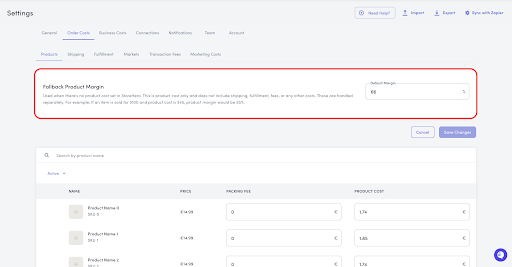
How to Calculate Your Margin
Your default gross profit margin should reflect the average landed cost (excluding VAT/tax) per SKU. This includes:
Base product cost (COGS)
Import duties and shipping to your warehouse
Example: You sell a product for €10 (ex VAT). The product costs you €2 and import fees add €1, for a total landed cost of €3. Your gross profit margin would be 70%.
Formula: (Selling Price - Total Cost) / Selling Price × 100
Once you've entered your default margin, click Save Changes.
Setting Product-Specific Costs
Below your default settings, you'll find a complete list of all products and variants in your store, including historical products that may no longer be active but have past order data.
For each product or variant, you can customize two values:
1. Product Cost
The total landed cost per unit, including:
Manufacturer/supplier cost
Import duties and taxes
Freight and shipping to your warehouse ("carriage in")
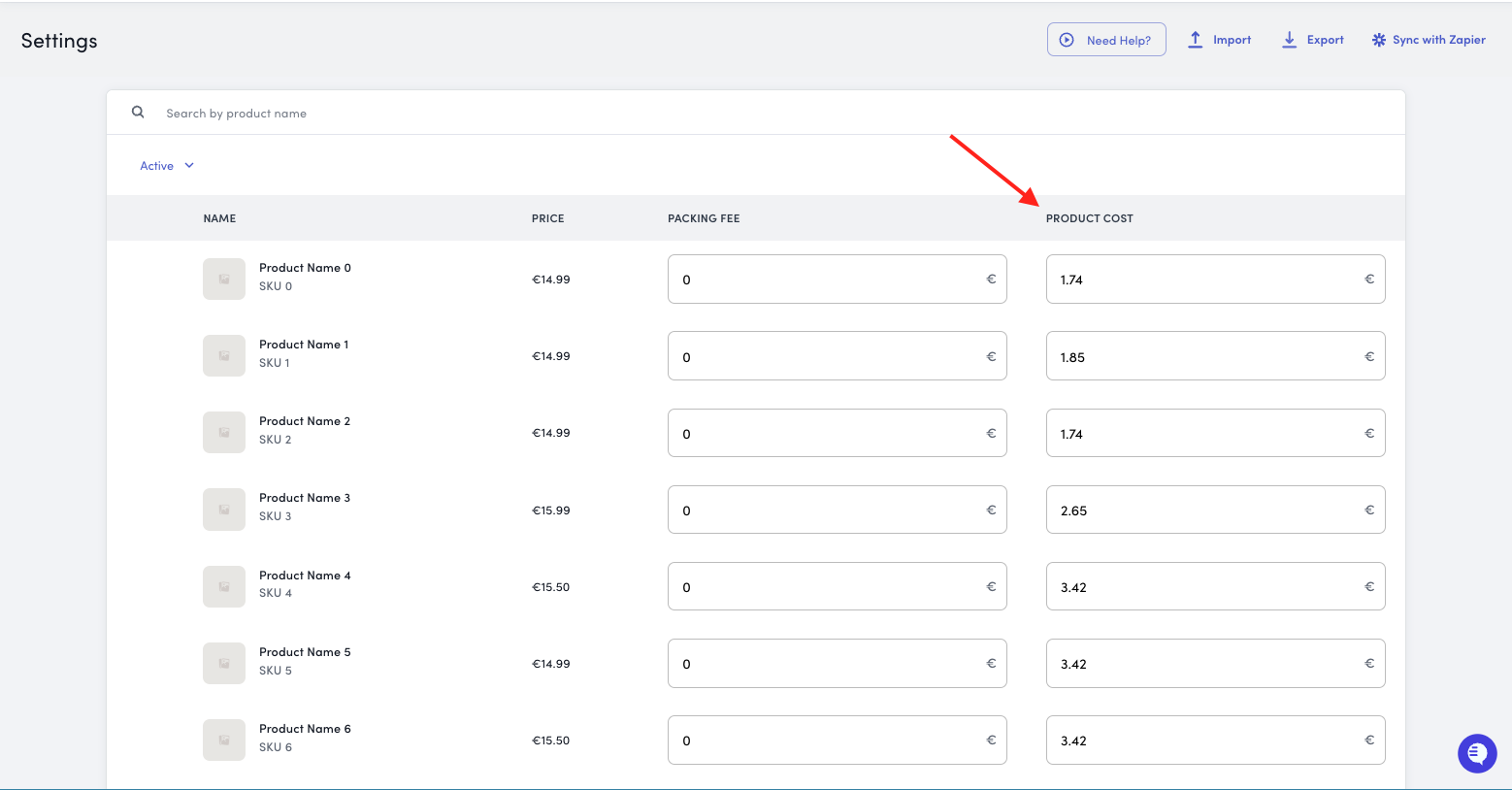
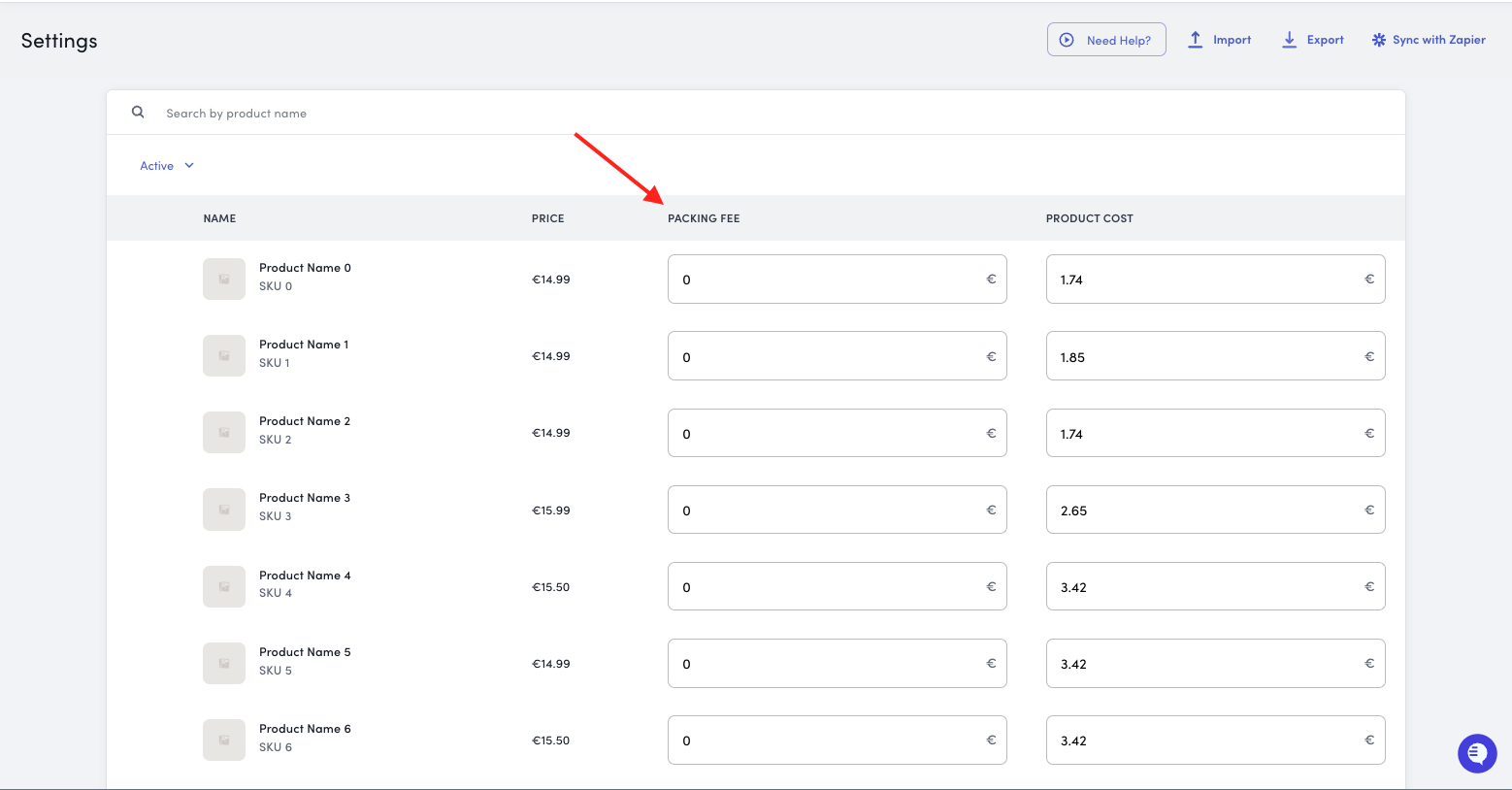
2. Packaging Fee
Additional costs for fulfillment, especially useful for:
Oversized or bulky items
Products requiring special packaging
Items with unique handling requirements
Bulk Import via CSV
Need to update costs for many products at once? Use our CSV import feature.
Step-by-Step Process
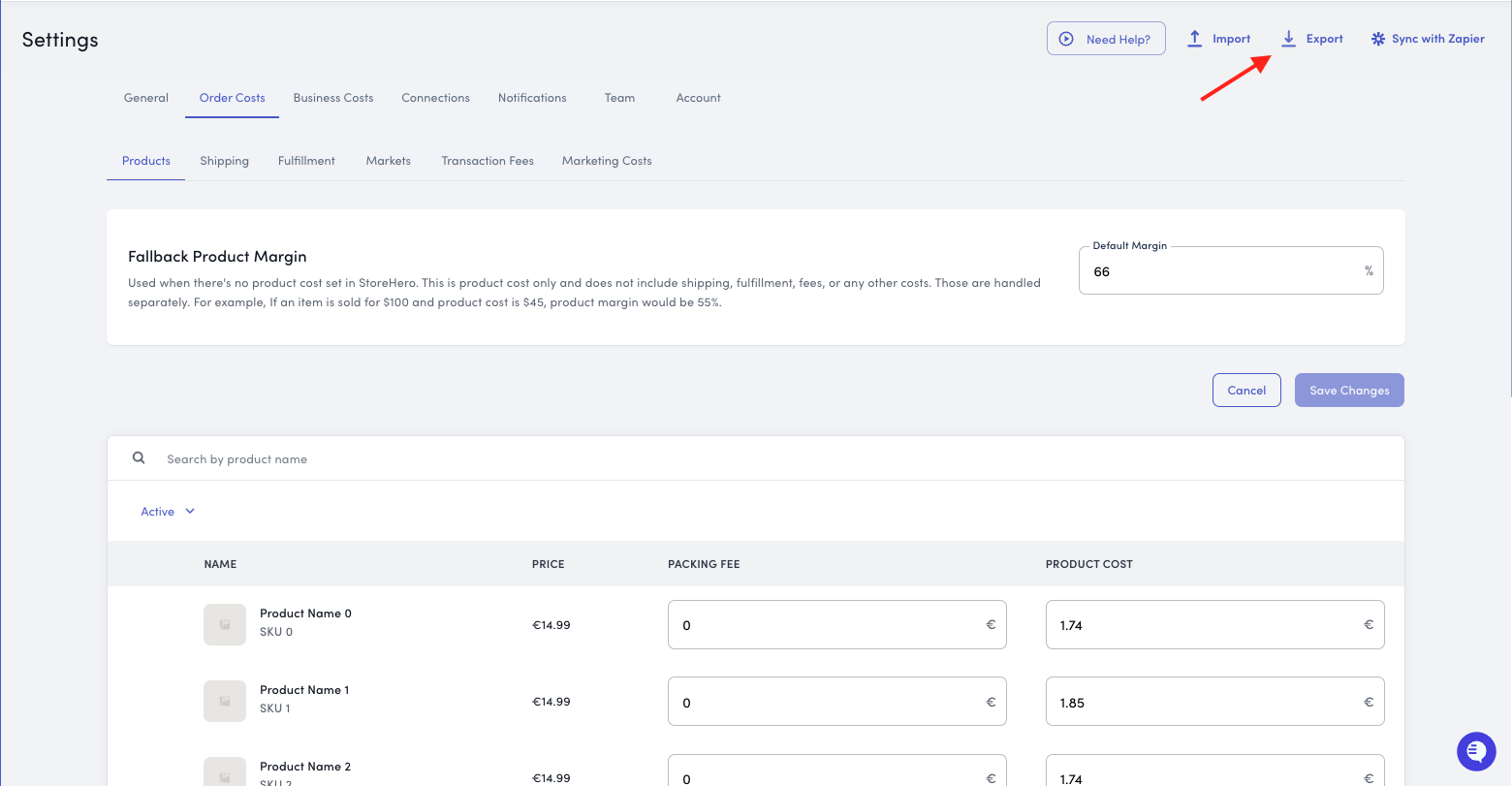
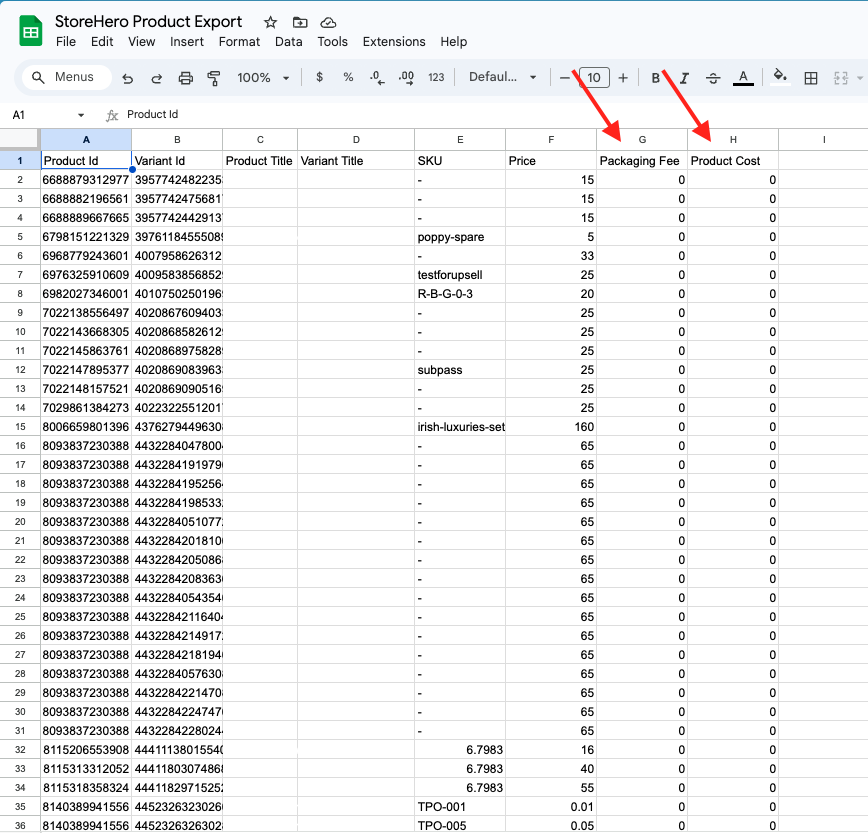
Export your current data by clicking the Export button at the top of the page
This creates a spreadsheet with all your products, variants, and SKUs already populated
Use this as your template to avoid formatting errors
Fill in your costs in the exported spreadsheet
Add product costs in the appropriate column
Add packaging fees where applicable
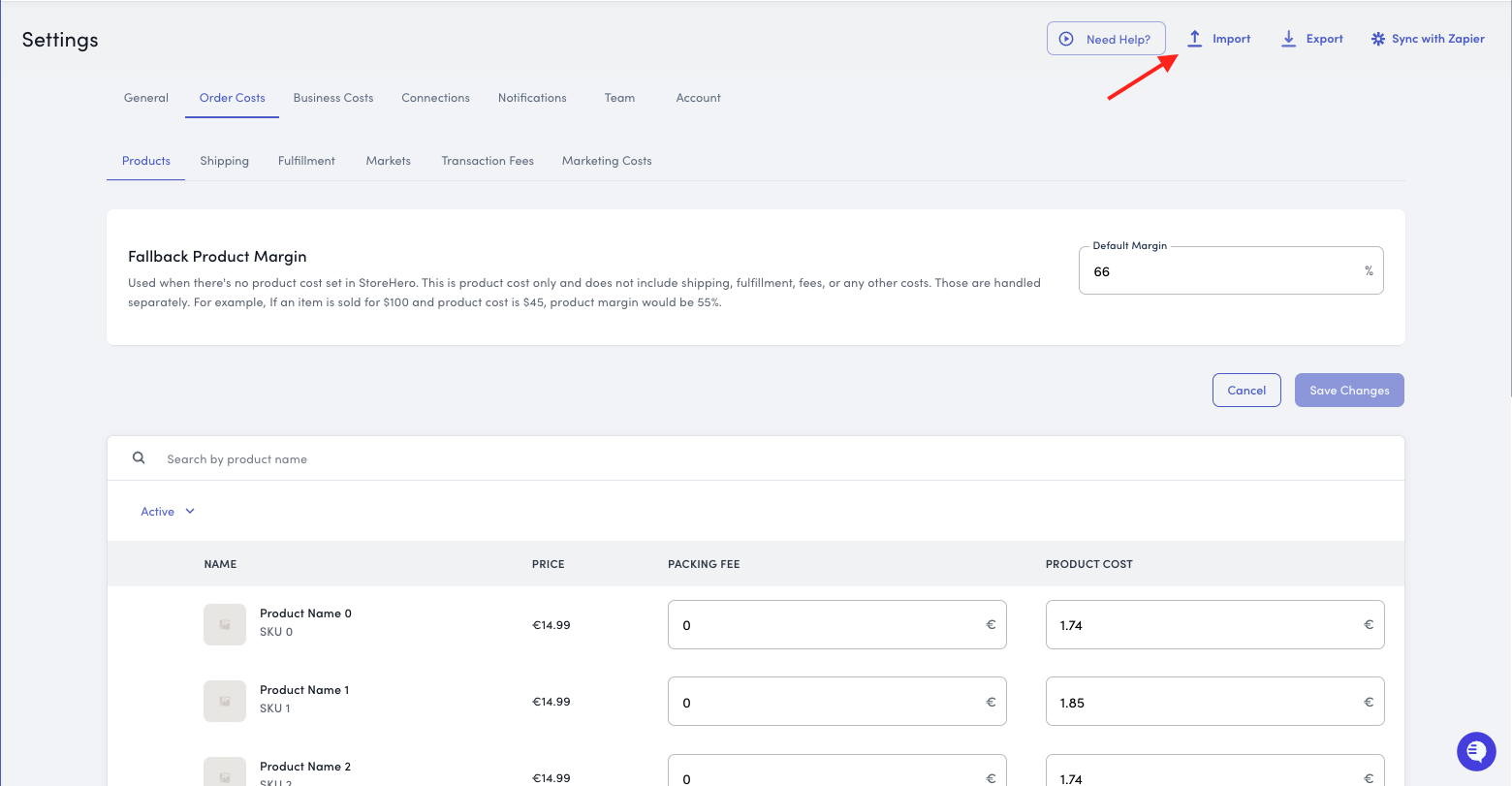
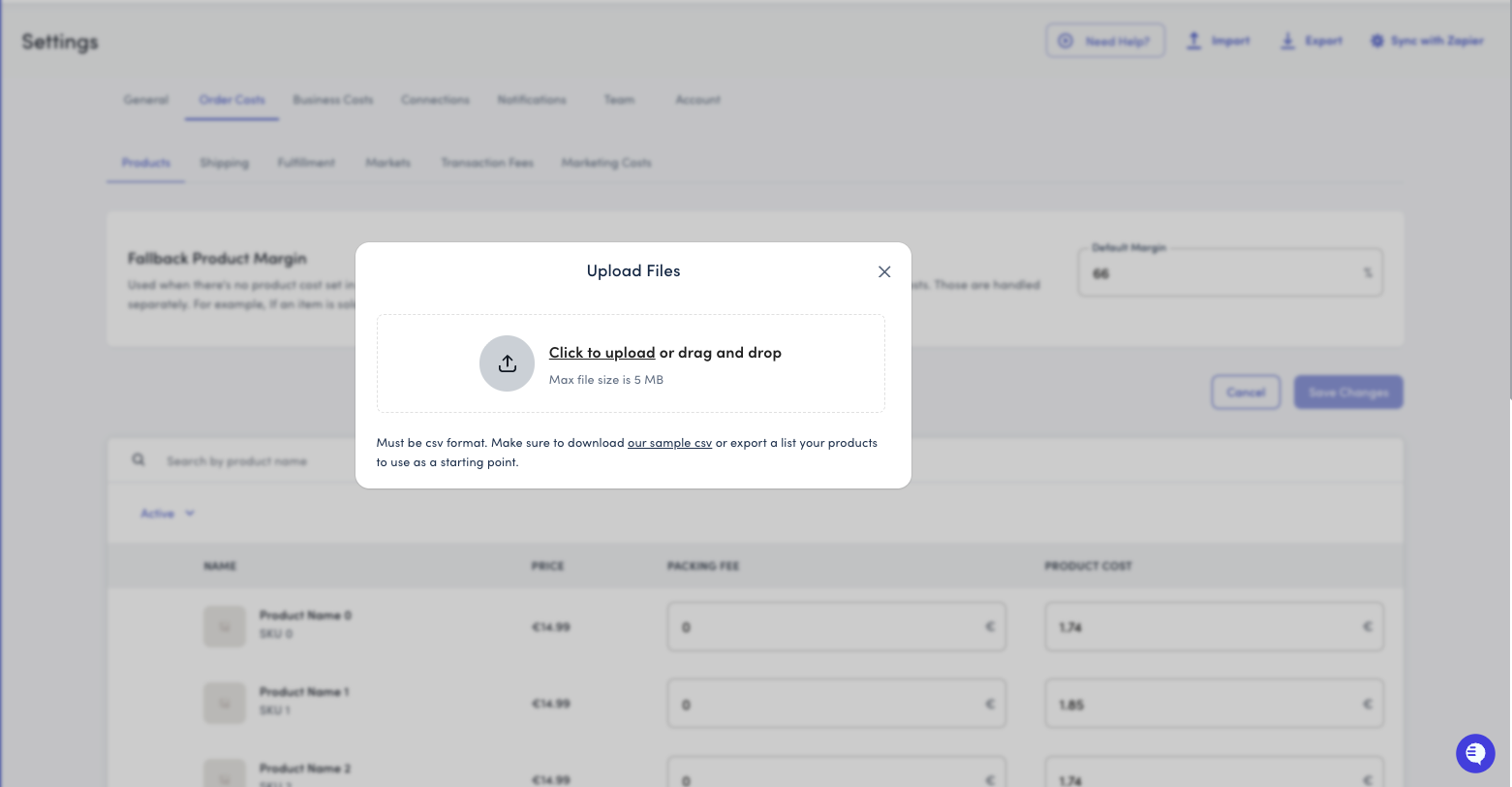
Import your updated file using the Import button
Review the preview before confirming
Check for any errors or warnings
Pro tip: Always export before importing to ensure you have a backup of your current settings.
Don't Forget to Save!
After making any changes to your cost settings, always click the Save Changes button to ensure your updates are applied.
Need Help?
If you have questions about setting up your costs or calculating margins, our support team is here to help. Contact us at support@storehero.ai.