How To Connect Zapier
Last updated: May 8, 2026
Zapier is a powerful automation tool that allows you to seamlessly and automatically import cost data into StoreHero. It works off of a trigger and action system that is simple to configure and has hundreds of integrations.
With Zapier and StoreHero, you can automate the import of your product costs, shipping costs (by order #), marketing costs, and operating costs. If Zapier doesn’t integrate with an software you use, we recommend creating a living Google Sheet and updating it to effortlessly into StoreHero.
See Zapier's full list of integrations here
Here’s an example of how to add shipping costs by order number:
Note: The same process applies to adding marketing or operating costs. Make sure to use a copy of our sample CSV so the formatting is correct: marketing costs template, operating costs template
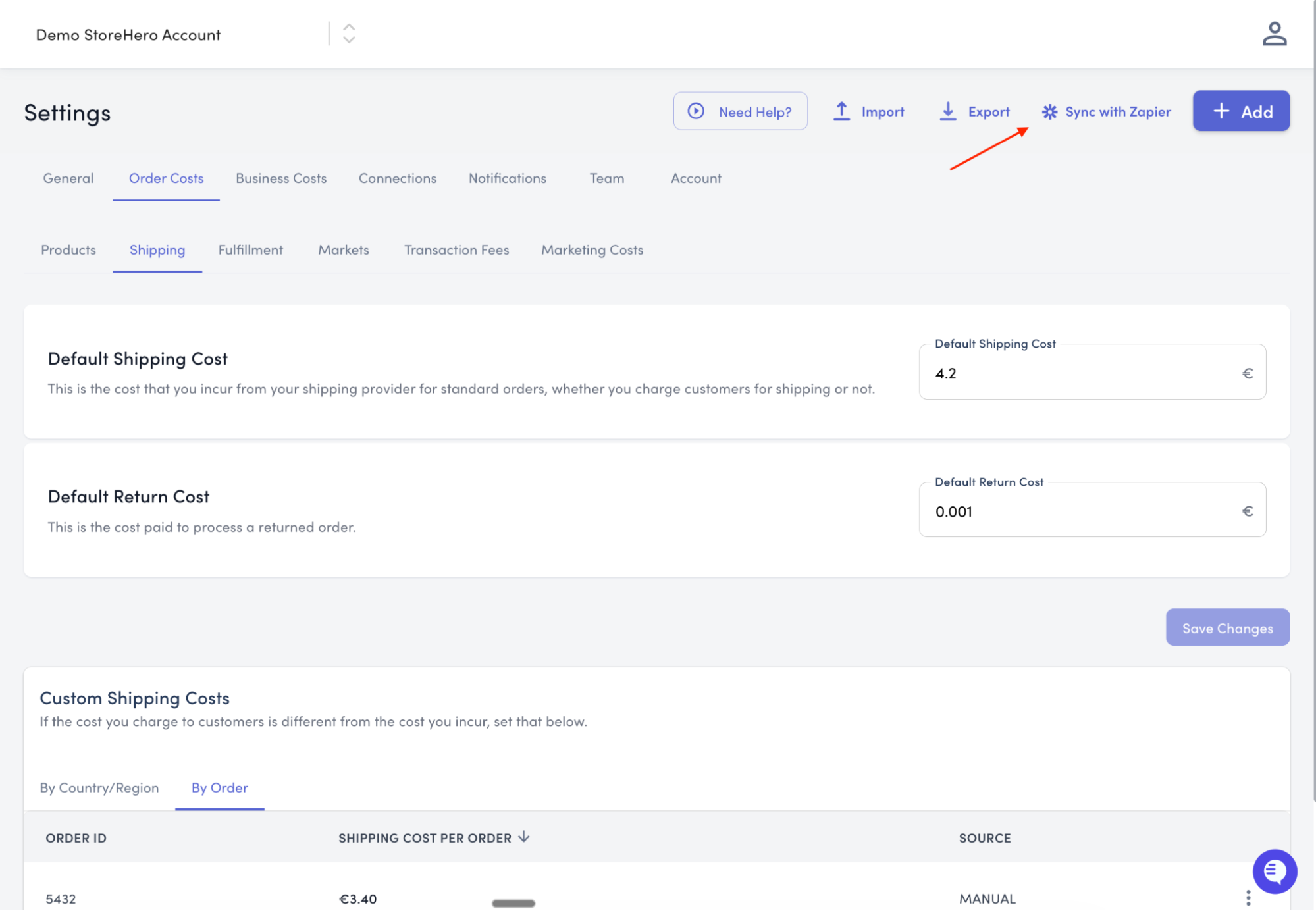
Navigate to Settings > Order Costs > Shipping
Select Sync with Zapier in the top right corner
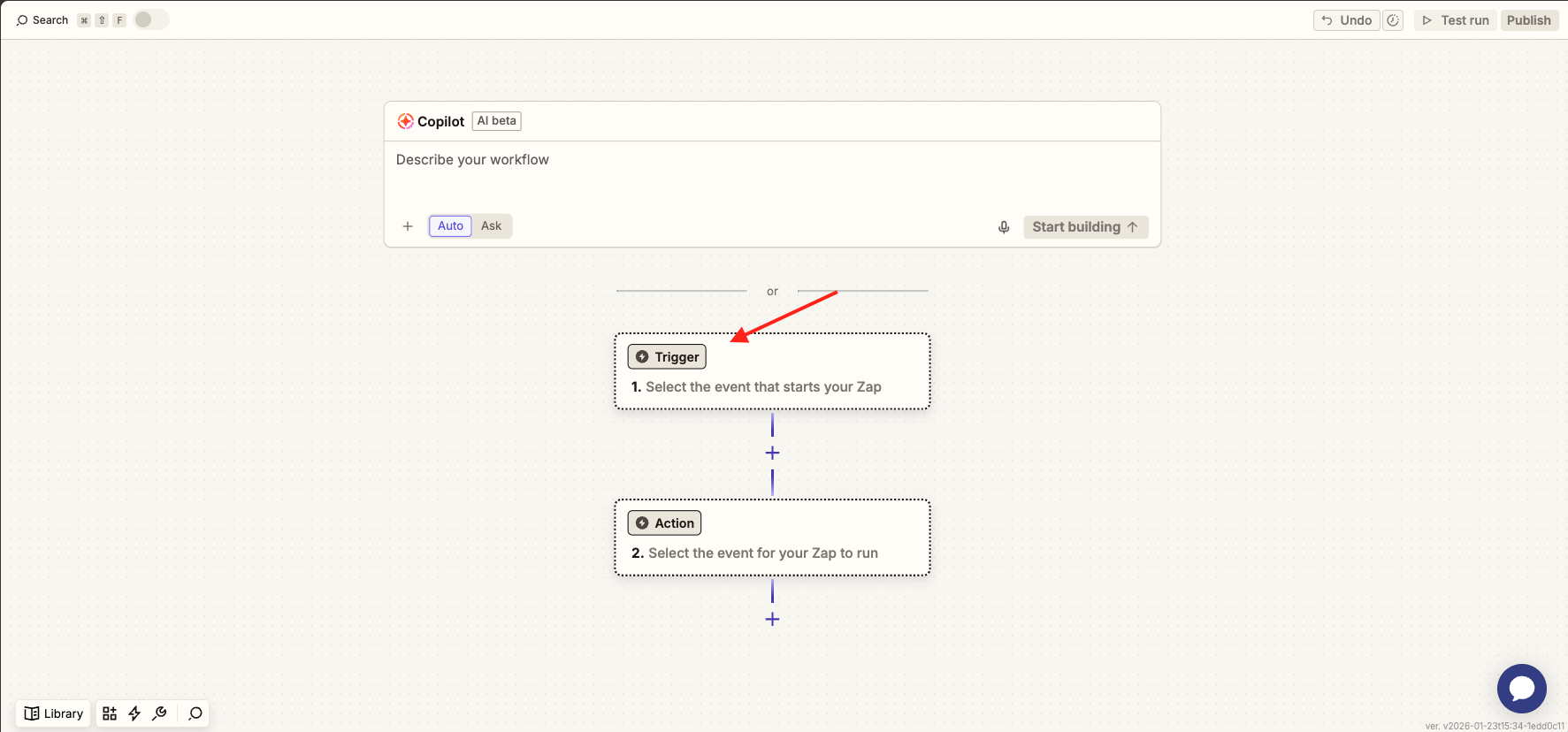
Login to Zapier and create a new Zap
Click on Trigger to show source options
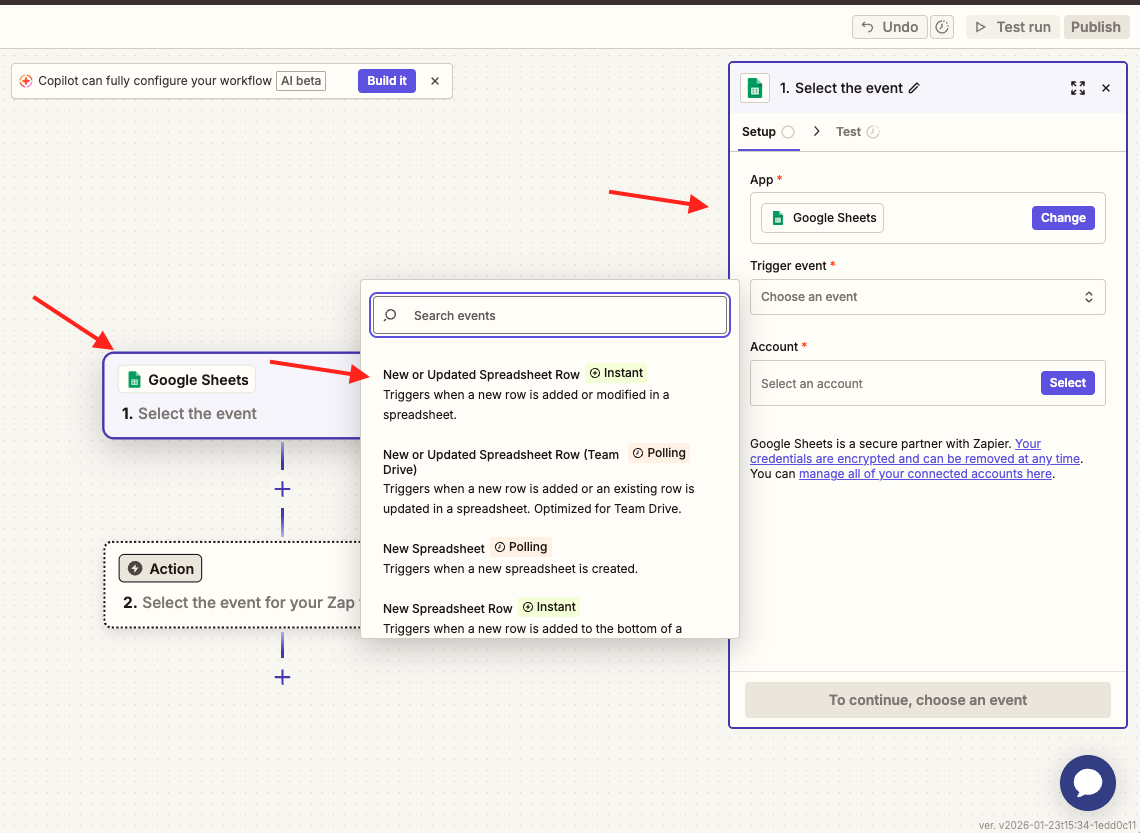
Select your source
Determine the trigger event and add your account
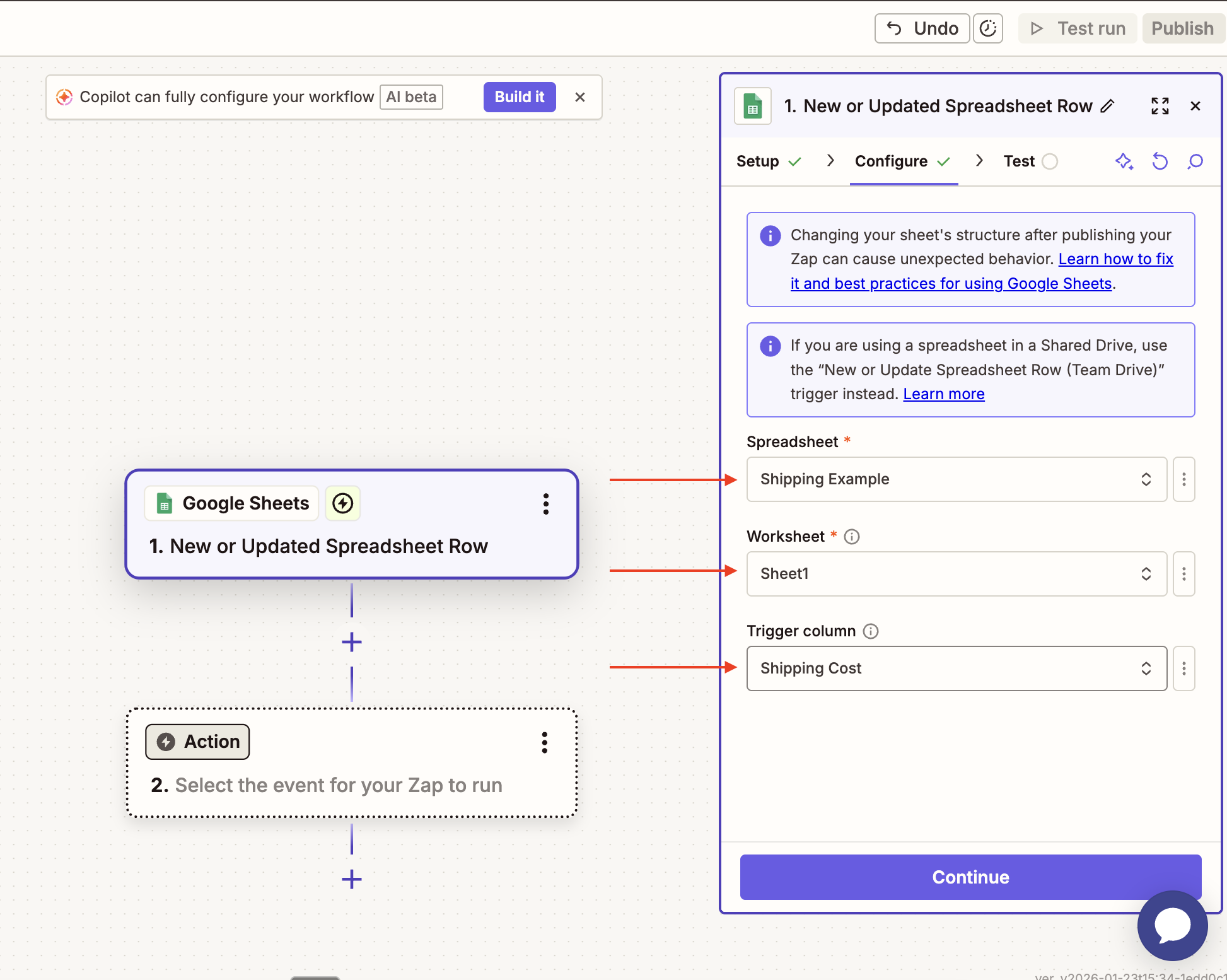
Pick your spreadsheet or source, worksheet, and trigger column
Continue and test your trigger
If successful, move into next step
If unsuccessful, resolve and retest step
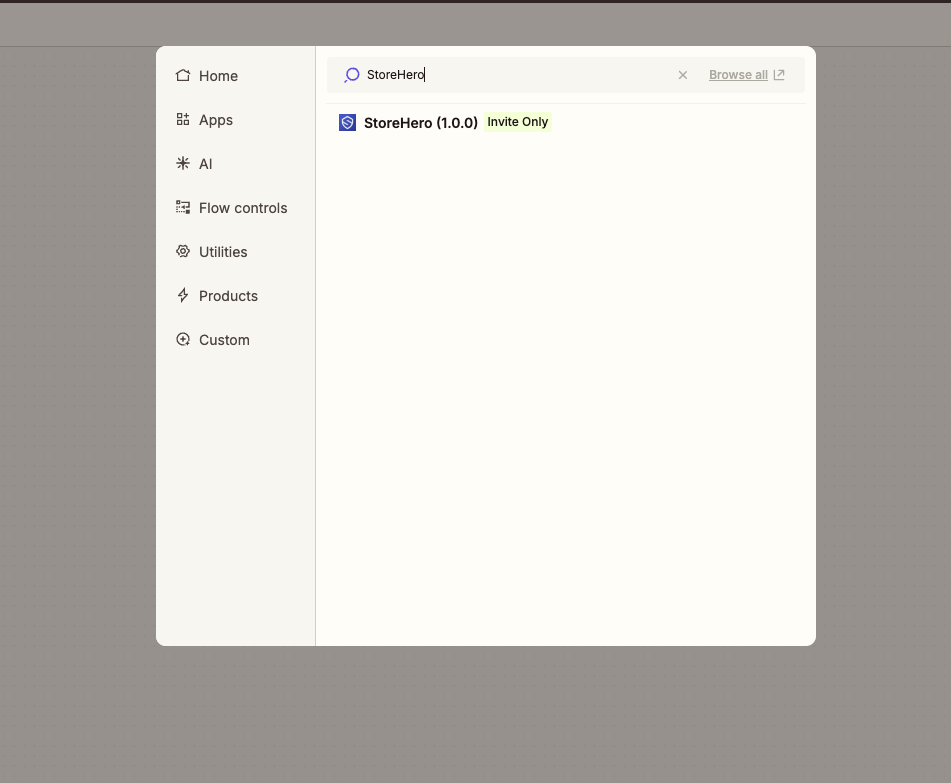
Once your Trigger is set, select Action and search for StoreHero
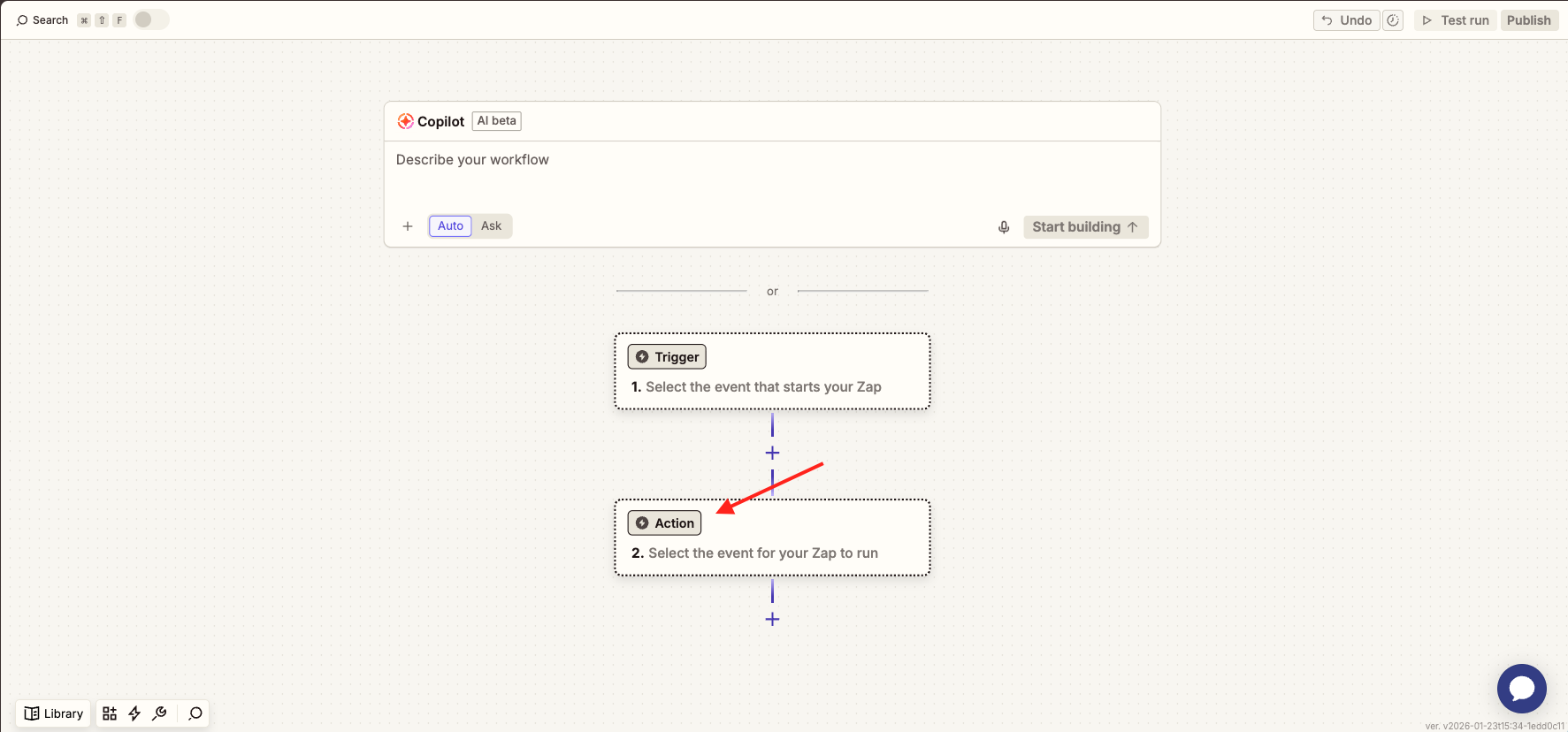
Select StoreHero
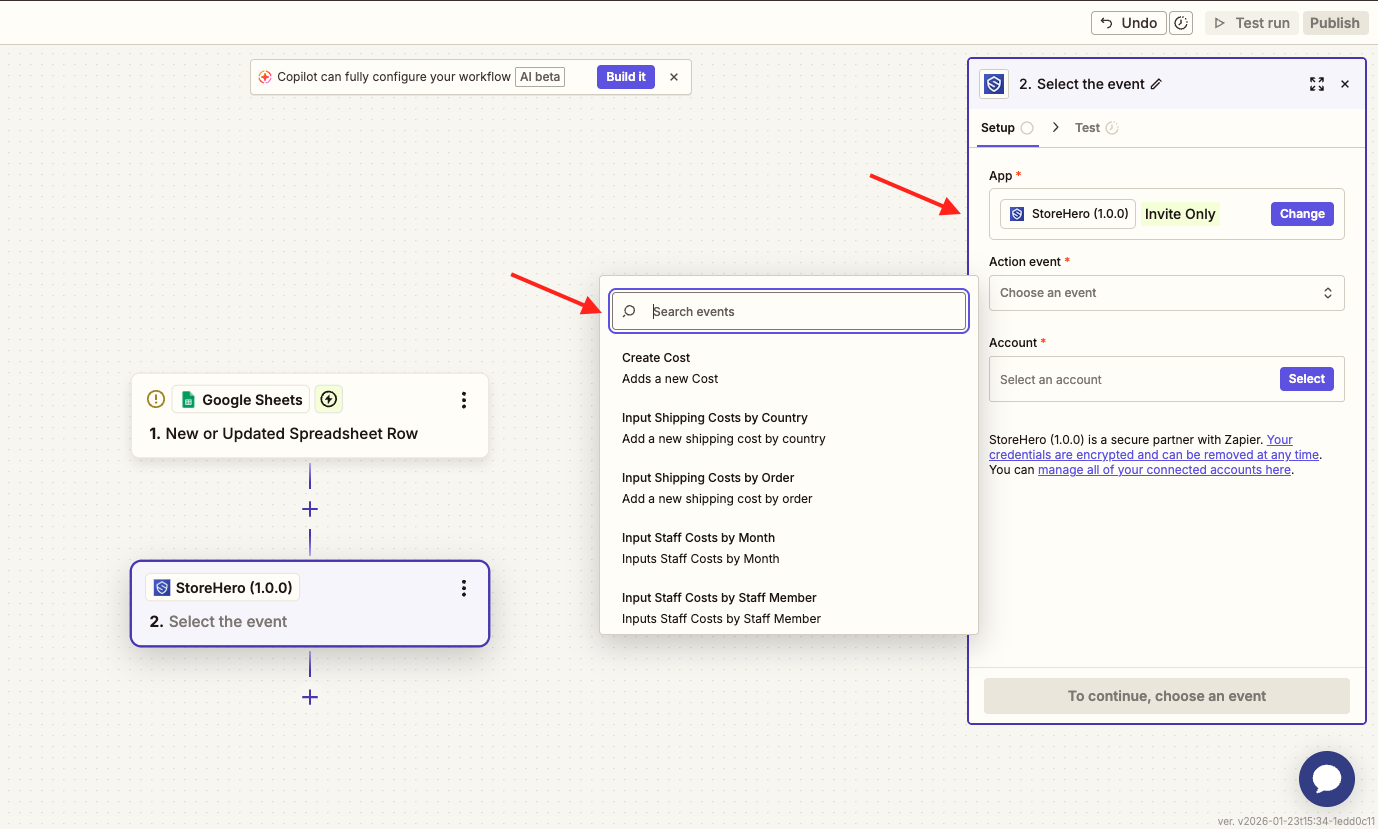
Select the Action Event (select the relevant cost option from the list)
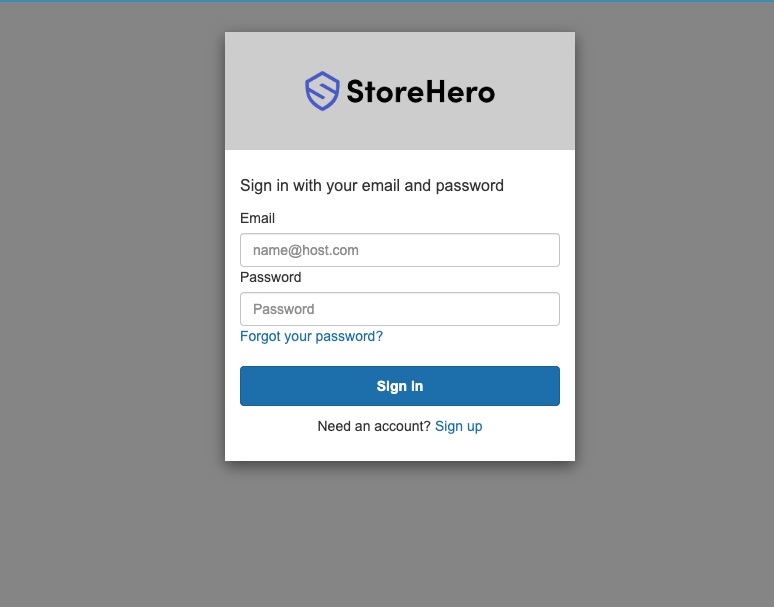
Select Account and login with your StoreHero credentials
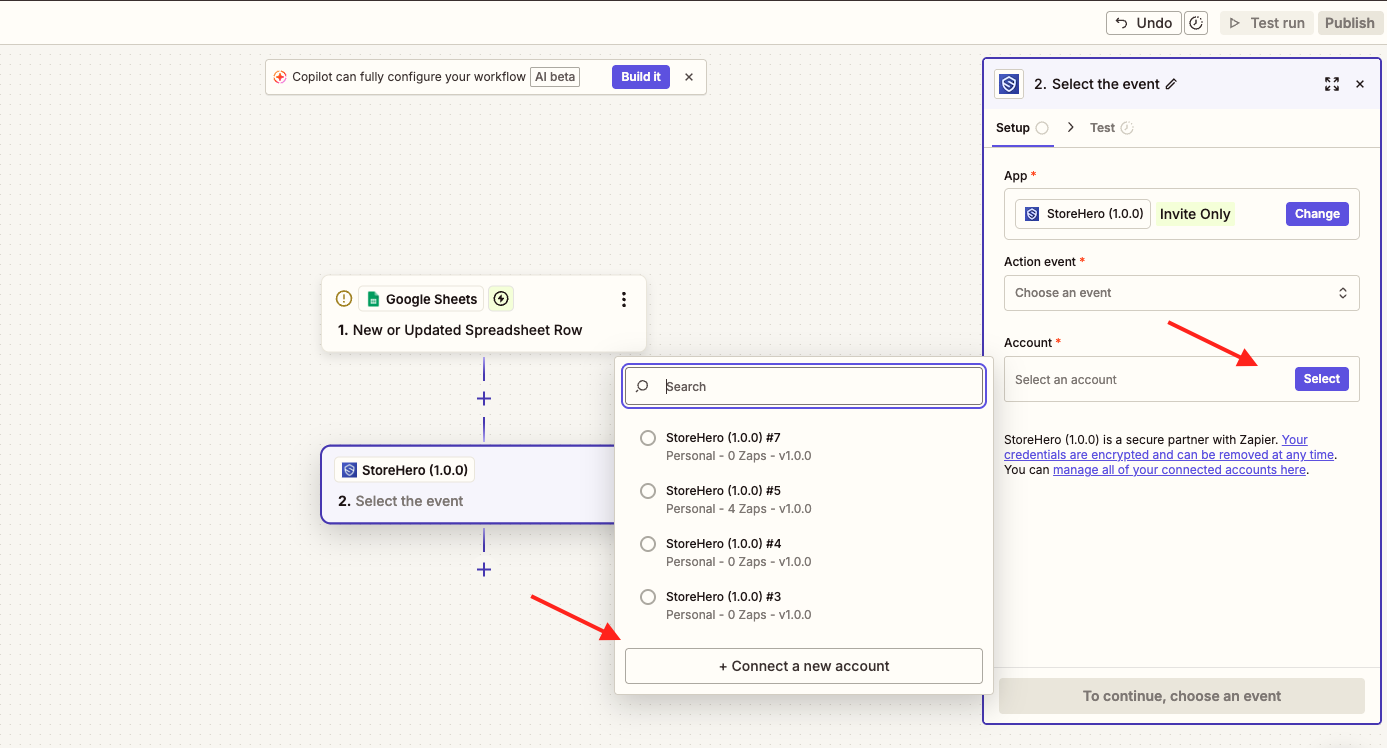
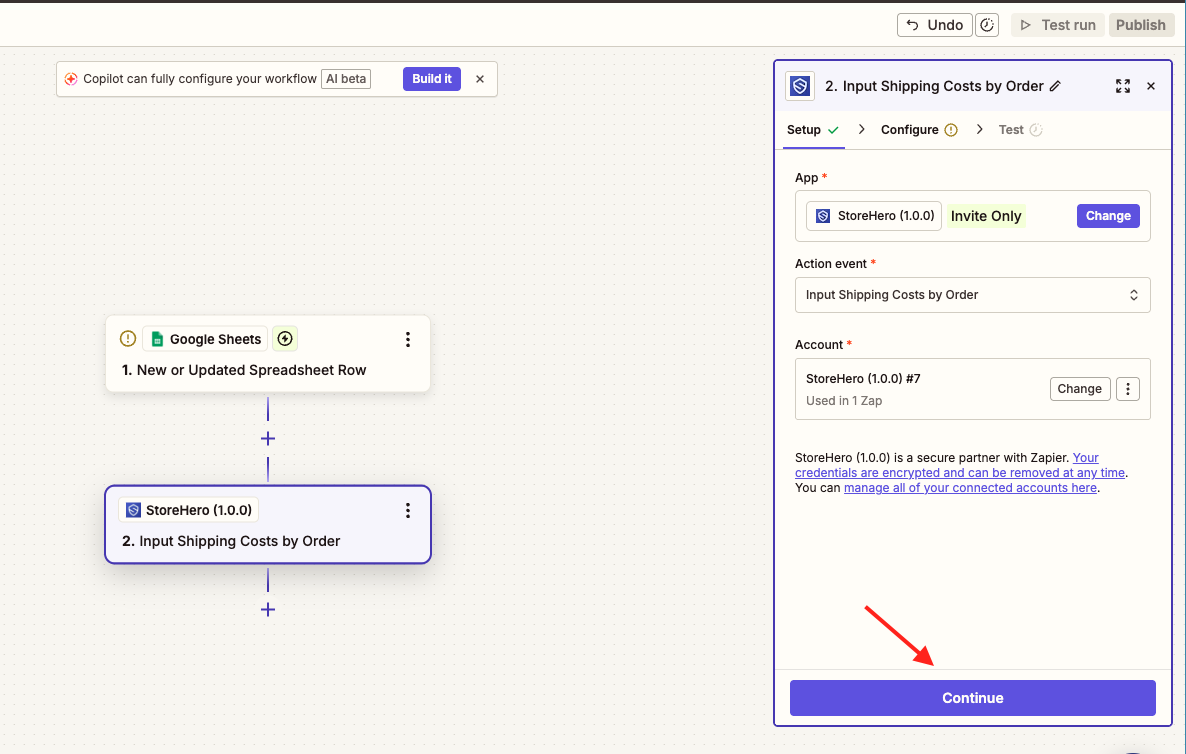
Once connected, hit Continue
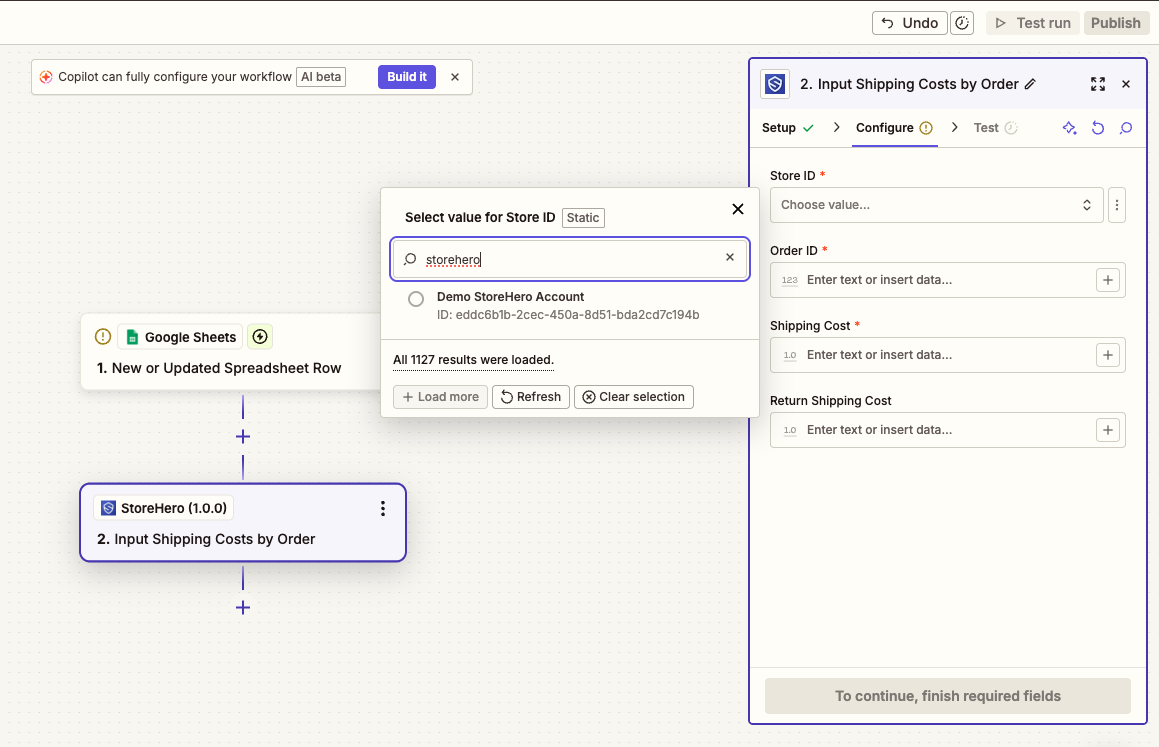
Select your store from the Store ID search
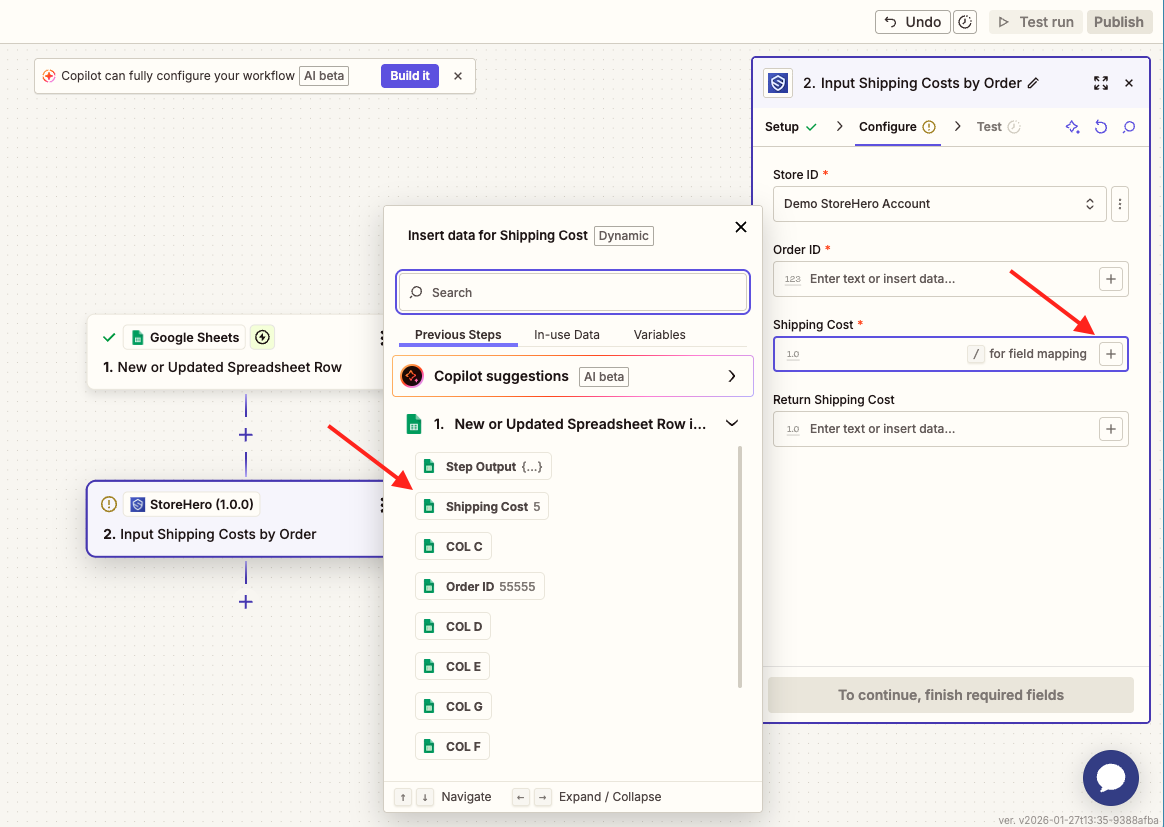
Click on the + icon in the Order ID field. From the pop-up, select Order ID to map the column
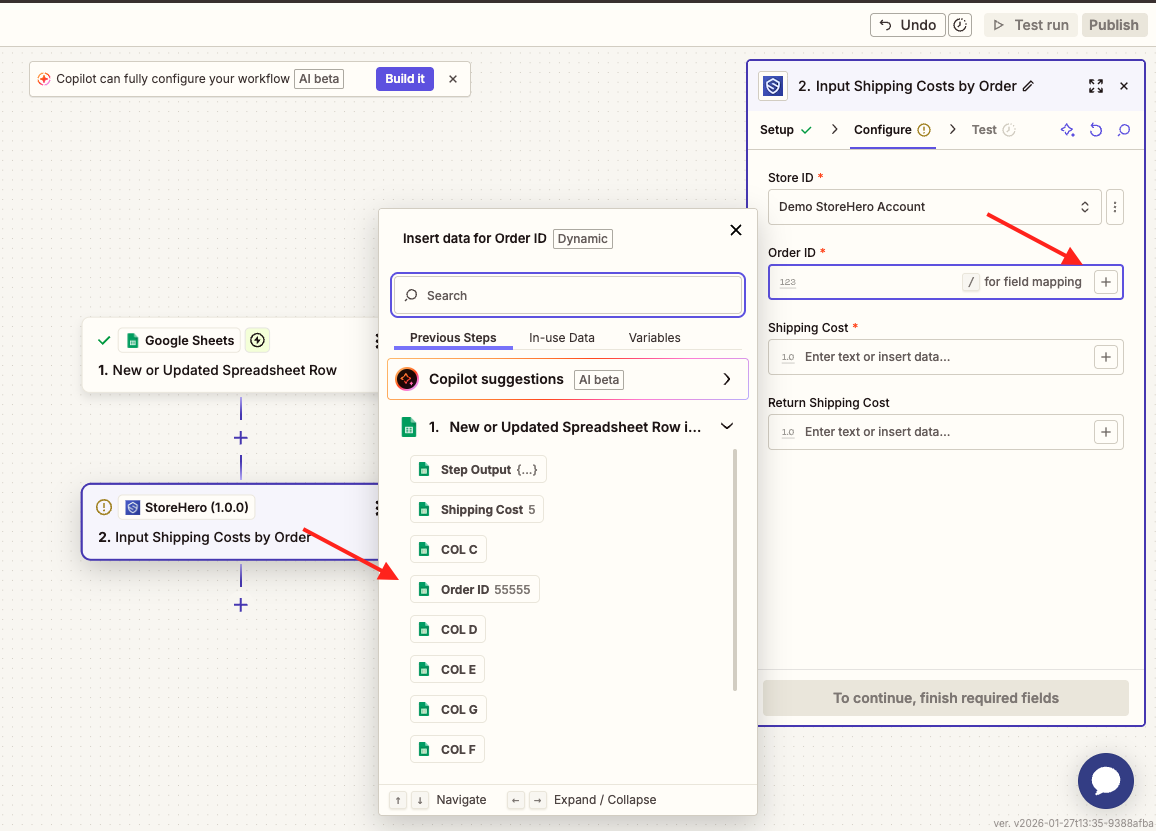
Follow the same steps above for mapping the Shipping Cost
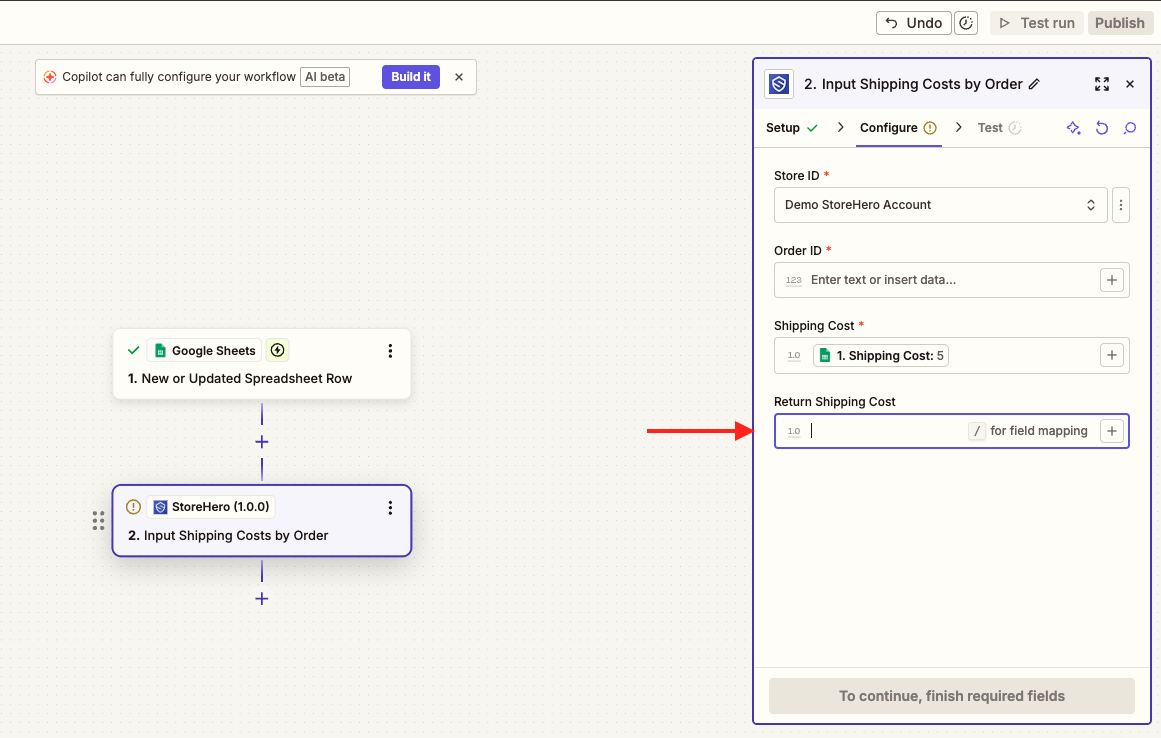
Include a Return Shipping Cost if adding Country Based Shipping Costs, if not, leave it blank
Confirm the Data in is correctly mapped then hit Test step
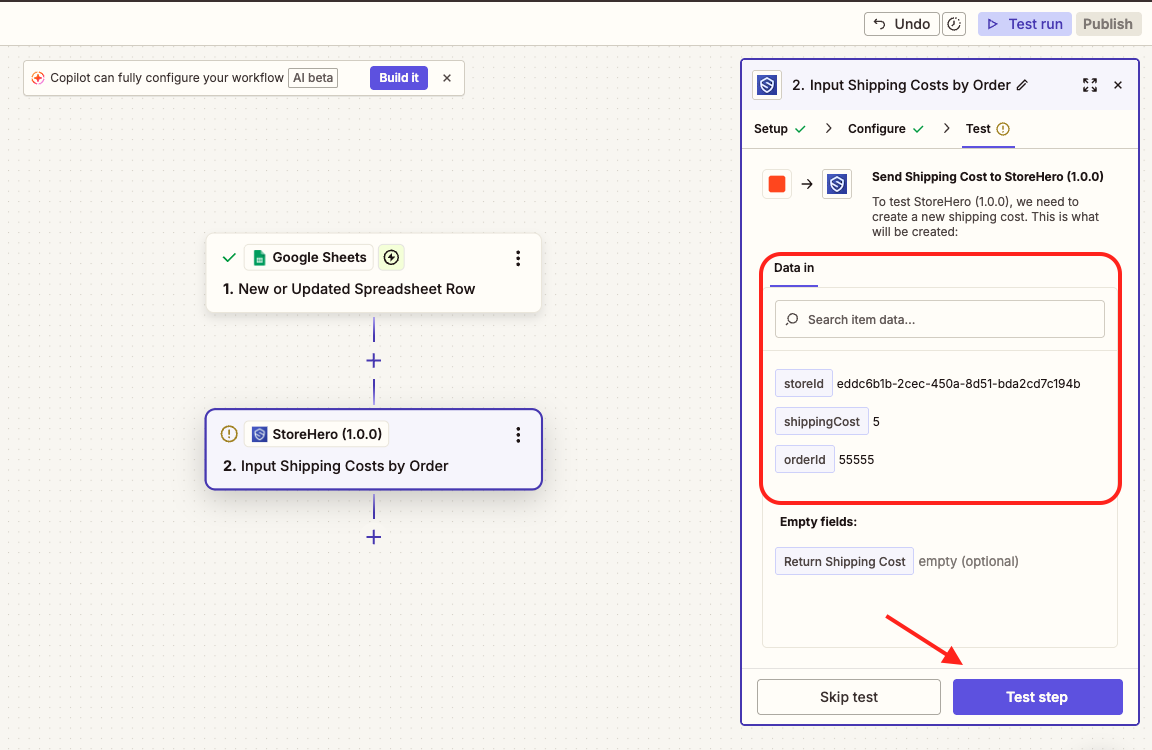
If the test fails, rectify any highlighted errors.
If the test is complete, confirm the Data out is accurate and select Publish
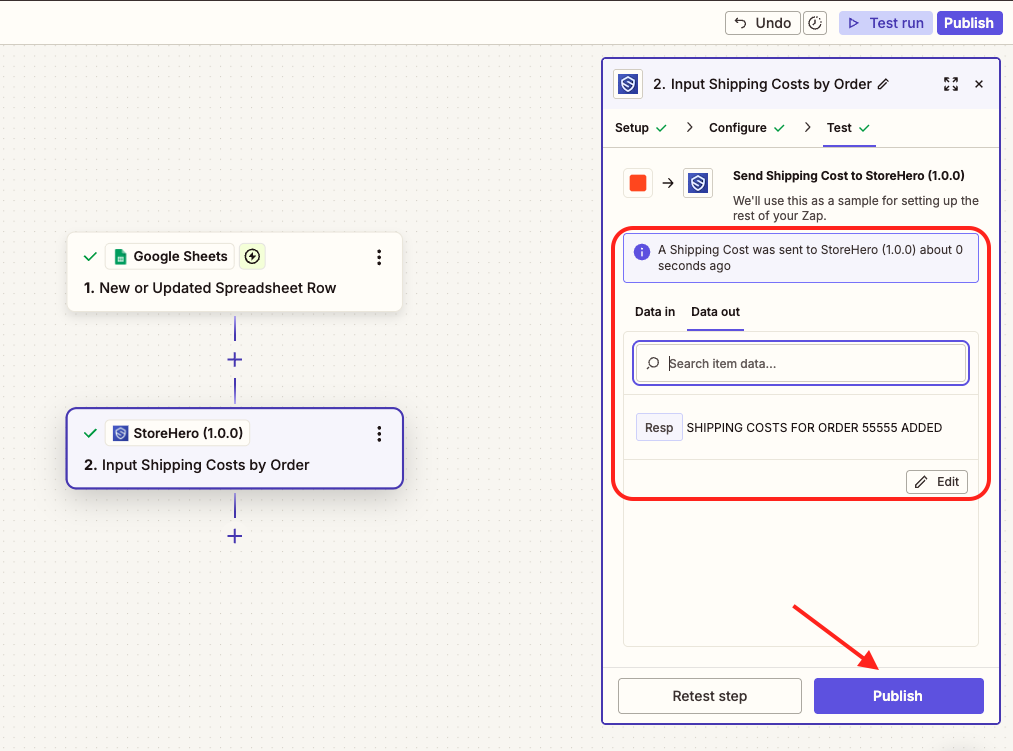
Your Zap is now complete and we will pull in new/updated line items automatically