Adding Filters to Your Sales/Marketing Data
Last updated: November 4, 2025
This feature allows you to tailor the data you view and analyse, ensuring it aligns with your specific business needs.
Step 1: Navigating to Connections
To filter your connected sales or marketing channels, such as Shopify:
Navigate to the Settings section in the left-hand navigation.
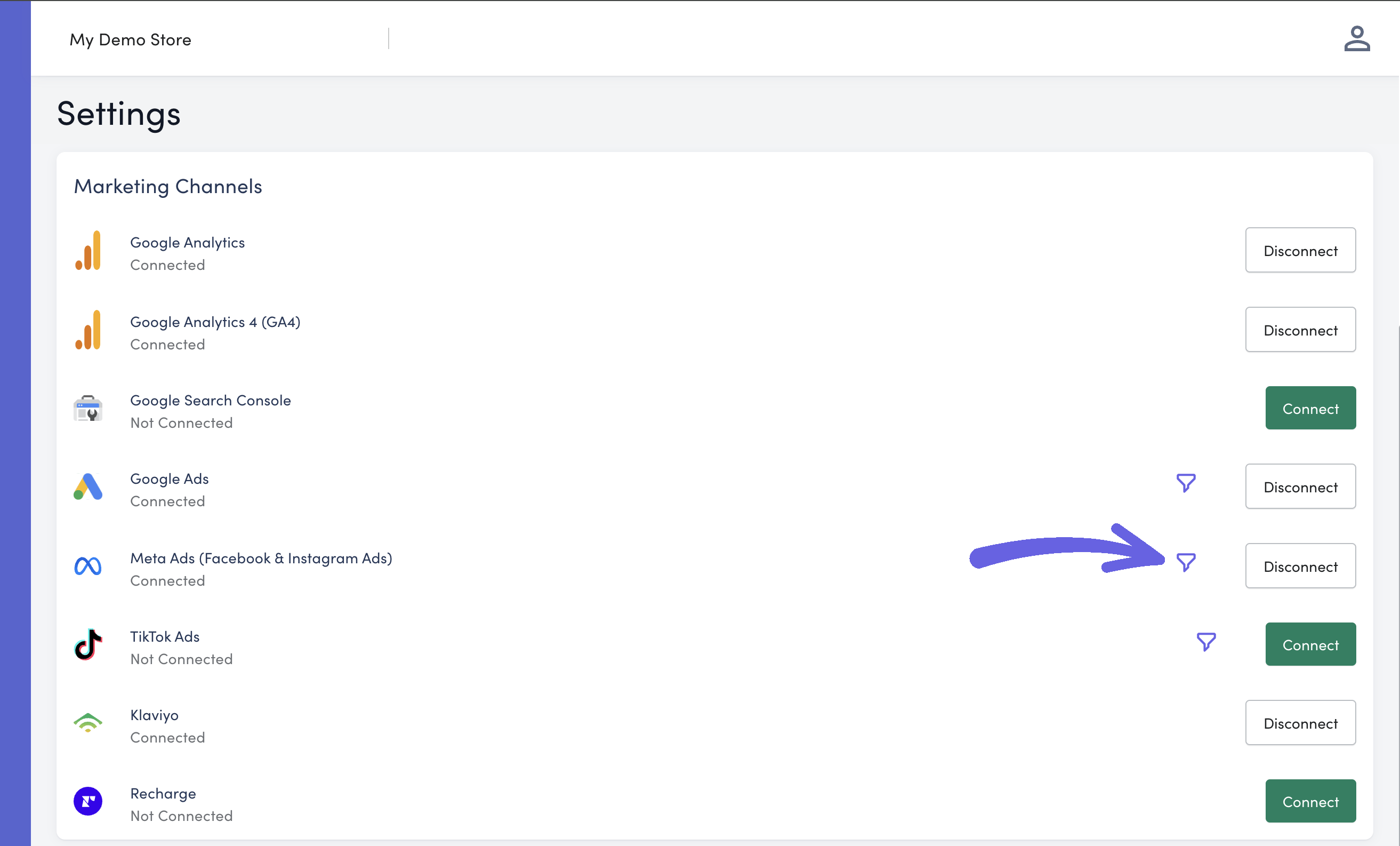
Click on the Connections tab. Here, you will see a list of your connected sales channels.
Step 2: Setting Up a Filter
Any sales or marketing channel that supports filtering will have a filter icon to the left of the Connect/Disconnect button. To set up a filter:
Click on the filter icon.
A dialog box will appear, allowing you to set the parameters for your filter.
For Shopify you can filter by:
Order Source: For example, online versus POS.
Order Tag: Restrict orders with certain tags applied.
For Google and Meta you can filter by:
Campaign name: Eg. filter orders to exclude any retail campaigns that don't generate sales for your online store.
For guidance on applying tags to certain orders automatically within Shopify, refer to this knowledge-based article from Shopify.
Step 3: Configuring Filter Parameters
You have the option to decide whether the order source or tag should be excluded based on:
Contains
Does not contain
Is equal to
We recommend using the contains option, as some channels may have inconsistent names for order sources and tags, making the equals to filter less reliable.
Step 4: Saving Your Filter
Once you've finished creating your filter, click the Save button. Note that applying a new filter will trigger a resync of your sales data. You can continue using your StoreHero account, but the data will not be filtered immediately. The traffic light sync status symbol across your store pages will turn green once the sync is complete and the data has been filtered.