Connecting Your Sales Channel
Last updated: January 21, 2026
This is the channel that you use to receieve orders. We'll use this channel to display your sales data and automatically sync key costs, including product costs (Shopify), discounts, tax, transaction fees, returns, and more.
Connecting During Onboarding
During he onboarding process, you'll be presented with a number of supported sales channels that you can connect to your store. We currently support:
Shopify
WooCommerce
Magento
BigCommerce
Amazon
To connect the sales channel
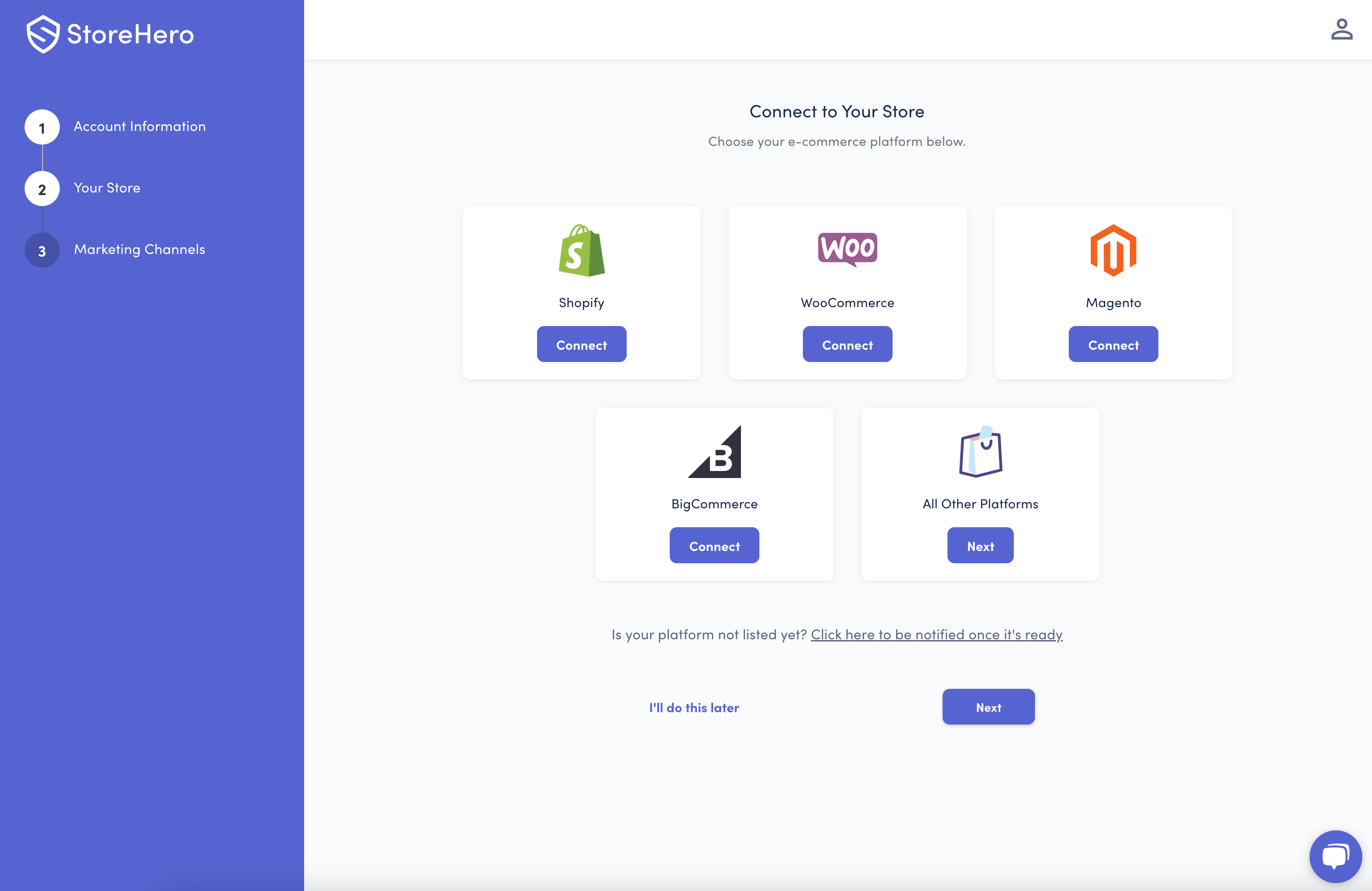
Click on the Connect button below your selected channel.
A pop-up will appear allowing you to enter your login credentials for your chosen sales channel.
Once connected, we'll start syncing your data and calculating key profitability metrics immediately. Recent data should show within 60 minutes, while it can take up to 24 hours for your full historic sync to complete.
Connecting Through Settings
You can also connect your designated sales channel through the Settings section:
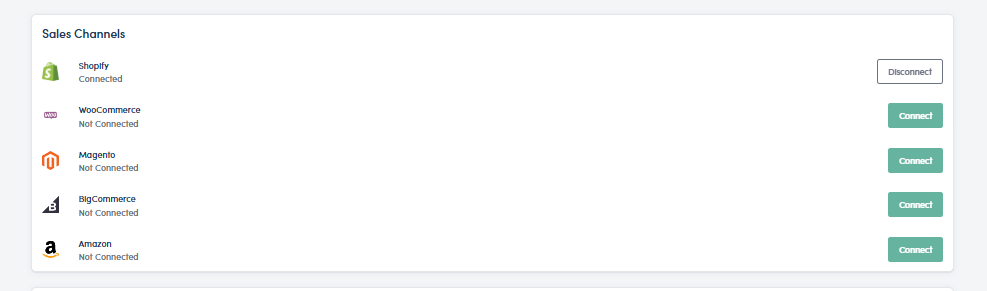
Navigate to the Settings option in the left-hand navigation.
Click Connections.
Here, you'll see a list of supported sales channels as well as any sales channels you currently have connected.
To connect a new channel:
Click the Connect button, which will trigger a dialog box.
Enter your credentials for your sales channel.
To disconnect a channel:
Click the Disconnect button.
From here, you can reconnect the same channel or connect a new sales channel to your store.
Using Filters
If you'd like to filter your sales data, this is supported across a number of our sales channels. The most common use for this is to exclude Shopify sales from particular sources, such as POS or orders that include a specific tag.
Please note: we recommend using the "contains" filter instead of equals to as some order sources in channels such as Shopify are case sensitive and won't always be returned in the same way