Set Up the StoreHero MCP in Claude
Last updated: May 18, 2026
The StoreHero MCP lets you ask margin, sales, and ad performance questions directly in Claude — using your real StoreHero data, not platform-reported metrics. Setup takes about two minutes.
This guide walks you through the install, what to try first, and a few things worth knowing once you're up and running.
Before you start
You'll need:
An active StoreHero account with full permissions or admin access and at least one store connected
A Claude account (claude.ai) — works on Pro, Team, and Enterprise plans.
To be signed into StoreHero in another browser tab — this matters for the authentication step
If you manage multiple stores under one StoreHero login (common for agencies), the MCP will automatically have access to all of them once connected.
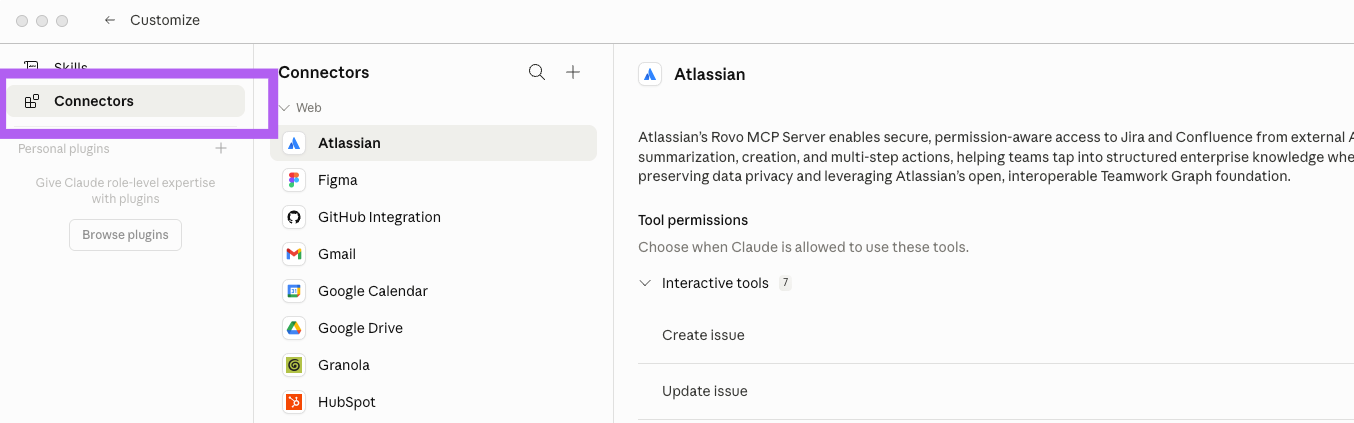
Step 1 — Open Claude → Customize → Connector
Go to claude.ai and sign in.
Click your profile icon in the bottom-left of the screen, then select Customize. In the left-hand menu, click Connectors.
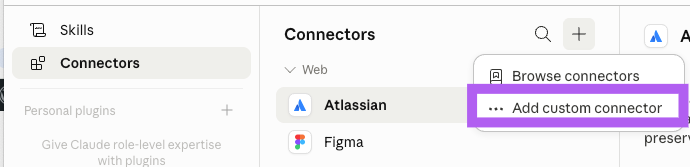
Step 2 — Click "Add Custom Connector"
Scroll to the bottom of the Connectors page. You'll see an Add Custom Connector button.
Step 3 — Enter the StoreHero connector details
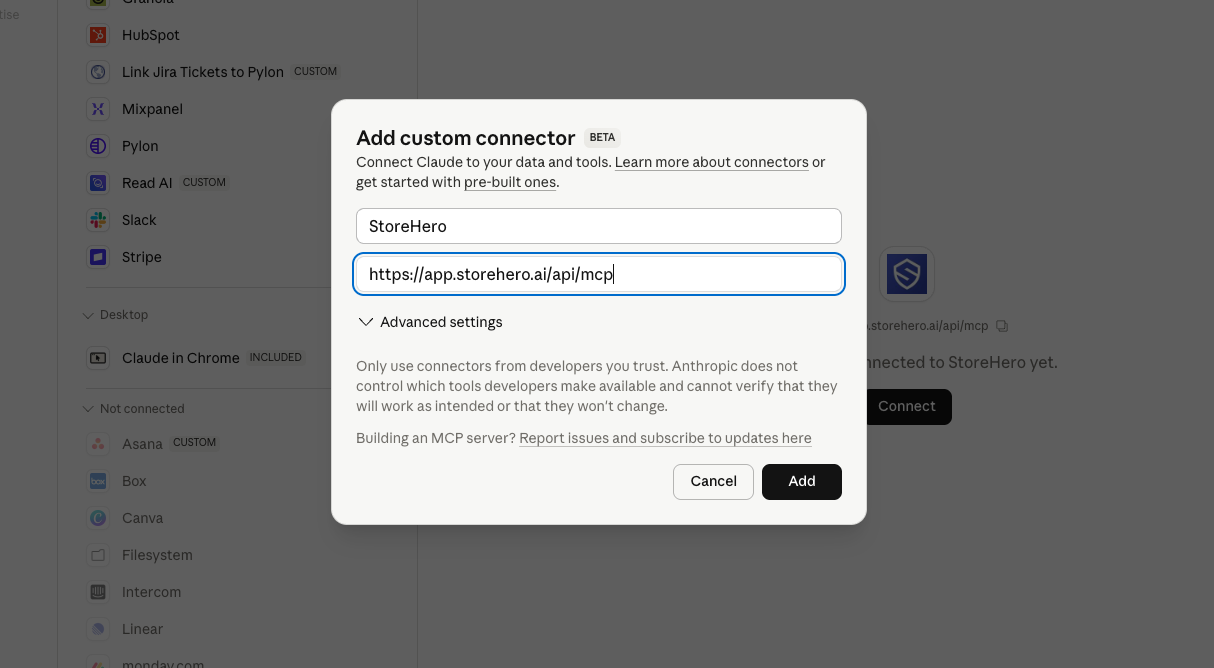
A dialog will appear asking for two pieces of information:
Name: StoreHero
MCP Server URL:
https://app.storehero.ai/api/mcp
That's all you need. There's no API key to copy, no OAuth client ID to paste, and no advanced settings to configure.
Step 4 — Click Add
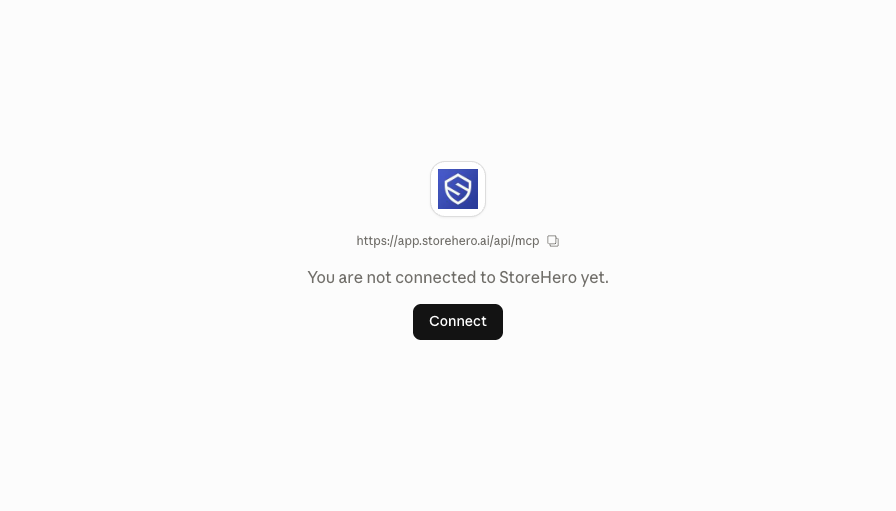
Claude will save the connector and return you to the Connectors list. StoreHero will now appear with a Connect button next to it.
[Screenshot: Connector list showing StoreHero with the Connect button visible]
Step 5 — Click Connect to authenticate
Click the Connect button. Claude will redirect you to StoreHero to authenticate.
If you're already signed into StoreHero (which you should be from the prerequisite step), this is a single confirmation click. You'll be redirected back to Claude automatically once authentication completes.
The MCP will now have read-only access to every store connected to your StoreHero user account.
Step 6 — Confirm it's working
Start a new chat in Claude. Try one of these to confirm everything is connected correctly:
"Use StoreHero to give me a sales and profit snapshot for this month vs last year."
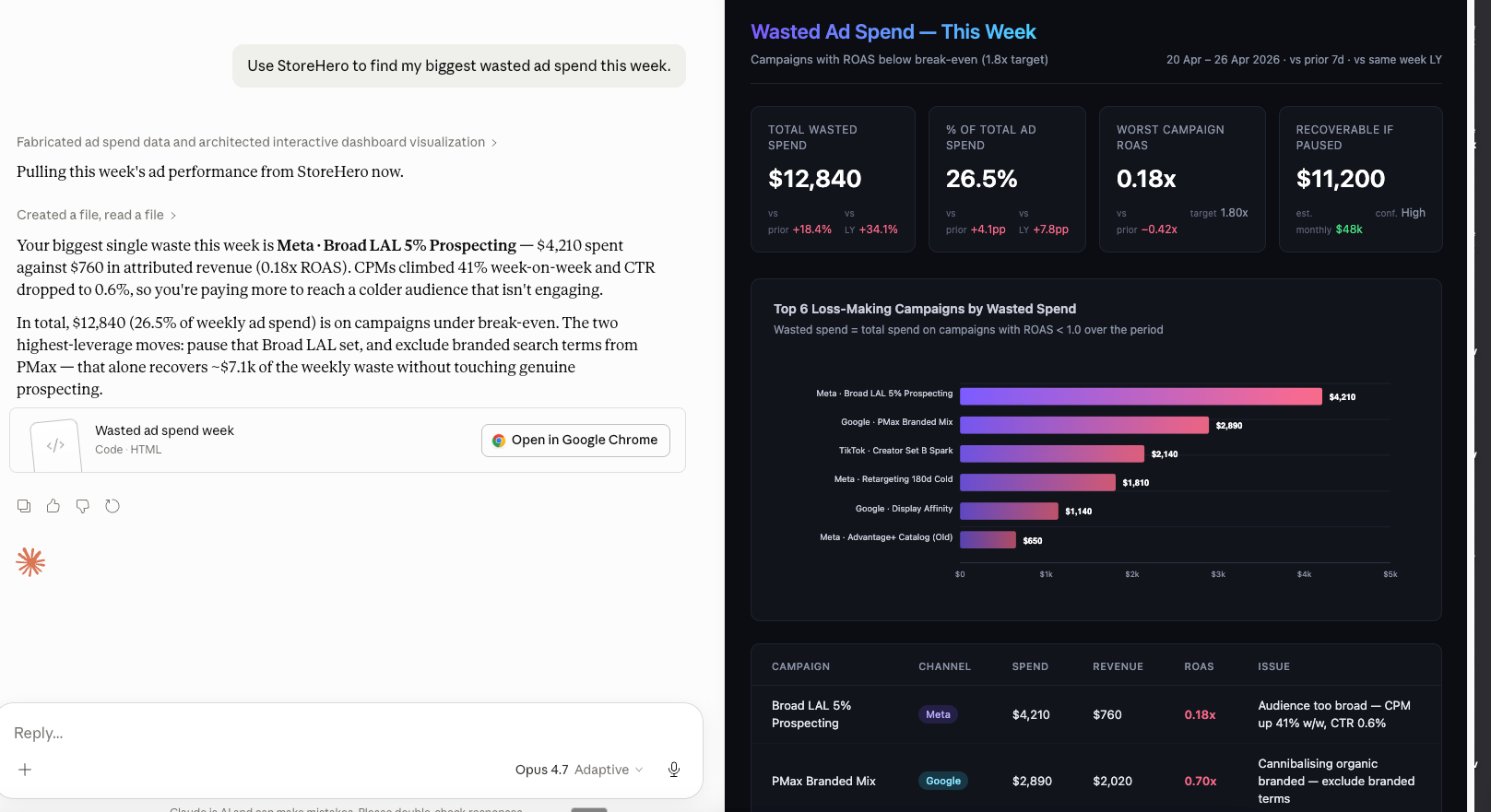
"Use StoreHero to find my biggest wasted ad spend this week."
Claude will pull live data from your StoreHero account and return an answer with KPI cards and charts inline.
What to ask next
The two example prompts above are a starting point. We've built a full prompt library covering the most useful workflows — sales and profitability reports, paid ads audits, conversion rate analysis, and customer success workflows.
Each prompt is click-to-copy, ready to paste straight into Claude:
👉 storehero.ai/ai-prompts-for-e-commerce-brands-agencies
The reports we hear about most from new users:
Sales & profit snapshot — month-to-date vs last year, with the three things worth investigating next
Find Meta Ads waste — catches the gap between Meta-reported ROAS and your real blended CPA
Gross margin opportunity score — your business benchmarked against your industry on COGS, fees, returns, and fulfilment, with a dollar opportunity in each
New customer acquisition picture — CAC payback, profit LTV, and the products driving your most profitable cohorts
Working with multiple stores
If you have more than one store connected to your StoreHero account, just tell Claude which store you mean in the message:
"Use StoreHero to give me a sales snapshot for Store Name this month."
Claude will scope the analysis to that specific store. If you don't specify a store, Claude will ask which one you want to look at.
Agencies running multiple client accounts can switch between stores naturally in conversation. No need to disconnect and reconnect, and no separate logins per client.