How to Manage Team Member Permissions in StoreHero
Last updated: November 5, 2025
You can control what sections of StoreHero each team member can access by setting Full or Partial permissions in your store’s settings.
Setting up team permissions
Follow these steps to manage team access:
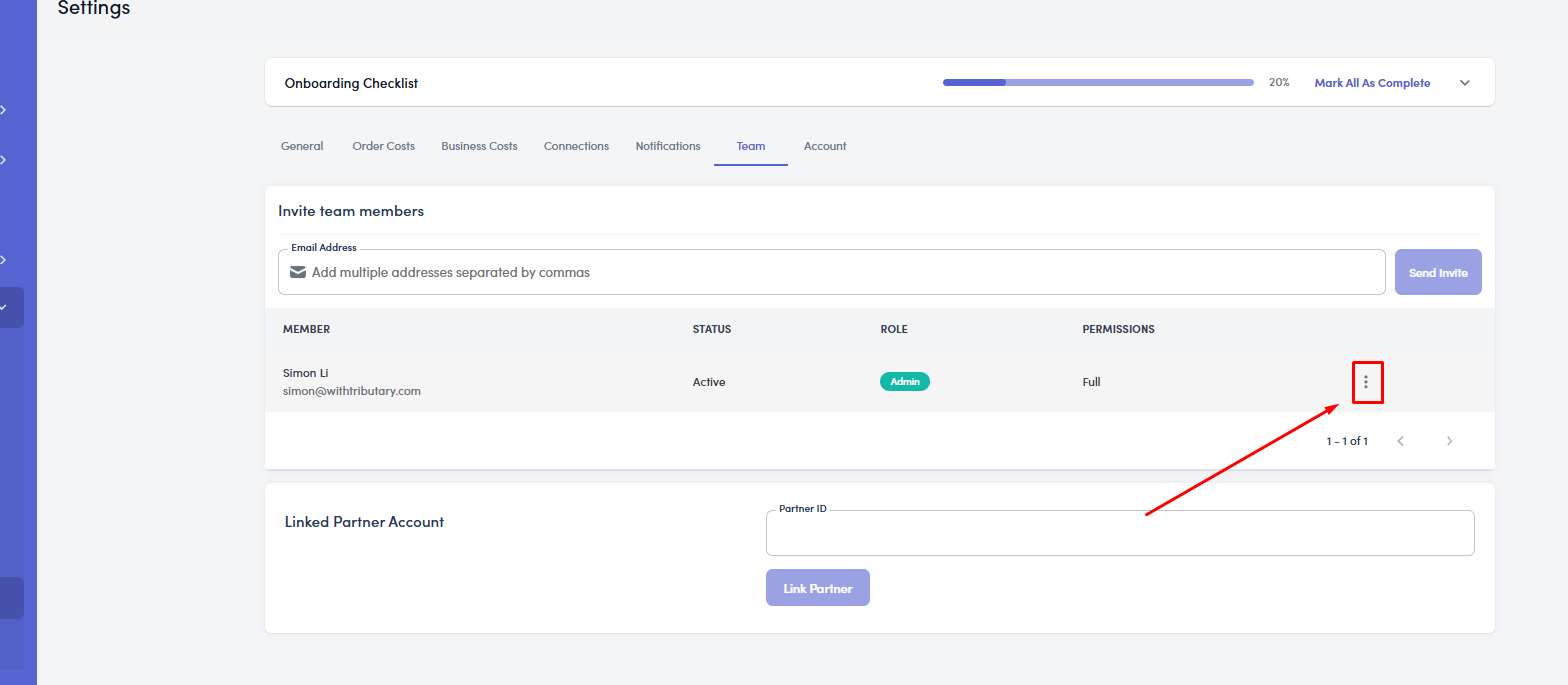
Go to Settings → Team in the left-hand menu.
Find the team member whose permissions you want to update.
Click on the three-dot menu (⋮) beside their name.
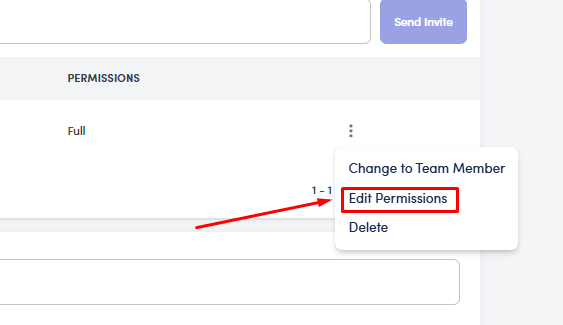
Select Edit Permissions.
Permission types
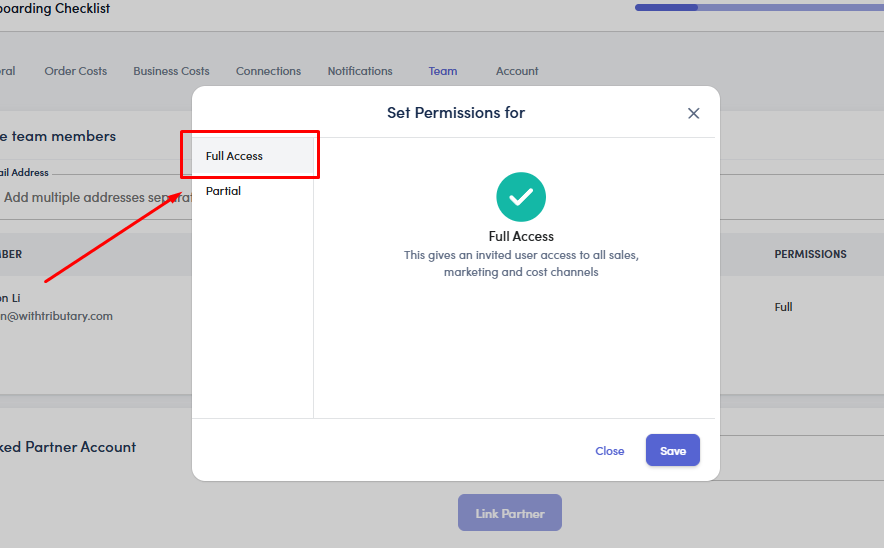
Full Access – gives the user access to all sales, marketing, and cost channels.
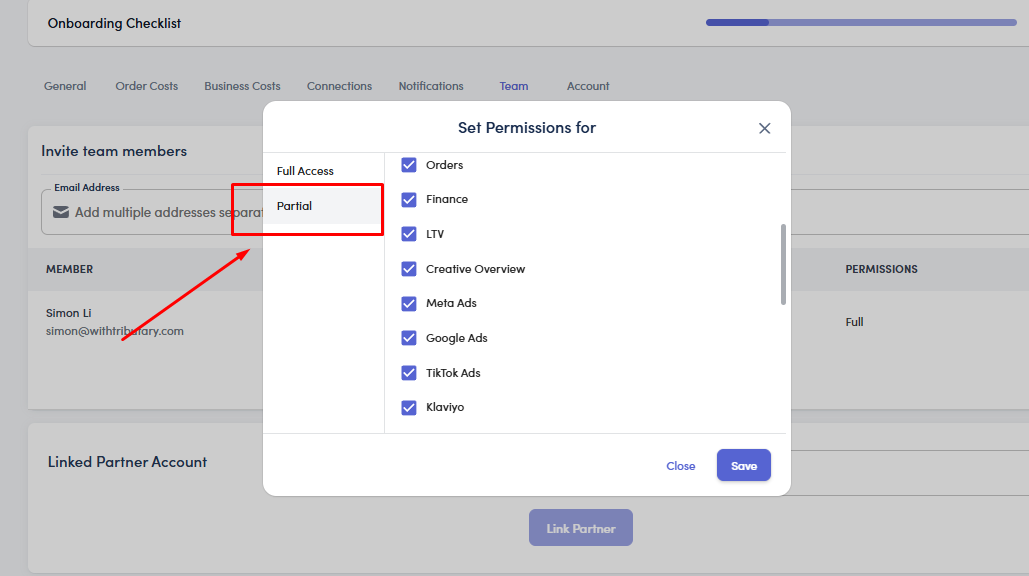
Partial Access – allows you to customize which sections the user can view or edit.
Configuring Partial Access
When selecting Partial, you can manually choose which features or dashboards the team member can access.
Here’s the complete list of available permissions:
Dashboard
Settings > Connections
Settings > Team
Ads Overview
Store Overview
Products
Orders
Finance
LTV
Creative Overview
Meta Ads
Google Ads
TikTok Ads
Klaviyo
Recharge
Google Analytics (GA4)
Google Analytics (UA)
SEO
Settings > Costs > Products
Settings > Costs > Staff Costs
Settings > Costs > Shipping
Settings > Costs > Fulfillment
Settings > Costs > Markets
Settings > Costs > Transaction Fees
Settings > Costs > Other Costs
Settings > Costs > Marketing Costs
Settings > Costs > Defaults
Once you’ve selected the desired permissions, click Save to apply the changes.
Notes
Users with Full Access automatically have permission to view all StoreHero data and settings.
Users with Partial Access can only view the selected sections. You can update permissions anytime through the same Edit Permissions option.