How to Disconnect Your Store from StoreHero
Last updated: November 7, 2025
If you’d like to stop StoreHero from syncing data or remove your store completely, follow the steps below to disconnect your integrations and unlink your store.
Step 1: Go to Connections
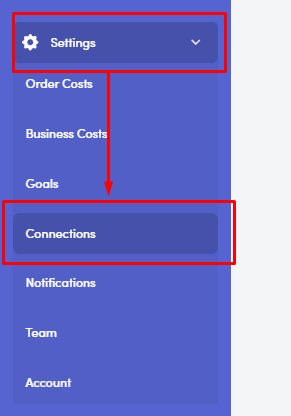
From your StoreHero dashboard, navigate to the left-hand menu.
Click Settings → Connections
Step 2: Disconnect Your Channels
In the Connections tab, you can disconnect your store’s linked sales and marketing channels.
Under Sales Channels or Marketing Channels, click the Disconnect button beside each integration you want to stop syncing (e.g., Shopify, Meta Ads, Google Ads, Klaviyo).
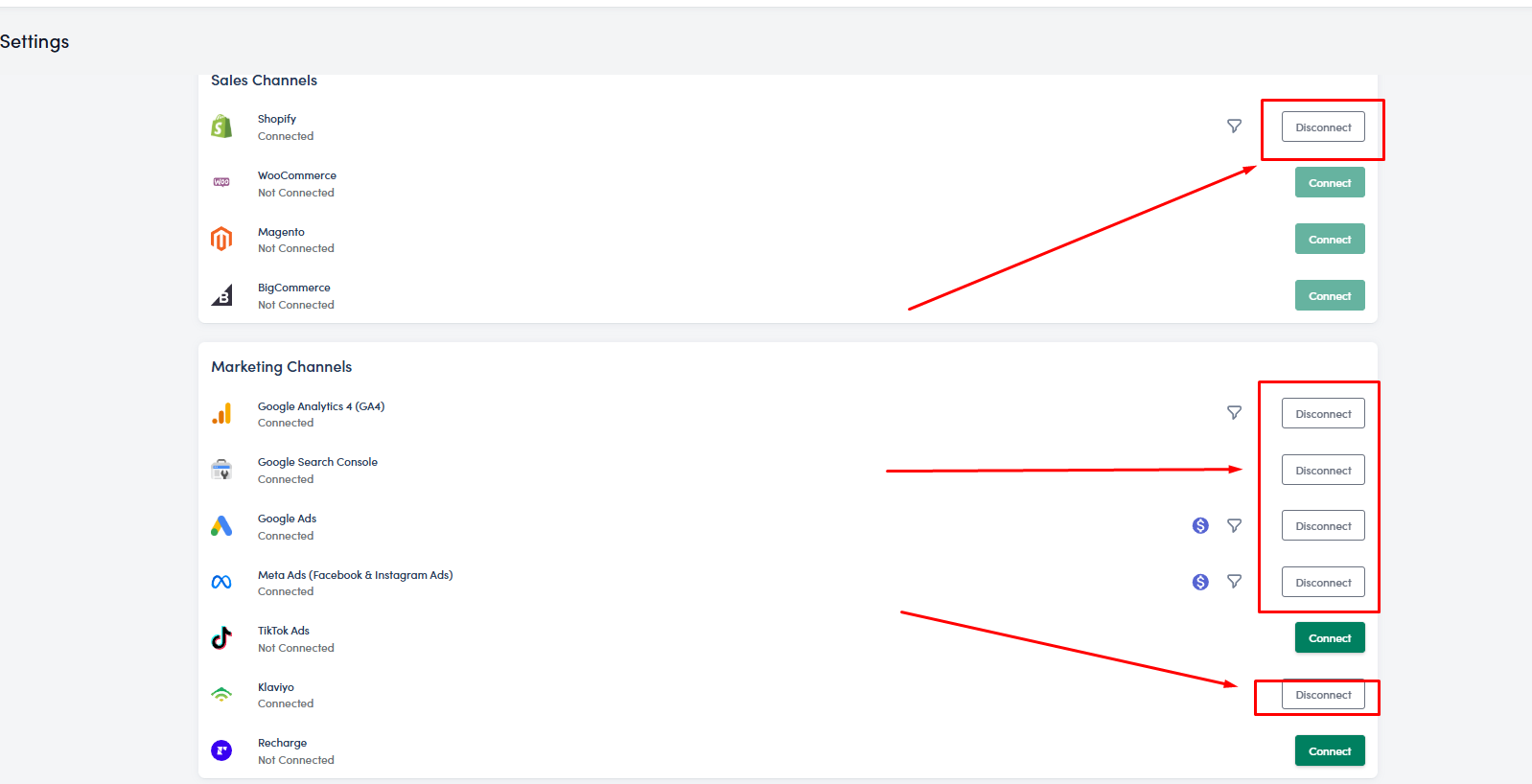
This will stop the flow of data between StoreHero and that platform.
Step 3: Go to the Team Section
Next, you’ll need to unlink your partner account to remove it entirely from your StoreHero store list.
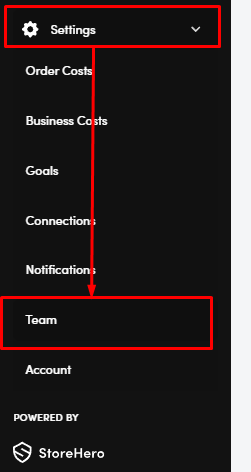
From the same Settings menu, click Team.
Step 4: Unlink Partner
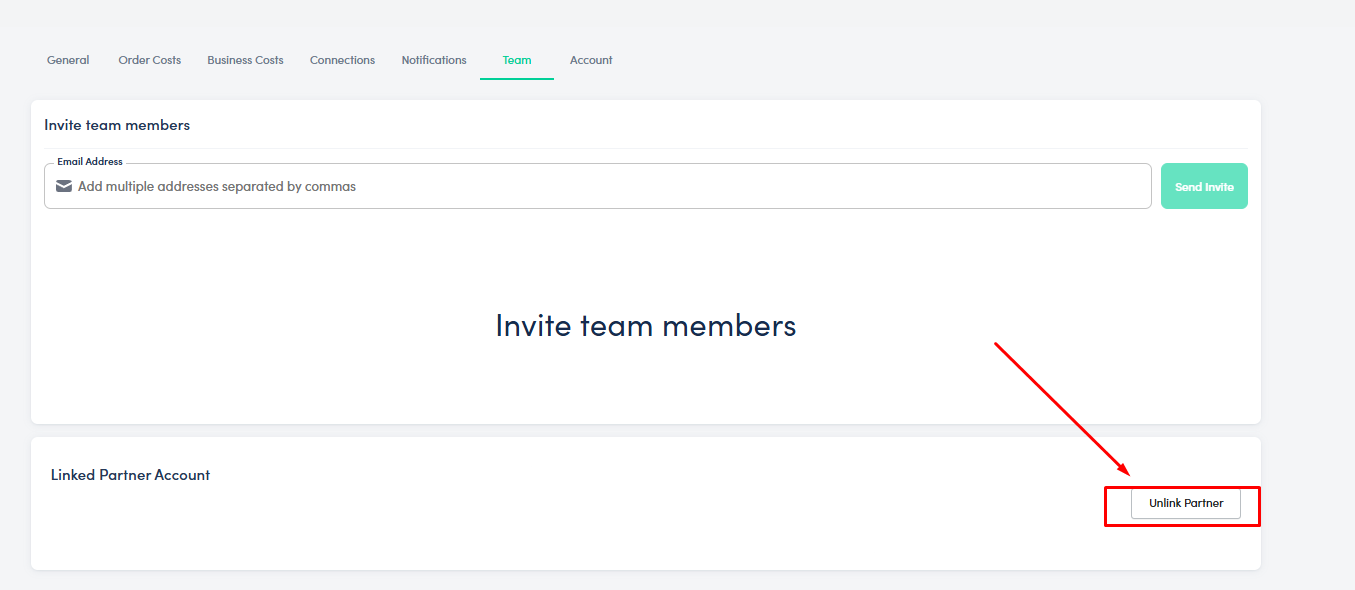
In the Team tab, scroll down to the Linked Partner Account section.
Click Unlink Partner.
Once unlinked, the store will no longer appear under your StoreHero account.
 That’s it!
You’ve successfully disconnected your store and stopped all data syncing to StoreHero.