Connecting Your Sales Channel
Last updated: January 29, 2026
Your sales channel is where you receive orders. Once connected, we'll automatically sync your sales data and key cost information including product costs (Shopify), discounts, tax, transaction fees, returns, and more—giving you accurate profitability metrics without manual data entry.
Supported Sales Channels
We currently integrate with the following platforms:
Shopify
WooCommerce
Magento
BigCommerce
Amazon
Connecting During Onboarding
When you first set up your account, you'll be guided through connecting your sales channel.
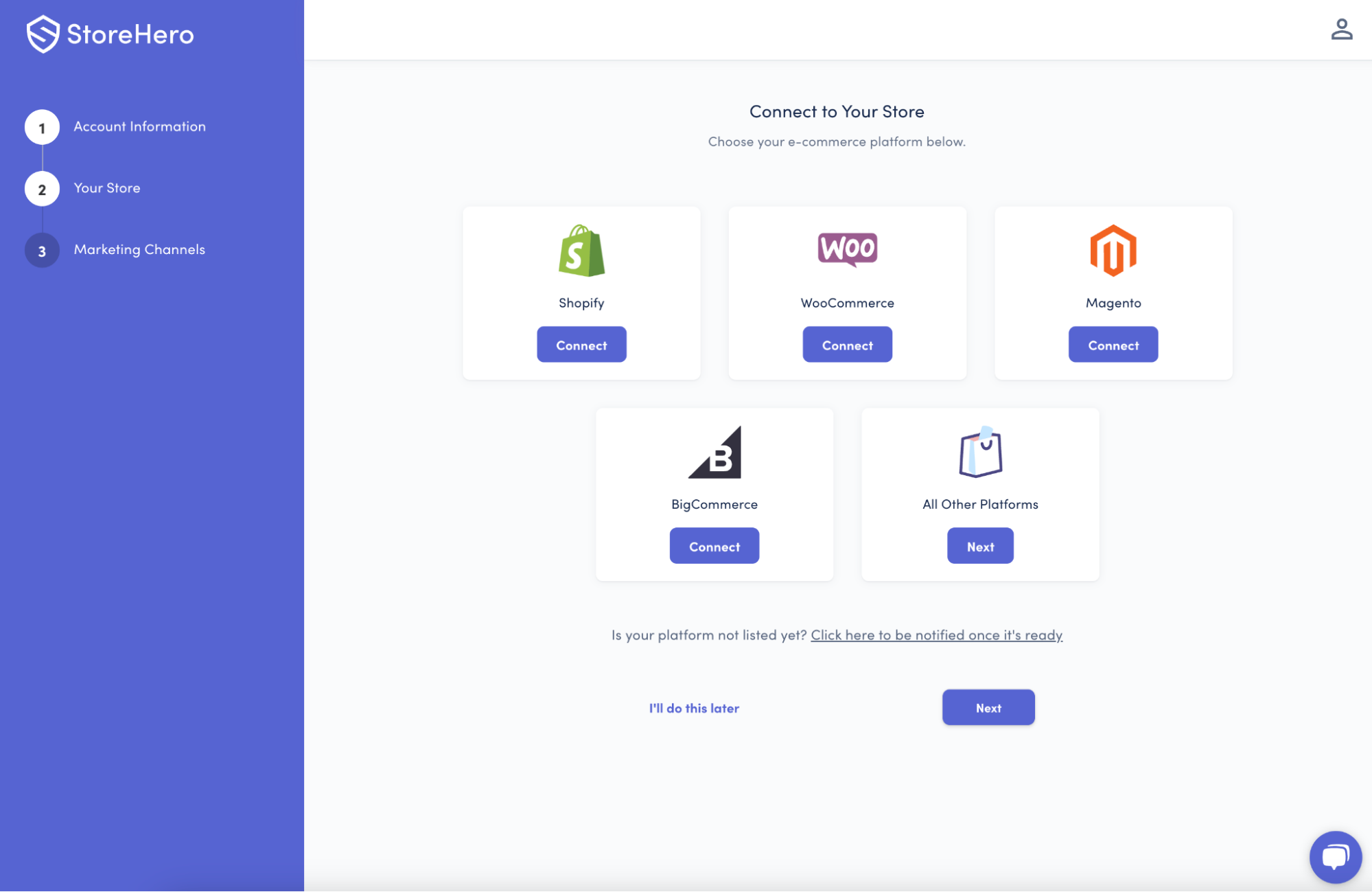
Connection Steps
Select your platform from the list of supported channels
Click Connect below your chosen channel
Enter your credentials in the pop-up window that appears
Wait for sync to complete
Recent data appears within 60 minutes
Full historical sync completes within 24 hours
Once connected, we'll immediately begin calculating your profitability metrics.
Connecting Through Settings
You can add or manage sales channel connections at any time through your Settings.
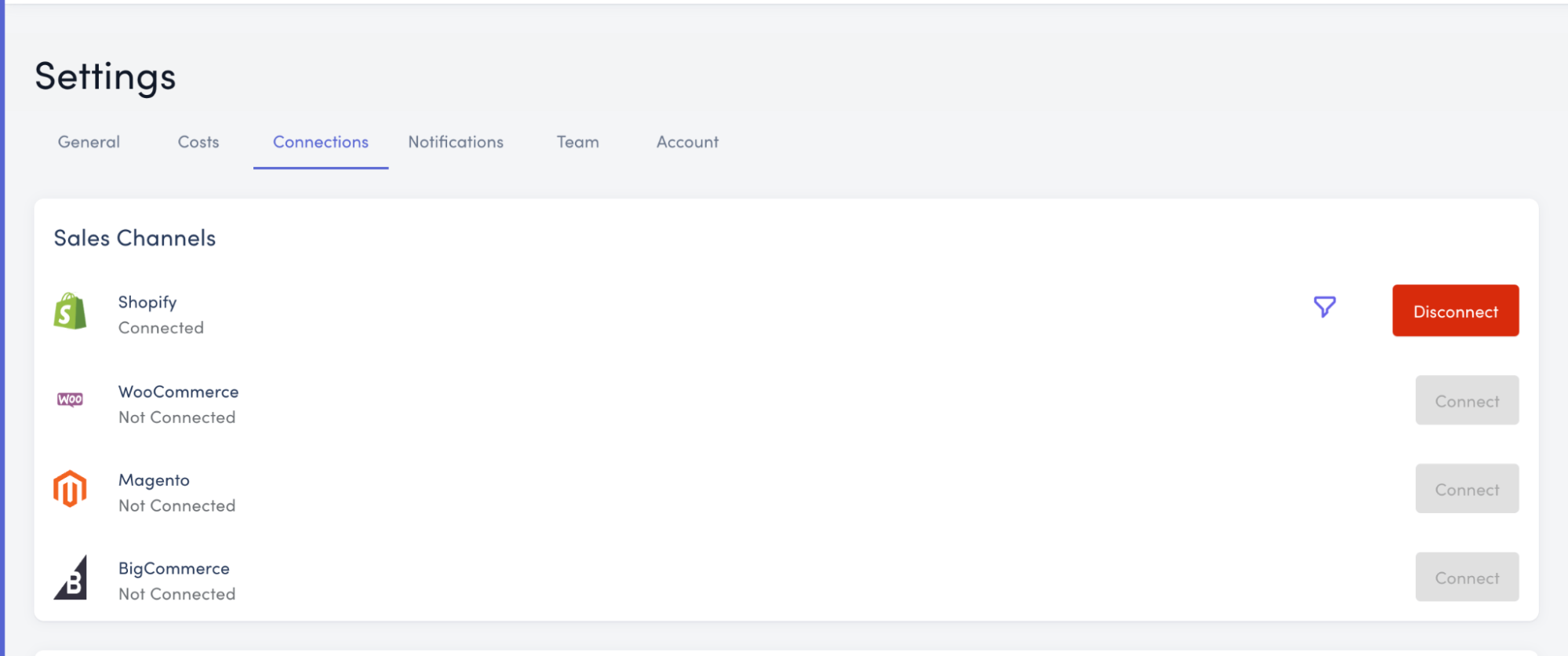
How to Access Connections
Navigate to Settings in the left-hand menu
Click Connections
You'll see all supported channels plus any currently connected channels
Adding a New Channel
Click the Connect button next to your desired channel
Enter your credentials in the dialog box that appears
Confirm the connection
Disconnecting a Channel
Click the Disconnect button next to the active connection
You can then reconnect the same channel or switch to a different platform
Filtering Your Sales Data
Want to exclude certain orders from your analytics? Filters let you refine which sales data gets imported and analyzed.
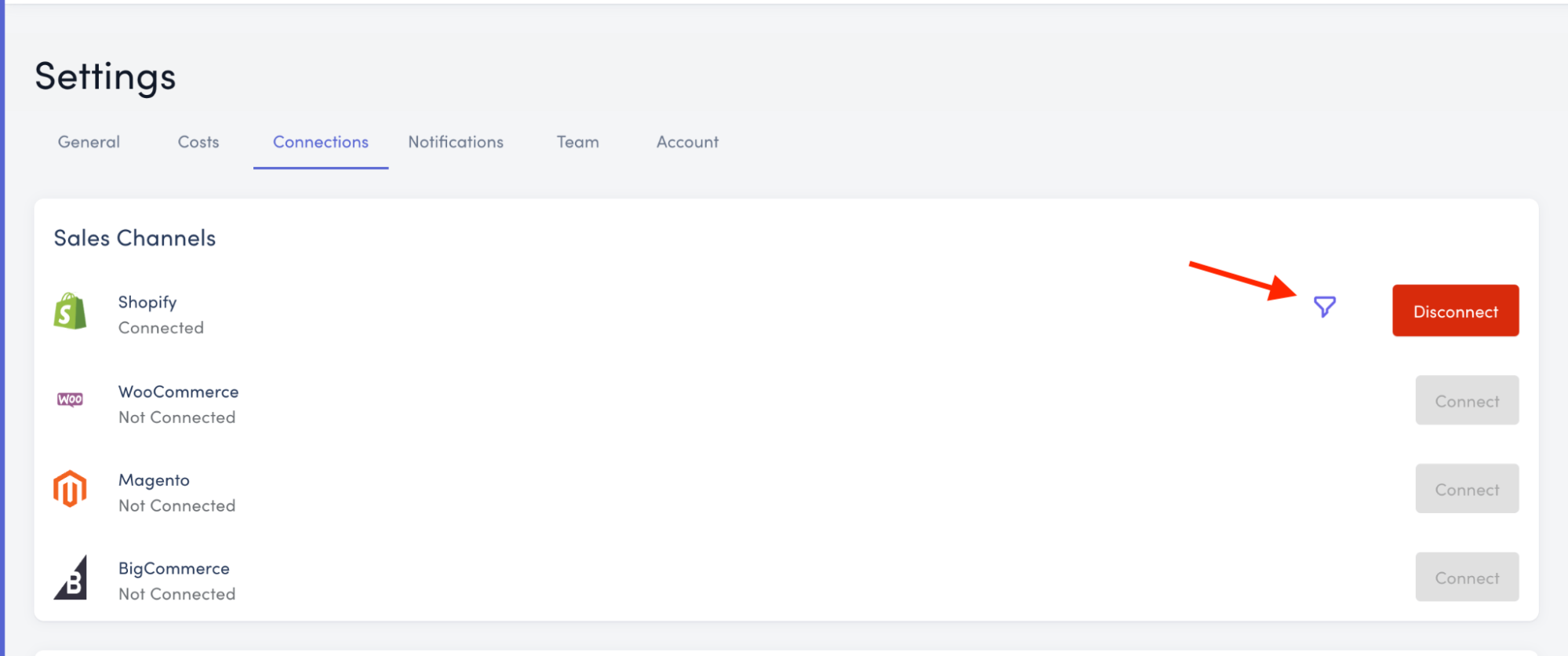
Common Use Cases
Exclude POS (point-of-sale) orders from your Shopify store
Filter out orders with specific tags (wholesale, b2b, etc)
Remove test orders or internal purchases
Separate wholesale from retail orders (Faire, Walmart, Etsy, etc)
Best Practice: Use "Contains" Instead of "Equals"
Some platforms like Shopify handle order sources in a case-sensitive manner, which can cause inconsistent filtering results.
Recommendation: Use the "contains" filter option rather than "equals" to ensure reliable filtering regardless of capitalization or formatting variations.
Example:
✅ Source contains "pos" (captures POS, pos, Pos)
❌ Source equals "POS" (might miss "pos" or "Pos")
Need Help?
If you encounter issues connecting your sales channel or have questions about filtering, our support team is ready to assist. Contact us at support@storehero.ai.