Connecting Your Marketing Channels
Last updated: November 4, 2025
We currently support:
Meta Ads (including both Facebook and Instagram)
Google Ads
TikTok Ads
Google Analytics 4
Klaviyo
Google Search Console
Recharge
Connecting During Onboarding
During the onboarding process, you will be presented with a list of supported marketing channels that you can connect to your store.
To connect a marketing channel:
Click on the Connect button below your selected channel.
A pop-up will appear allowing you to enter your login credentials for your chosen channel.
Once connected, your data should appear immediately for most channels but may require a couple of minutes to sync for both Klaviyo and Recharge.
Connecting Through Settings
You can also connect your designated marketing channels through the Settings section:
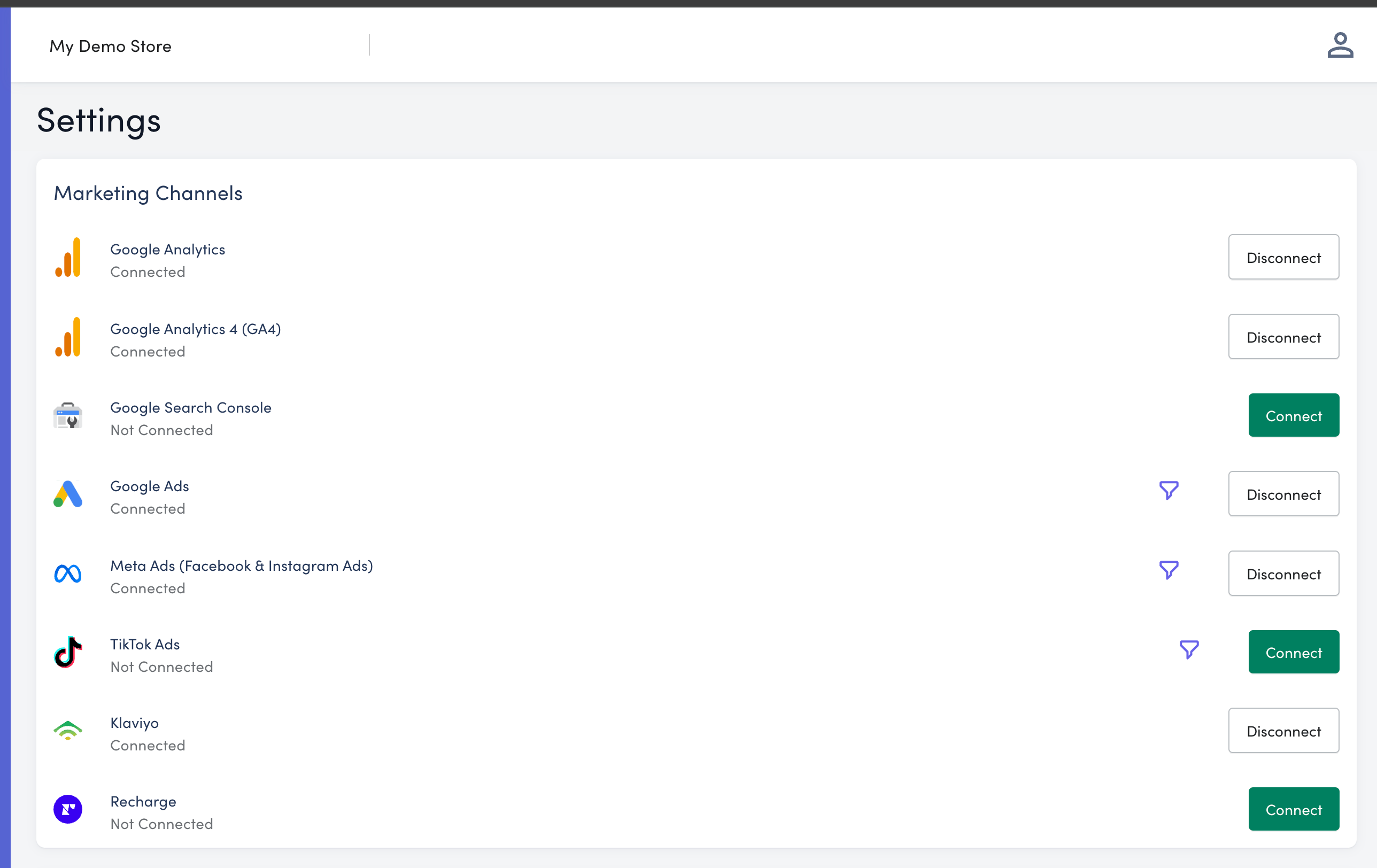
Navigate to the Settings option in the left-hand navigation.
Click on the Connections tab.
Here, you'll see a list of supported marketing channels as well as any channels you currently have connected.
To connect a new channel:
Click the Connect button, which will trigger a dialog box.
Enter your credentials for that particular channel to authenticate.
To disconnect a channel:
Click the Disconnect button.
From here, you can choose to reconnect the same channel or connect another.
Some channels will trigger an additional dialog box to select the underlying advertising account or property within the account, such as Meta Ads, Google Ads, or Google Analytics.
Using Filters
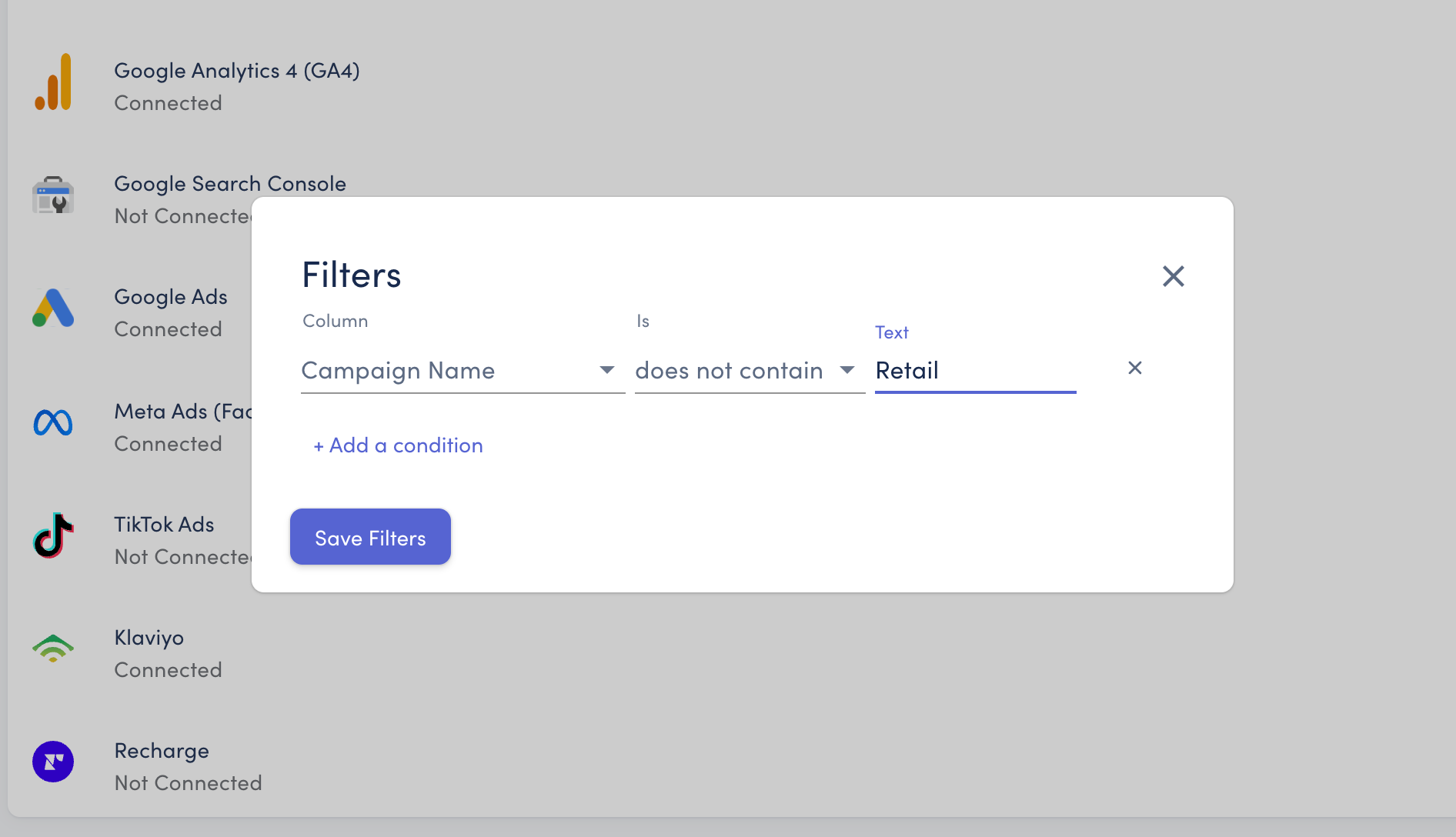
If you’d like to filter your marketing data, this is supported across several marketing channels. The most common use is to exclude Meta Ads campaigns for other sales channels. For example, if your Meta Ads account includes ads for your US store, and you're currently connecting your EU store to StoreHero.